Set up the SRE Agent MCP server
A working connection between your MCP client (VS Code, Copilot CLI, Cursor, or Claude) and your SRE Agent. After setup, you can list agents, run investigations, manage connectors, and search knowledge in natural language. Learn more → SRE Agent MCP Server.
Prerequisites
- An SRE Agent resource in Azure (provisioning state: Succeeded)
- Node.js LTS installed
- Azure CLI installed
- An MCP-compatible client: VS Code with GitHub Copilot, Copilot CLI, Cursor, Claude Code, or Claude Desktop
Step 1: Sign in to Azure
az login
If you have multiple subscriptions, set a default:
az account set --subscription <subscription-id>
If your SRE Agent is in a different tenant from your workstation, specify the tenant:
az login --tenant <agent-tenant-id>
This changes credential context for all subsequent CLI operations in the session. After finishing MCP work, run az login without --tenant to return to your default tenant.
Step 2: Assign permissions
You need Reader (control-plane) and SRE Agent Administrator (data-plane) roles on the SRE Agent resource. See Permissions for details on what each role enables.
Assign roles at the narrowest scope possible, preferably the individual agent resource. Subscription-scope Reader grants read access to all resources in the subscription, not just your agent.
# Find your object ID
az ad signed-in-user show --query id -o tsv
# Control-plane access (list and get agents, connectors)
az role assignment create \
  --assignee <your-upn-or-object-id> \
  --role "Reader" \
  --scope /subscriptions/<sub>/resourceGroups/<rg>/providers/Microsoft.App/agents/<agentName>

# Data-plane access (threads, memories, tasks, prompts, workflows)
az role assignment create \
  --assignee <your-upn-or-object-id> \
  --role "SRE Agent Administrator" \
  --scope /subscriptions/<sub>/resourceGroups/<rg>/providers/Microsoft.App/agents/<agentName>
Step 3: Register the Azure MCP Server with your client
- VS Code
- Copilot CLI
- Cursor
- Claude Code
- Claude Desktop
Install the Azure MCP Server extension from the VS Code marketplace. Sign in to your Azure account when prompted.
The extension registers the MCP server automatically. After installation, SRE Agent tools are available in the Copilot Chat sidebar.
From within Copilot CLI, run:
/mcp add
Follow the prompts:
- Name:
azure - Command:
npx - Args:
-y @azure/mcp@latest server start
Or add manually to ~/.copilot/mcp.json:
{
  "mcpServers": {
    "azure": {
      "type": "stdio",
      "command": "npx",
      "args": ["-y", "@azure/mcp@latest", "server", "start"]
    }
  }
}
Restart Copilot CLI after saving.
Add the Azure MCP Server to your Cursor MCP configuration. See Cursor MCP documentation for the configuration file location.
{
  "mcpServers": {
    "azure": {
      "type": "stdio",
      "command": "npx",
      "args": ["-y", "@azure/mcp@latest", "server", "start"]
    }
  }
}
Add to your project's .mcp.json or user MCP configuration:
{
  "mcpServers": {
    "azure": {
      "type": "stdio",
      "command": "npx",
      "args": ["-y", "@azure/mcp@latest", "server", "start"]
    }
  }
}
Install the Azure MCP Server MCPB bundle, or add a local server command to your Claude Desktop MCP settings:
{
  "mcpServers": {
    "azure": {
      "type": "stdio",
      "command": "npx",
      "args": ["-y", "@azure/mcp@latest", "server", "start"]
    }
  }
}
Step 4: Verify the connection
Ask your client:
"List my SRE agents in subscription
<subscription-id>"
You should see your agents listed with their names, resource groups, locations, and status:
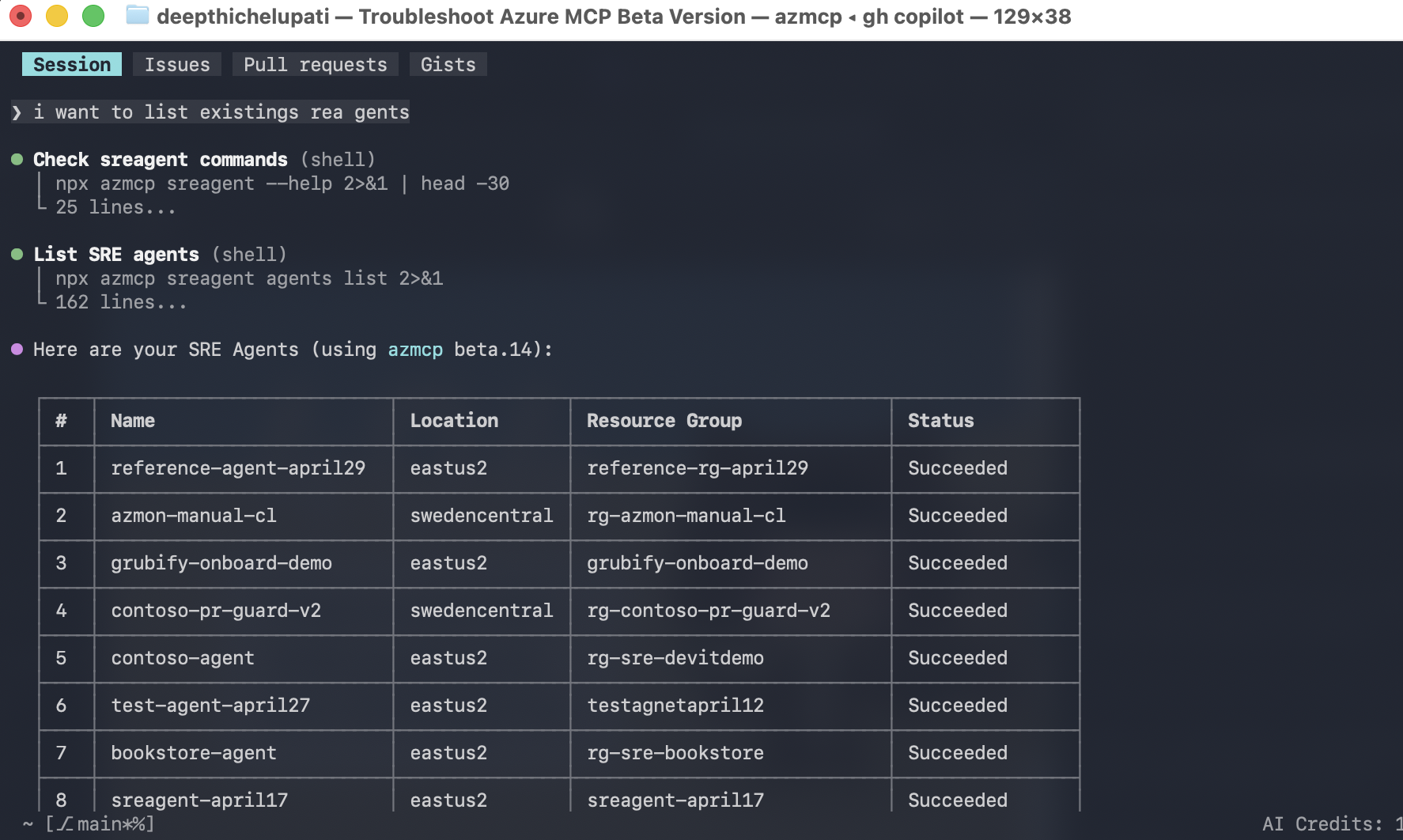
If sreagent_* tools appear and return results, the connection is working.
Step 5: Start an investigation
"Create a thread on agent
<agent-name>and investigate why the production API has elevated latency"
Your agent creates a thread, investigates the issue, and returns findings inline.
Step 6: Explore operations
Try these prompts:
"Search memories on agent <agent-name> for 'deployment failures'"
"List scheduled tasks on agent <agent-name>"
"Create a Kusto connector named prod-logs pointing at cluster https://help.kusto.windows.net, database Samples"
"List active incidents on agent <agent-name>"
"Pause the nightly health check on agent <agent-name>"
Keeping the MCP server up to date
The @latest tag pulls the newest version on each launch, but npx caches aggressively. To force an update:
rm -rf ~/.npm/_npx
For version stability, pin an exact version:
"args": ["-y", "@azure/mcp@1.2.3", "server", "start"]
Troubleshooting
| Symptom | Cause | Fix |
|---|---|---|
sreagent_* tools not showing up | Stale npx cache | Run rm -rf ~/.npm/_npx, restart client |
| "SRE Agent resource not found" | Wrong tenant or subscription | Run az login --tenant <id>, set correct subscription |
| 401/403 on data-plane calls | Missing SRE Agent Administrator role | Assign the role at the agent scope |
| 403 on ARM calls | Missing Reader role | Assign Reader at subscription, RG, or agent scope |
| "No agent endpoint" | Agent not fully provisioned | Check provisioningState in the Azure portal |
| Wrong tenant errors | Credentials from a different tenant | Run az login --tenant <id>, restart client |
Next steps
- SRE Agent MCP Server — learn about the full capability set
- MCP connectors — extend your agent with external MCP servers
- Threads — learn about investigation threads
- Scheduled tasks — automate recurring operations