MCP Connectors & Tools
- Connect any MCP-compatible service — Datadog, Splunk, GitHub, New Relic, and more — in minutes
- Select which connector tools your agent can call directly — no custom agent needed for simple tool use
- Your agent auto-discovers tools from connected servers and monitors connection health
- Tool capacity bar shows your budget (80 tools per agent) with color-coded warnings
- Two transport types: Streamable-HTTP for remote services, stdio for local processes
- Preview: Remote connectors now support managed identity authentication — no secret management needed
- Preview: Aggregated tools auto-list available actions in their descriptions, helping your agent choose the right operation without extra introspection calls
The problem: your agent can't see half your stack
Your agent has deep built-in access to Azure services — Application Insights, Log Analytics, Azure Monitor, Resource Graph. But your operational toolchain doesn't stop at Azure. Metrics live in Datadog. Security logs live in Splunk. Source code lives in GitHub.
During an incident, that gap forces you to manually bridge systems — querying Datadog in one tab, correlating with Azure Monitor in another, copy-pasting findings between tools. Your agent is powerful, but it only sees the Azure side.
How MCP connectors work
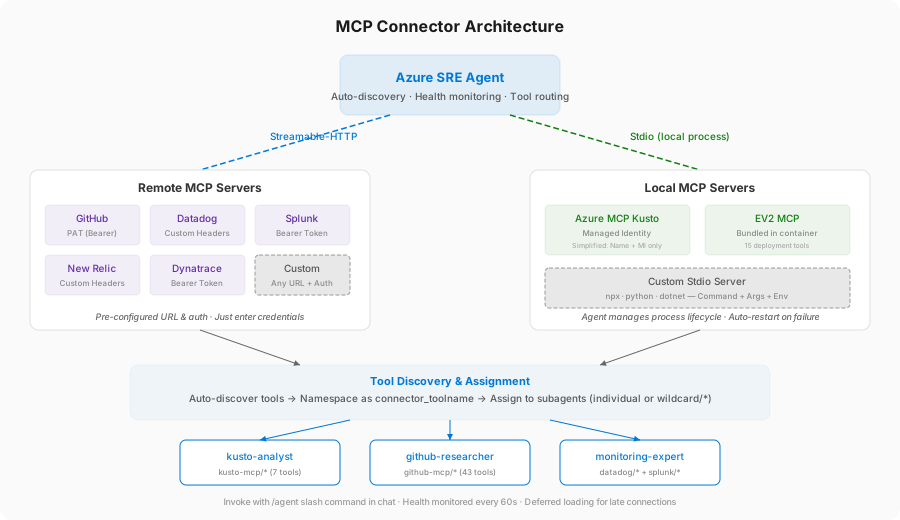
The Model Context Protocol (MCP) is an open standard for connecting AI agents to external tools. An MCP server wraps any service — a database, an API, a monitoring platform — and exposes its capabilities as tools your agent can discover and invoke.
When you connect an MCP server to your agent:
- Auto-discovery — Your agent calls the server's tool listing and immediately knows what tools are available
- Namespaced registration — Each tool is registered with a prefixed name (e.g.,
my-datadog_list_metrics) so tools from different servers never conflict - Health monitoring — Your agent pings each server every 60 seconds, auto-recovers from transient failures, and shows real-time connection status
- Dynamic updates — When a server adds new tools, your agent detects them automatically within 5 minutes
Aggregated tool descriptions
When the agent combines multiple upstream tools into a single aggregated tool, it auto-generates a description that lists every available action by name. Your agent sees this description immediately, making it easier to select the correct action without a separate introspection call.
For example, an aggregated Azure DevOps tool description includes:
Azure DevOps tool for managing projects, repos, and pipelines. Available actions: list_repositories, create_pull_request, get_pipelines, search_code. Set describe=true with an action to get that action's schema; supply the action's parameters via the parameters object when executing.
For deeper introspection, your agent can request metadata about specific actions:
| Call | Result |
|---|---|
describe=true (without action) | Returns metadata and parameter schemas for all actions |
describe=true + action=create_pull_request | Returns metadata for that single action only |
If your agent sends an invalid action name, the broker returns a clear error listing all available actions — no guessing required.
Two transport types
MCP supports two ways to connect your agent to external tools:
| Transport | How it works | Best for | Example |
|---|---|---|---|
Streamable-HTTP (also accepts http) | Your agent connects to a remote URL endpoint | Cloud-hosted services, SaaS platforms | Datadog, GitHub, New Relic |
| Stdio | Your agent runs a local process that communicates via stdin/stdout | Custom servers, npm packages, sidecar processes | npx-based servers, Python MCP servers |
Streamable-HTTP (remote services)
Connect to any MCP server accessible via URL. Provide the endpoint and authentication credentials — a Bearer token, custom headers, or managed identity.
Stdio (local processes)
Run an MCP server as a process inside your agent's cloud environment. Provide the command, arguments, and optional environment variables. Your agent manages the process lifecycle — starting it on connection, monitoring health, and restarting on failure.
Stdio MCP servers run inside the agent's container. Available runtimes:
| Command | Runtime |
|---|---|
npx, node | Node.js 20 |
python, python3 | Python 3.12 |
dotnet | .NET 9 |
Docker containers are not supported as stdio commands. Only pre-installed runtimes are available.
Pre-configured partner connectors
Your agent includes pre-configured connectors for popular platforms. These have pre-filled URLs, default auth settings, and branded icons — select the card, enter your credentials, and connect.
| Partner | Transport | What you provide | What your agent gets |
|---|---|---|---|
| GitHub | Streamable-HTTP | Personal Access Token | Repository search, PR listing, issue tracking, code search |
| Datadog | Streamable-HTTP | API Key + Application Key | Metrics queries, APM traces, alert management |
| New Relic | Streamable-HTTP | API Key | Performance monitoring, analytics |
| Splunk | Streamable-HTTP | Bearer token | Log search, event queries |
| Dynatrace | Streamable-HTTP | Bearer token | Application performance monitoring |
| Elasticsearch | Streamable-HTTP | Authorization header | Search, analytics, log management |
| Hawkeye (NeuBird) | Streamable-HTTP | Bearer token | AI-powered observability |
For partner connectors, the authentication method is pre-configured and locked — you just enter the credential values.
Browse Azure MCP Center for verified MCP servers for Azure services.
How tools reach your agents
MCP tools can reach your agent in two ways:
- Agent tools — Select tools during connector setup or editing. These tools are available directly in the main conversation — no custom agent needed.
- Custom agent tools — Assign tools to specific custom agents for focused specialists with domain expertise.
Agent tools
When you create or edit an MCP connector, a tool selection step lets you choose which tools are visible to your agent. Selected tools are injected into your agent's tool list and kept in sync — when you add, remove, or update connectors, your agent's tools refresh automatically.
During connector creation: After your connector connects successfully, a Select tools step appears. All discovered tools are pre-selected up to remaining capacity. Click Done to save or Skip to add tools later.
For existing connectors: Edit any MCP connector to find the MCP Tools section at the bottom of the dialog. Check or uncheck tools to control which ones your agent can call.
With your agent tool visibility, you can connect an MCP server, select tools, and start asking questions — all in three steps.
Custom agent tools
For focused specialists, assign MCP tools to specific custom agents via the portal or YAML.
Portal: In Builder > Agent Canvas, edit an agent → Advanced settings > Tools → Choose tools.
YAML tool assignment:
mcp_tools:
  - datadog-mcp/*          # All tools from this connection
  - github/search_code     # One specific tool (connector/tool format)
The {connection-id}/* pattern adds every tool from that server, including tools added later. For individual tools, use the {connector}/{tool} format. The legacy {connector}_{tool} format is also accepted.
Three formats are accepted: connector/* (wildcard), connector/tool (recommended), and connector_tool (legacy). Both individual formats resolve to the same tool.
| Approach | When to use |
|---|---|
| Individual tools | Precise control over tool access |
Wildcard (connection-id/*) | All tools from a server, including future ones |
| Mixed | All from one server, specific picks from another |
The same tool can be visible to both your agent and a custom agent. There is no conflict — the tool is available in both contexts.
If an MCP server hasn't finished connecting when your agent starts, custom agents that reference its tools are deferred — they register automatically once the MCP connection establishes. This applies to all MCP tool references (individual tools and wildcard patterns). No restart or manual intervention needed.
Resilient MCP tool loading is in preview. Functionality may change before general availability.
For a full walkthrough, see Set Up MCP Tools →.
Tool selection and capacity
Each agent — whether your agent or a custom agent — can use up to 80 tools (native and MCP combined). The tool selection UI helps you manage this budget across connectors.
Capacity indicator
The tool picker shows a progress bar with your current tool count:
| Tool count | Bar color | Meaning |
|---|---|---|
| 0–56 (≤ 70%) | Blue | Plenty of room |
| 57–72 (71–90%) | Yellow | Approaching the limit |
| 73–80 (> 90%) | Red | Near or at capacity |
A hint below the bar reads: "Maximum of 80 tools allowed to avoid degrading agent performance."
Behavior at capacity
When your selected tools reach the 80-tool limit:
- Unchecked tools become disabled — you cannot add more until you remove some
- Already-checked tools remain enabled — you can always deselect them to free capacity
- Select all caps at remaining capacity — if you have room for 10 more tools and click Select all, only 10 are selected
The tool count spans all connectors. If Connector A has 60 tools visible to your agent, Connector B can add up to 20 more.
Connection health monitoring
Your agent continuously monitors every MCP connection:
| Status | What it means | Action needed |
|---|---|---|
| Connected | Server healthy, tools ready | None |
| Disconnected | Temporary loss — auto-recovery in progress | Usually none — wait for next heartbeat |
| Failed | Unrecoverable error | Check URL, credentials, network |
| Initializing | Connection being established | Wait |
| Error | No running agent instance | Start the agent |
Your agent pings each server every 60 seconds. Transient failures recover automatically on the next successful heartbeat. Before invoking any MCP tool, your agent validates the connection and attempts reconnection if needed.
If an MCP server goes offline, the connector stays visible with its error status. Click See details to view the error message, tool count, and last heartbeat timestamp. When the server comes back, your agent reconnects automatically — and any custom agents that were waiting for this server's tools become available without a restart.
Authentication
Each MCP server has its own authentication requirements. The portal supports:
| Auth method | When to use | How it works |
|---|---|---|
| Bearer token | Most SaaS APIs (GitHub, Splunk, Dynatrace) | Sends token in the Authorization header |
| Custom headers | APIs requiring specific headers (Datadog) | Sends arbitrary key-value headers with each request |
| Managed identity | Azure services (both remote and stdio connectors) | Uses your agent's managed identity for Azure AD tokens |
For partner connectors, the auth method is pre-configured — you just enter the credentials.
Managed identity for remote (Streamable-HTTP) connectors
Managed identity authentication for remote MCP connectors is in preview. Functionality and configuration may change before general availability.
Remote MCP connectors now support Azure Managed Identity authentication alongside Bearer token and Custom headers. When you select Managed Identity as the authentication method:
- Choose a managed identity — system-assigned or user-assigned — from the dropdown
- Specify the ARM token scope (default:
https://management.azure.com/.default)
Your agent acquires an Azure AD token using the selected identity and sends it with every request to the MCP server. This eliminates the need to manage API keys or rotate secrets for Azure-native MCP endpoints.
Connectors created before this feature used a legacy Azure ARM configuration. When you edit a legacy connector, the portal shows Azure ARM (legacy) as the authentication method with its original settings preserved. To switch to the new managed identity flow, select Managed Identity and configure the identity and scope.
Tool approval policies
By default, all MCP tools run automatically when the agent invokes them. To require explicit user approval before specific tools execute, configure a requireApprovalTools list on the connector's ARM resource.
["*"]— require approval for every tool on this connector["create_pull_request", "delete_file"]— require approval only for named tools[]— revert to automatic execution (default)
When a gated tool is invoked, the user sees an approval card in the chat thread. Clicking Approve lets the tool run; clicking Cancel stops it. Tools not in the list continue to run automatically.
Approval policies are set per connector via az rest --method PATCH on the connector's ARM resource. For step-by-step instructions, see Set up an MCP connector → Configure tool approval policies.
What makes this different
Unlike custom integrations, MCP connectors use an open standard. You don't write adapter code — any MCP-compatible server works out of the box. The protocol handles discovery, invocation, and error handling.
Unlike static tool configurations, your agent discovers tools dynamically. When an MCP server adds a new tool, your agent picks it up automatically. Wildcard patterns (datadog-mcp/*) ensure new tools are available without reconfiguration.
Unlike opaque tool calls, aggregated MCP tools are self-describing. Your agent sees the list of available actions directly in the tool description and can introspect individual action schemas on demand — no trial-and-error invocations.
Unlike scripts and runbooks, MCP connections are self-healing. Your agent monitors every connection with a 60-second heartbeat, auto-recovers from transient failures, and defers custom agent loading until connections establish.
Before and after
| Before MCP | After MCP | |
|---|---|---|
| Tools during investigation | 4+ browser tabs open | Single conversation |
| Using connector tools | Create custom agent → assign tools → invoke via /agent | Select tools on connector → ask your agent directly |
| Data correlation | Manual copy-paste between systems | Agent correlates across all connected systems |
| Time to gather context | 15–30 minutes | 2–5 minutes |
| Adding new tools | Wait for built-in integration or write custom scripts | Connect any MCP server in minutes |
| Tool capacity management | Hit 80-tool limit with cryptic server error | Capacity bar with color-coded warnings |
| Failure handling | Scripts break when APIs change | Health monitoring with auto-recovery |
Get started
| Resource | What you'll learn |
|---|---|
| Set up an MCP connector → | Step-by-step tutorial for connecting remote and local MCP servers |
| Install a plugin from the marketplace → | Import skills and MCP server configs from community plugin marketplaces |
Related capabilities
| Capability | What it adds |
|---|---|
| Plugin Marketplace → | Browse and install community plugins that include MCP server configurations |
| External observability → | Use MCP connectors to query Datadog, Splunk, and other platforms during investigations |
| Agent Playground → | Test custom agents with MCP tools before production use |
| Scheduled tasks → | Combine MCP tools with scheduled automation |
| Workflow automation → | Build automated workflows using MCP tools |
| Connectors → | How all connectors work in SRE Agent |
| Tools → | The full tool taxonomy |
| Custom agents → | Create specialists with focused tool sets |