File Attachments in Chat
- Drag and drop files, use the file picker, or paste clipboard screenshots directly into chat
- The agent applies the right analysis automatically: multimodal vision for images, workspace tools for text and code, Python for binary documents
- Supports images, text, data files, and documents — 31 file types total
- Up to 5 files per message, 10 MB each, 50 MB total per message
The problem
During incident triage, SREs need to share visual context with the agent — a Grafana dashboard showing a latency spike, an error screenshot from the Azure portal, or a log file with the relevant stack trace. With text-only chat, users must describe what they see or copy-paste raw text, losing the visual context that often holds the diagnostic insight.
Configuration review has the same friction. When asking the agent to review a Kubernetes manifest or Bicep template, users copy-paste the file contents into chat, losing syntax context and file metadata. Log files get truncated. Binary documents like incident postmortem PDFs cannot be shared at all.
How it works
Three ways to attach files:
1. File picker. Click the + (plus) button next to the message input and select Attach file. A system file dialog opens where you can select one or more files.
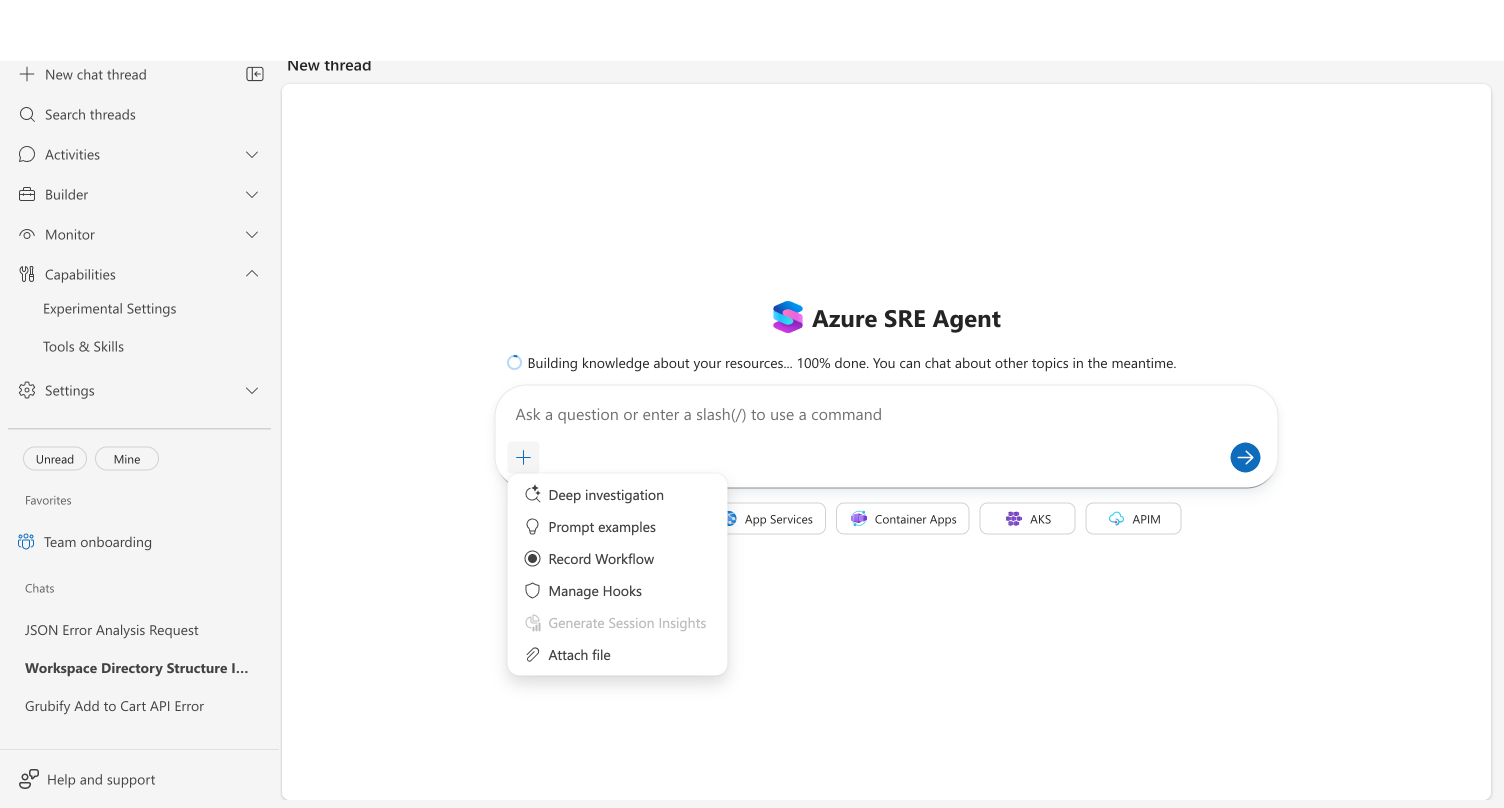
2. Drag and drop. Drag files from your desktop or file manager onto the chat area. A semi-transparent overlay with an upload arrow appears to confirm the drop target.
3. Clipboard paste. Copy a screenshot to your clipboard (Cmd+Shift+4 on macOS, Win+Shift+S on Windows), then paste (Cmd+V / Ctrl+V) in the chat input. The pasted image attaches automatically. Regular text paste works normally and is not intercepted.
What happens after attaching:
Attached files appear as pills below the message input, showing the file name, size, and a thumbnail preview for images. Remove individual files before sending by clicking the X button on each pill.
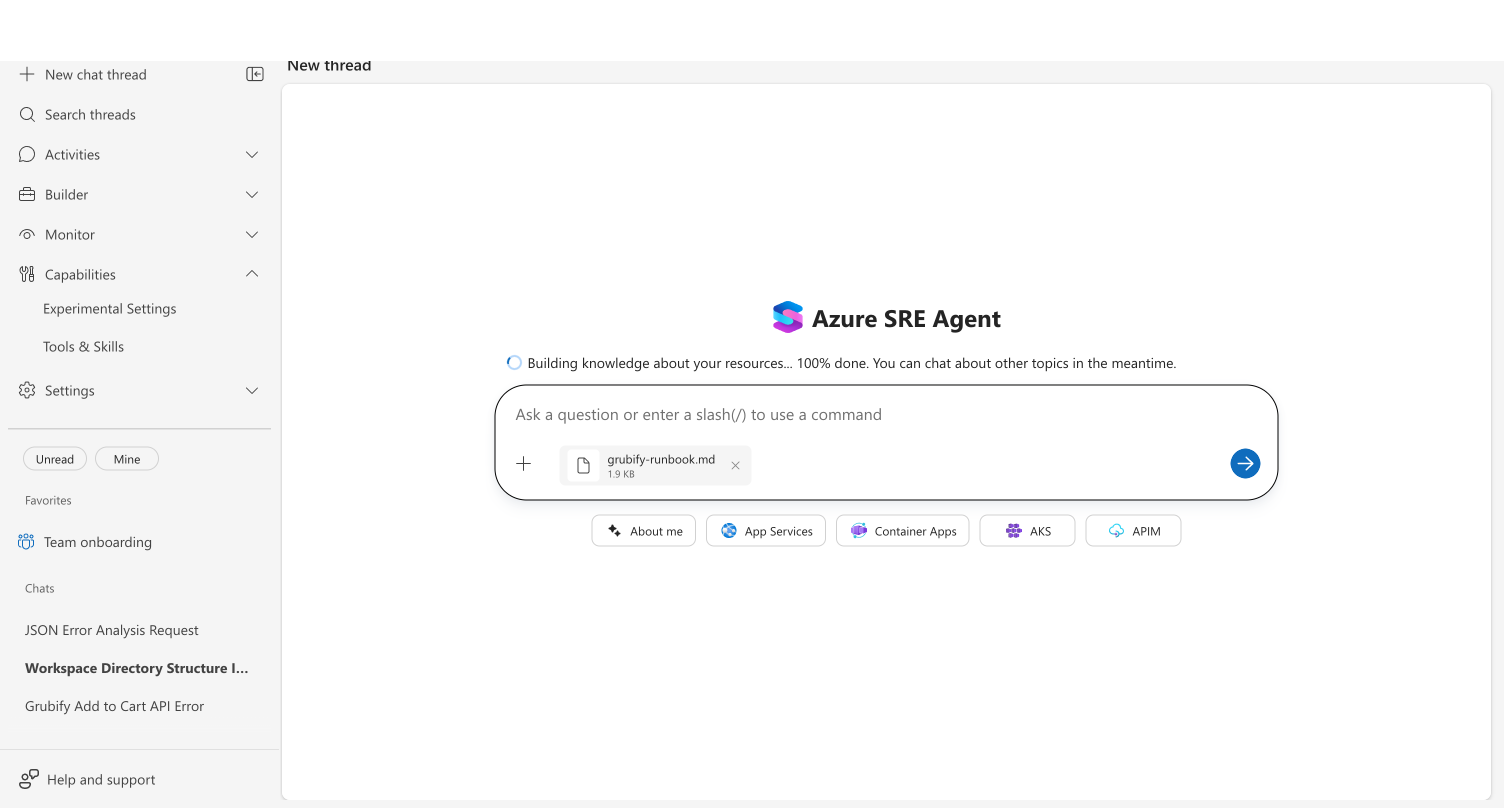
How the agent processes different file types:
| File type | How the agent processes it | Example use case |
|---|---|---|
| Images (.png, .jpg, .jpeg, .gif, .webp, .svg) | Sent directly to the LLM for multimodal vision analysis | Screenshot of an error dashboard, architecture diagram |
| Text and code (.txt, .md, .json, .csv, .log, .yaml, .yml, .xml) | Saved to the agent workspace and read with file tools | Log file analysis, config file review, query results |
| Binary documents (.pdf, .docx, .pptx) | Saved to workspace and parsed using Python tools | Incident postmortem PDF, runbook document |
Sent messages display file cards with the file name, size, and a download link so you can retrieve uploaded files later in the thread.
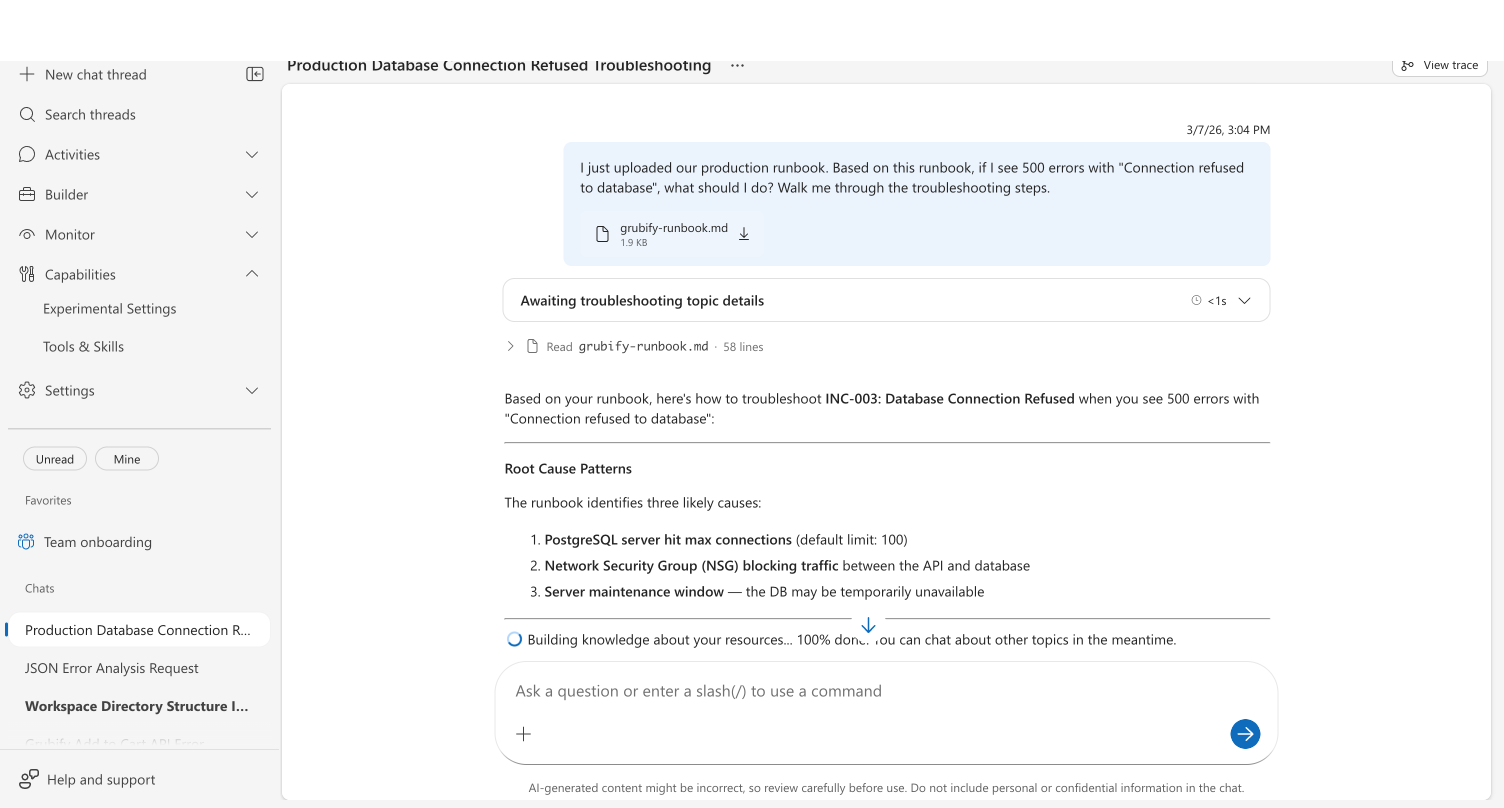
What makes this different
Automatic file type detection. Drop any supported file and the agent determines the right processing approach — vision for images, file tools for text, Python for binary documents. No manual selection needed.
Native clipboard integration. During incident response, speed matters. Screenshot a dashboard, paste into chat, ask "what do you see?" — the entire round trip takes seconds.
Workspace persistence. Uploaded files are saved to the agent workspace for the duration of the thread. The agent can reference them across multiple messages, run tools against them, and you can download them from the chat history. To save a file permanently to Knowledge settings — where it’s indexed and searchable across all threads — ask your agent: "Save this to knowledge settings as [filename].md"
Before and after
| Before | After | |
|---|---|---|
| Sharing a screenshot | Describe the chart verbally or paste a URL | Drop the screenshot into chat — agent analyzes it visually |
| Reviewing a log file | Copy-paste text, lose formatting | Upload the .log file — agent parses it with tools |
| Config file review | Copy-paste YAML/JSON into chat | Upload the file — agent reads it with full context |
| Runbook reference | Recall steps from memory during incidents | Upload runbook — agent follows and applies it to the situation |
| Binary documents | Cannot share PDFs or Office docs | Upload directly — agent uses Python to extract content |
Get started
File attachments are available on all agents. New agents created through the setup wizard have this enabled by default.
→ Share files and screenshots in chat
Related capabilities
| Capability | What it adds |
|---|---|
| Workspace tools → | File attachments build on workspace tools for reading text and code files |
| Python code execution → | Agent uses Python to parse binary documents like PDFs and Office files |