Incident Response Plans
- Right custom agent handles each incident type automatically — no human routing at 3 AM
- Filter by severity, service, title, and type to match precisely the incidents you care about
- Turn any plan on or off with one click — pause routing during maintenance without deleting
- See all plans, statuses, and custom agent mappings in a unified grid
The problem: one playbook for every fire
Not every incident is the same. A P1 database corruption requires deep log analysis and immediate action. A P3 performance degradation needs a quick metrics check. A deployment rollback needs source code context and deployment history.
Yet most automation treats all incidents identically — same investigation steps, same tools, same urgency. Your on-call engineer ends up being the router, deciding which runbook to follow, which dashboards to check, and how urgently to respond. At 3 AM, that decision-making overhead directly increases your MTTR.
How response plans work
Response plans connect incident filters to custom agents. When an incident arrives, your agent evaluates it against active response plans and routes it to the right custom agent automatically.
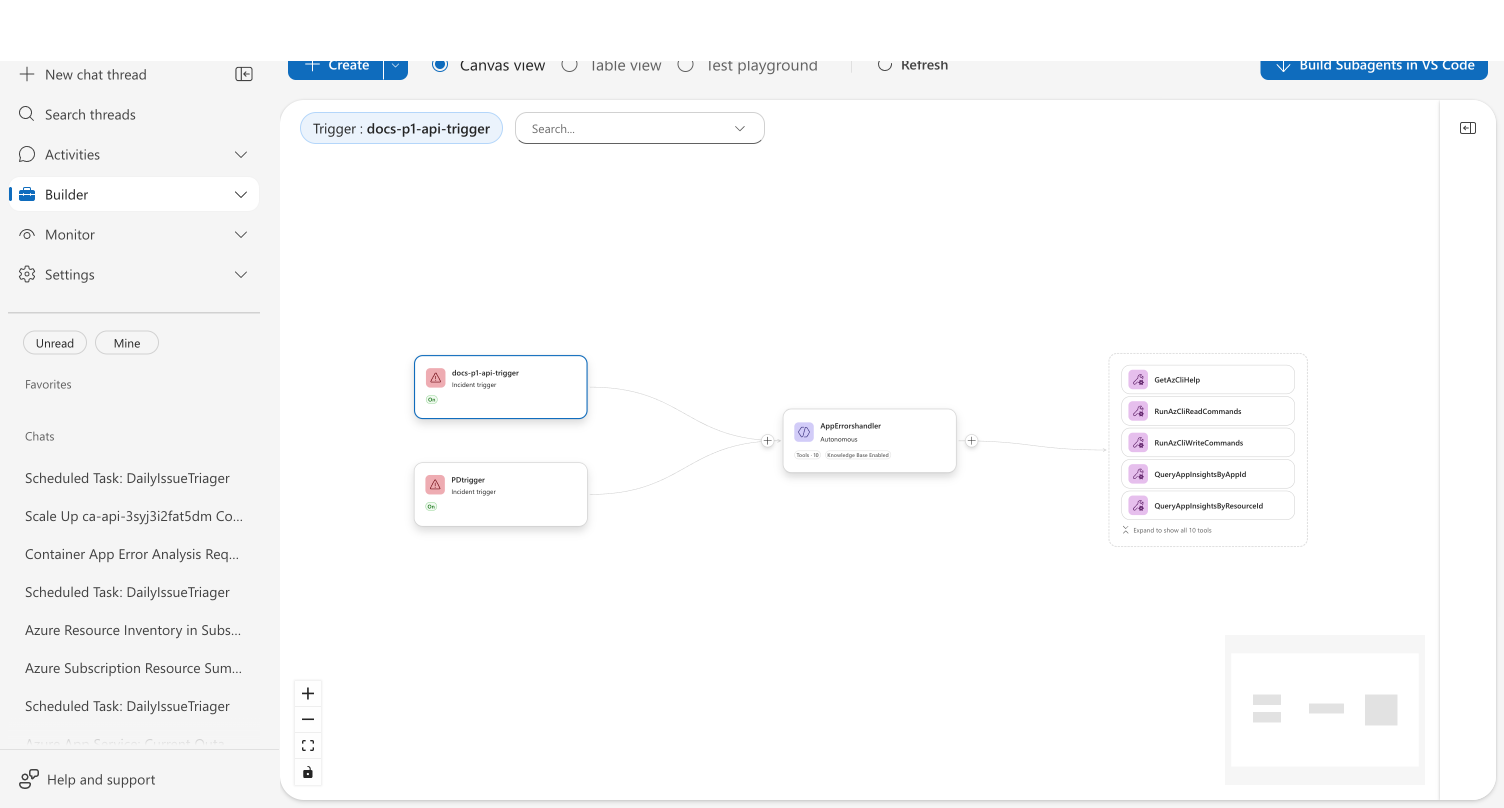
Each response plan has two parts:
| Part | What it controls | Example |
|---|---|---|
| Incident filter | Which incidents to match | P1 + P2 incidents on api-gateway service |
| Custom agent handler | How to respond | Use api-expert custom agent in Review mode |
Filter criteria
| Criteria | What it filters | Example |
|---|---|---|
| Severity / Priority | One or more severity levels | P1 + P2 (multi-select) |
| Owning service | Which service is affected | api-gateway, payment-service |
| Incident type | Classification | Default, Major, Security |
| Title contains | Keyword match in incident title | "CPU spike", "Out of memory" |
You can select multiple severity levels in a single plan — your agent matches incidents at any of the selected levels.
Custom agent configuration
Each plan specifies how your agent responds:
| Setting | Options | Default |
|---|---|---|
| Response custom agent | Any configured custom agent | Pre-selected when creating from graph |
| Agent autonomy level | Autonomous, Review | Autonomous |
- Autonomous — Your agent analyzes incidents and independently performs mitigation or resource modifications with the required permissions.
- Review — Your agent diagnoses incidents, then mitigates or modifies resources only after its proposed actions are reviewed and approved.
Autonomous mode acknowledgement
When you select Autonomous, an info icon (ℹ️) appears next to the option. Click it to review the Autonomous mode acknowledgement — a dialog explaining what autonomous operation means, including agent boundaries, AI model limitations, your responsibilities for scoping access and reviewing outcomes, and liability terms.
Start with Review mode for new response plans to validate your agent's investigation behavior before granting full autonomy. You can switch to Autonomous after you're confident in the agent's tool selection and investigation patterns.
What makes this different
Unlike static alert rules, response plans route to specialized agents. Each plan can point to a different custom agent with different tools and expertise — so database incidents get a database expert and API incidents get a deployment-aware investigator.
Unlike manual runbook selection, your agent makes the routing decision automatically. The right expertise matches the right problem without human judgment at 3 AM.
Unlike one-size-fits-all automation, response plans let you tune investigation depth per incident type. Use autonomous mode for P1 outages. Use review mode for lower-severity alerts. Match your response to the severity of the problem.
Before and after
| Before | After | |
|---|---|---|
| Incident routing | Human decides which playbook to follow | Agent matches incident to specialized response plan |
| Tool selection | Engineer opens relevant dashboards manually | Right custom agent with right tools handles it |
| Investigation depth | Same approach for P1 and P4 | Autonomous for critical, review for low-severity |
| Pausing a plan | Delete the plan, recreate later | Click Turn off — configuration preserved |
| Plan visibility | Navigate between multiple pages | One grid shows plans, statuses, and custom agent mappings |
How to create a response plan
You can create and manage response plans in two places:
| Path | Best for |
|---|---|
| Incidents → Triggers + response plans | Managing all plans in a grid with filtering, search, and one-click enable/disable |
| Builder → Agent Canvas (canvas) | Visualizing which triggers route to which custom agents |
From Incidents → Triggers + response plans, click Create a response plan. From Agent Canvas, click the + button on a custom agent node to open the create wizard.
When you first connect an incident platform, a default quickstart response plan is created automatically. If you create your own plans, delete the quickstart plan from Incidents → Triggers + response plans. Overlapping plans can cause incidents to be routed to the wrong custom agent or processed twice.
Enable and disable plans
You can turn any response plan on or off without deleting it. This is useful during maintenance windows, testing, or when you want to temporarily stop routing certain incident types.
- Navigate to Incidents → Triggers + response plans
- Select the plan by clicking its checkbox
- Click Turn off in the toolbar — a confirmation dialog appears
- Click Yes to disable the plan
The plan's status changes to Off and the scanner stops matching incidents against it. Your filter configuration is preserved.
To re-enable, select the plan and click Turn on — it takes effect immediately with no confirmation needed.
You can also toggle plans from Builder → Agent Canvas → Table view → Incident response plans tab, which provides the same controls in the unified grid.
Unified grid view
The Table view in the Agent Canvas shows all your response plans alongside custom agents, scheduled tasks, and tools. Switch to the Incident response plans tab to see:
| Column | What it shows |
|---|---|
| Response plan name | Plan identifier |
| Status | On (green) or Off (red) badge |
| Custom agent name | Which custom agent handles matched incidents |
| Severity | Severity levels the plan filters on |
| Incident type | Type classification |
| Owning service | Service filter |
| Title contains | Keyword filter |
Use the Status filter to quickly find disabled plans, and the search box to find plans by name.
Example: Routing database vs. API incidents
Your team runs two services: api-gateway and postgres-primary. API incidents typically involve deployment rollbacks and need source code context. Database incidents require deep log analysis with Kusto queries.
You create two response plans:
| Trigger | Filter | Custom agent | Mode |
|---|---|---|---|
api-high-sev | P1 + P2 on api-gateway | DeploymentAnalyzer | Review |
db-critical | P1 on postgres-primary | DatabaseExpert | Autonomous |
Get started
| Resource | What you'll learn |
|---|---|
| Set up an incident trigger → | Configure response plans to automate incident handling |
Related capabilities
| Capability | What it adds |
|---|---|
| Incident Response → | Broader incident automation capability |
| Root Cause Analysis → | Hypothesis-driven investigation |
| Custom agents → | Create specialized agents that work together |