Subscription permission visibility
- All subscriptions appear in the assignment picker — including those you can't currently assign
- Your current role on each subscription is shown in the User role column, updated in real time with PIM-accurate data
- Roles assigned at tenant root or management group level correctly inherit to child subscriptions
- If you activated a role through Privileged Identity Management (PIM), the picker detects your active role when you select a subscription or click Check PIM role assignments
The problem
When you set up your agent's monitoring scope, you select which Azure subscriptions the agent can access. The subscription picker shows your current role on each subscription so you know which ones you can assign.
Previously, the picker did not support:
- PIM role activations — if you activated a time-bound role through Privileged Identity Management (PIM), the picker did not reflect the active role
- Inherited roles — roles assigned at the tenant root or management group level were not shown on child subscriptions
How it works
The subscription picker now resolves your permissions through a two-phase process designed for both speed and accuracy.
Phase 1 — Fast bulk query. When the picker opens, it fetches all your role assignments across every subscription in a single Azure Resource Graph query. This is fast but may reflect cached data. It also queries your management group hierarchy to detect inherited roles.
Phase 2 — Accurate per-subscription verification. When you select a subscription, select all, or click Check PIM role assignments, the picker calls the Azure Resource Manager API to get your current role assignment schedule instances. This returns only currently-active assignments — permanent standing roles plus any active PIM activations. Expired PIM activations are excluded. While this data loads, the role column shows a brief loading indicator that resolves to the accurate role.
The picker organizes your subscriptions into two clearly labeled sections:
Subscriptions you can assign — subscriptions where you have Owner or User Access Administrator permissions. Select these to add them to your agent's monitoring scope.
Requires Owner or User Access Administrator role — subscriptions where you lack the permissions needed to grant the agent Reader access. These appear in a separate section so you can see they exist but understand you need a higher role to assign them.
Both sections display a User role column showing your highest-privilege role on each subscription — Owner, Contributor, Reader, User Access Administrator, or custom roles. If you have no role, the column shows "—".
The picker also includes:
- A description explaining which role the agent needs and who can grant it
- A Learn more about user roles link to Azure RBAC documentation
- Search that filters both sections simultaneously by subscription name or ID
How PIM roles are detected
Role inheritance
Roles assigned at higher scopes inherit to child subscriptions:
- Tenant root scope — a role at
/applies to every subscription in the tenant - Management group scope — a role on a management group applies to all subscriptions under that group
- Subscription scope — applies to that specific subscription
When you have roles at multiple levels, the picker shows the highest-privilege role. For example, if you have Reader at the management group level and Contributor on a specific subscription, the picker shows Contributor for that subscription.
What's supported
| Feature | How it works |
|---|---|
| PIM-activated roles | Detects active PIM role when you select a subscription or click Check PIM role assignments |
| Tenant/MG-level roles | Roles from tenant root, management groups, and child scopes correctly inherited |
| Two-phase role loading | Fast cached query first, then accurate per-subscription verification |
| Automatic subscription movement | Subscription moves to selectable section as soon as PIM role is confirmed |
| Group-based roles | Group memberships resolved for complete role picture |
| All subscriptions visible | Subscriptions you can't assign appear in "Requires Owner or User Access Administrator role" section |
| User role column | Your current role shown for all subscriptions — not just selectable ones |
| Search | Find subscriptions by name or ID across both sections |
Resolving permission issues
If you see subscriptions in the "Requires Owner or User Access Administrator role" section:
- Note the subscription name and your current role from the User role column
- If you have PIM access: Activate the Owner or User Access Administrator role through Entra PIM, then select the subscription or click Check PIM role assignments — the subscription moves to the selectable section
- If you don't have PIM access: Contact your Azure administrator or the subscription owner to request the Owner or User Access Administrator role
- Return to the subscription picker — the subscription moves to the "Subscriptions you can assign" section
You can also select the external link icon next to any subscription name to open that subscription in Azure Portal, where you can view its access control settings directly.
Where it appears
The subscription picker with PIM-aware role detection appears when you add subscriptions in three places:
- During onboarding setup — "Add subscription" card on the setup page
- During the onboarding wizard — Infrastructure Scope step, "Add subscription"
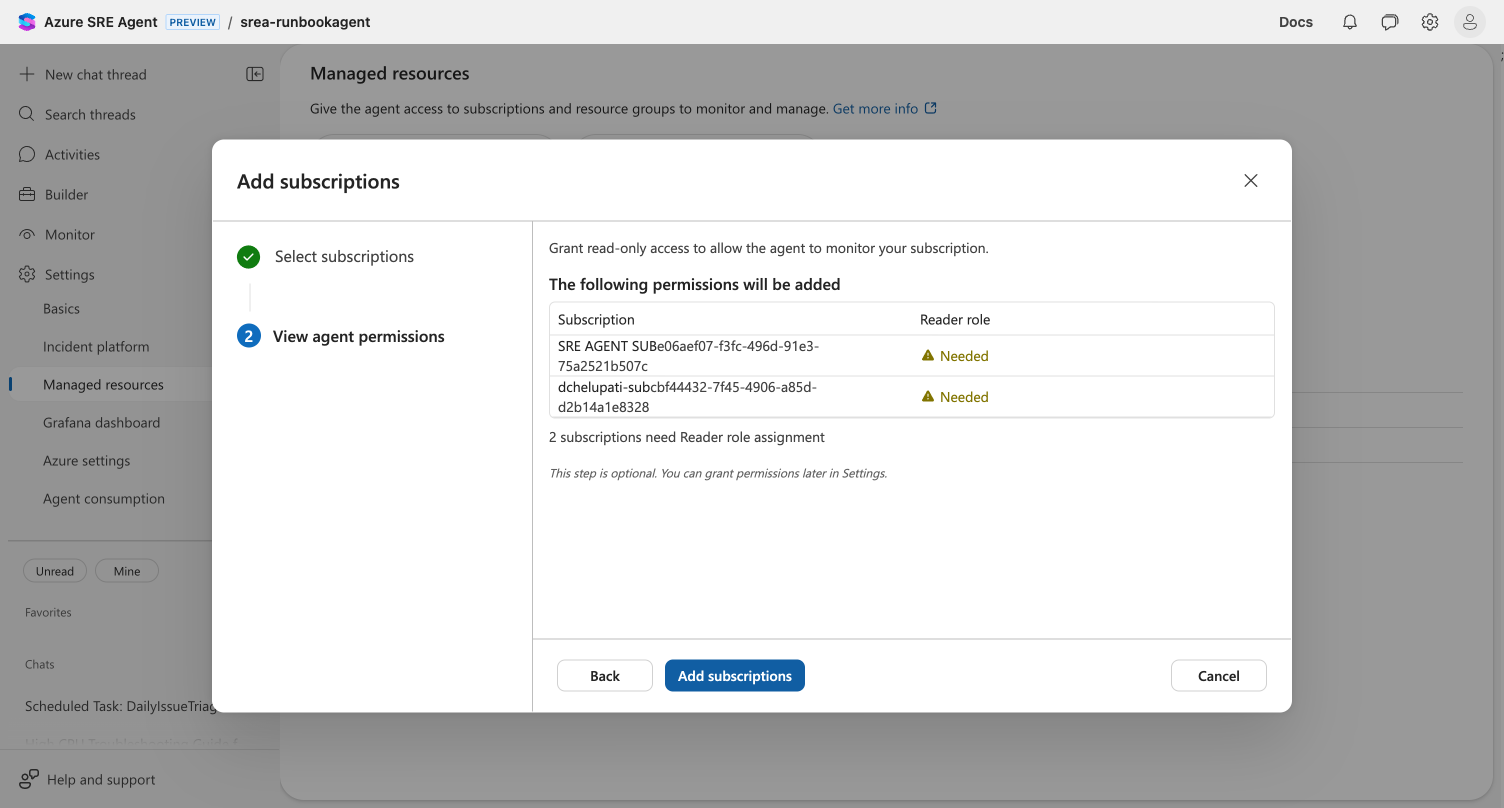
- After setup — Build + setup → Context → Managed resources → "Add subscription". If you don't see Build + setup, use Settings → Managed resources → "Add subscription".
Related capabilities
| Capability | What it adds |
|---|---|
| Agent setup | The subscription picker is part of the agent setup flow → |
| Managed resources | Configure which subscriptions and resource groups the agent monitors → |
| Agent permissions | Understand the permission levels (Reader/Privileged) the agent uses on your subscriptions → |
Get started
Open your agent's subscription picker through Build + setup → Context → Managed resources → Add subscription to see the updated view with PIM-aware role detection and tenant-level permission visibility. If you don't see Build + setup, use Settings → Managed resources → Add subscription.