Agent Playground
- Test custom agent behavior in real time before deploying changes
- Edit instructions, tools, and handoffs with instant feedback in a split-screen layout
- Evaluate agent quality with AI-powered scoring and quick fixes
- Test Kusto tools and system tools in isolation
The problem
Building effective agent configurations is an iterative process. You write instructions, assign tools, set up handoffs — then discover your agent misunderstands intent or lacks a critical tool only after deploying. Each cycle of edit-deploy-test-fix wastes time and risks disrupting production workflows.
Without a dedicated testing environment, you deploy changes to see how they behave, test in live conversations that affect real threads, and guess whether your instructions are clear enough.
How the playground works
The playground is a dedicated view in the Agent Canvas alongside Canvas and Table views. Select Test playground from the view toggle to enter a split-screen environment where you edit on the left and test on the right.
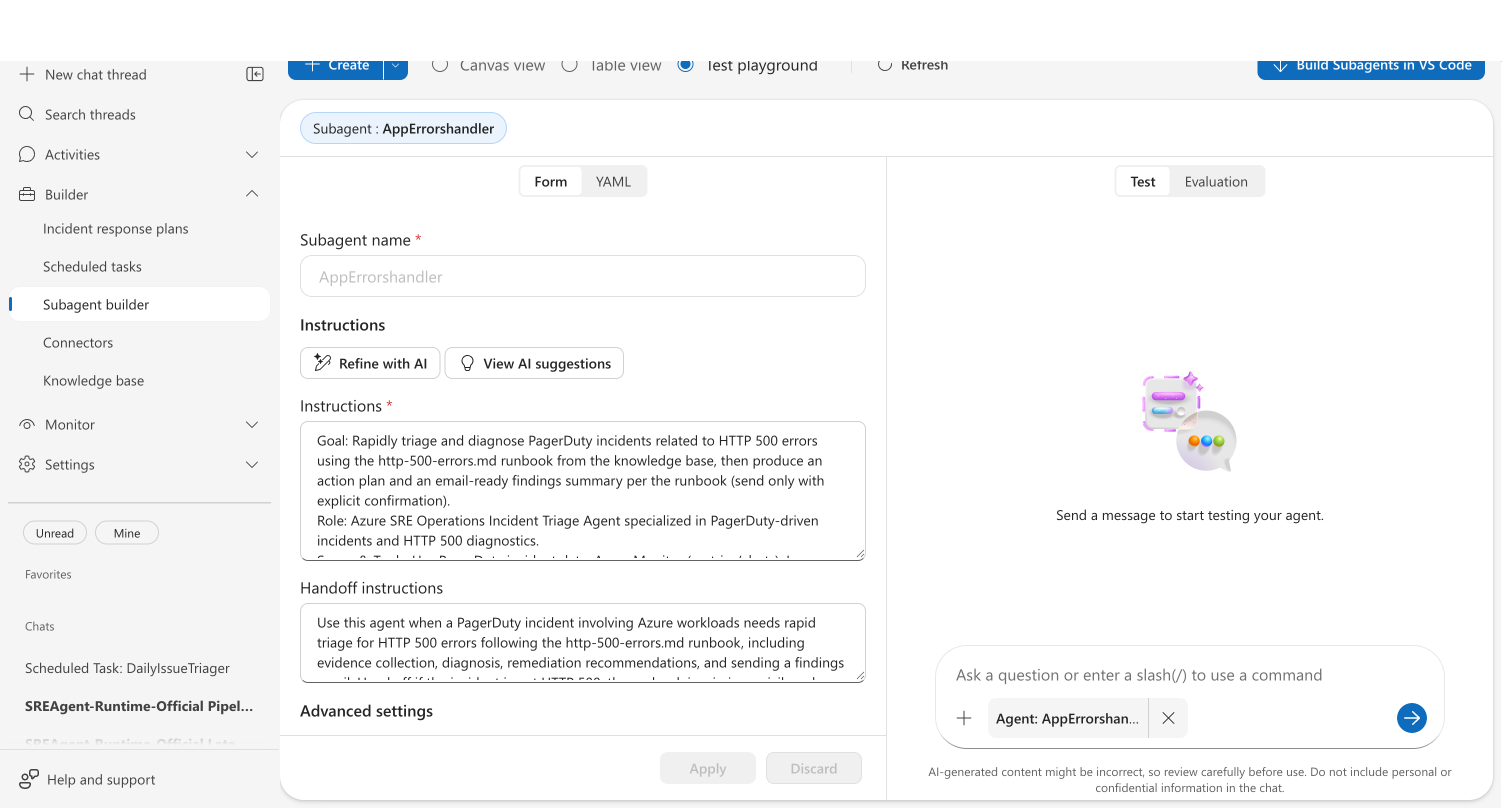
Select what to test
Use the Custom agent/Tool dropdown at the top to choose what to test:
| Entity | What you can test |
|---|---|
| Custom agent | Instructions, tools, handoffs, and memory in a live chat |
| Your agent | Override the orchestrator prompt and test routing behavior |
| System tool | Execute built-in tools with custom parameters |
| Kusto tool | Run queries against your connected clusters |
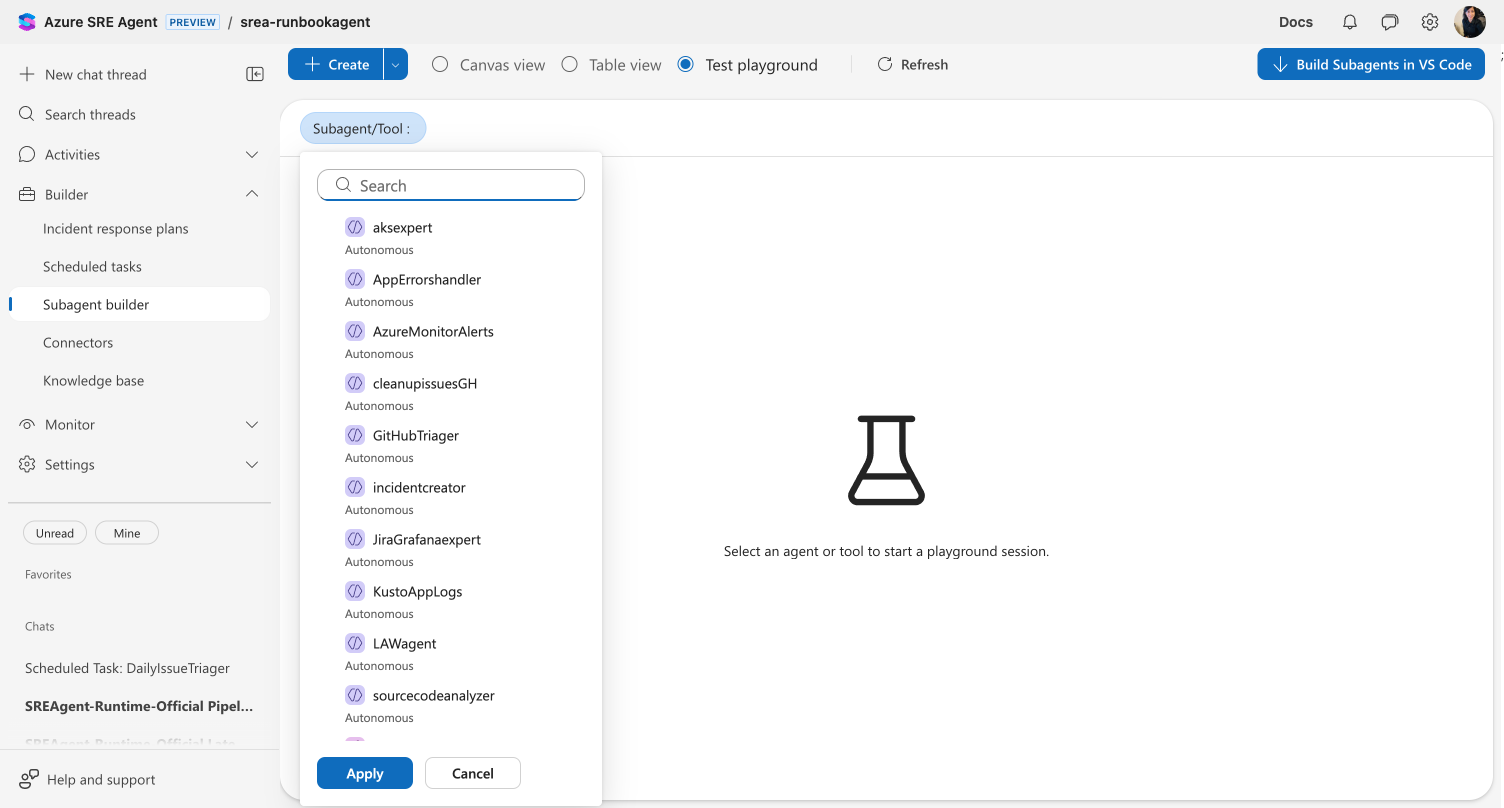
Edit and test side by side
For custom agents, the playground splits into two panels:
Left panel — Editor:
- Form view — Edit custom agent name, instructions, handoff instructions, handoff custom agents, tools, and knowledge base access
- YAML view — Edit the full agent configuration as YAML
Right panel — Testing:
- Test tab — Chat with your agent using the current configuration
- Evaluation tab — Run AI-powered quality analysis
When you modify the configuration, chat input is disabled until you click Apply to save your changes or Discard to revert. This prevents testing stale configurations. Clicking Apply also starts a fresh chat thread so you can test the updated configuration from scratch.
What makes this different
Unlike testing in live conversations, the playground provides an isolated environment where changes don't affect production threads. The split-screen layout means you see the effect of instruction changes immediately — no switching between views or waiting for deployments.
The evaluation feature goes beyond manual testing. AI analyzes your agent configuration and chat behavior to surface issues you might miss: unclear instructions, missing tools, safety gaps, and intent misalignment.
| Before | After |
|---|---|
| Deploy changes, then test in live chat | Test instantly in an isolated environment |
| Guess if instructions are clear | Get AI-powered clarity scores |
| Discover missing tools during incidents | Evaluation surfaces tool gaps proactively |
| Multiple tabs for editing and testing | Split-screen with editor and chat side by side |
Evaluate agent quality
The Evaluation tab provides AI-powered quality scoring for your agent configuration. Click Evaluate to analyze your current setup and recent chat behavior.
The evaluation returns:
| Score | What it measures |
|---|---|
| Overall | Combined quality score (0–100) |
| Intent match | How well your agent's behavior aligns with its goal (1–5) |
| Completeness | Whether the prompt covers role, goal, and operational guidance |
| Tool fit | Whether the right tools are configured |
| Prompt clarity | How clear and actionable the instructions are |
| Actionability | Whether responses include concrete, executable next steps |
| Safety | Error handling, confirmation prompts, and safeguards |
Quick fixes
When evaluation identifies improvements, click Review and apply to open the quick fixes dialog. Select the fixes you want, preview the YAML diff on the right, then use the Accept selected fixes button — which offers two options: continue editing or save immediately.
Run evaluation after a few test conversations. The evaluation considers chat behavior alongside your configuration to provide more accurate scoring.
If you change the agent configuration after running an evaluation, the results are marked as outdated and you're prompted to re-evaluate. Similarly, new chat activity after an evaluation marks results as stale — re-evaluate to get insights that reflect your latest testing.
Test tools in isolation
System tools
Select a system tool from the Custom agent/Tool dropdown to test built-in capabilities independently. Fill in parameter values and click Execute Tool to see the raw JSON output.
Kusto tools
Select a Kusto tool to test your query against connected clusters. The test panel shows query results with row counts, columns, and execution time. Adjust your KQL on the left and re-run on the right.
For step-by-step instructions, see Test Tool in Playground.
AI-assisted configuration
The playground includes two AI assistance features for refining custom agent instructions:
- Refine with AI — Rewrites your instructions and handoff description in place. This directly replaces your current text with an AI-improved version, so review the changes before saving.
- View AI suggestions — Opens a read-only panel alongside the form showing AI recommendations: suggestions for improvement, warnings about potential issues, and improved versions of your instructions and handoff description. This does not modify your configuration — use it as a reference while editing.
Get started
| Resource | What you'll learn |
|---|---|
| Test a Tool in Agent Playground → | Step-by-step walkthrough of the playground interface |
Related capabilities
| Capability | What it adds |
|---|---|
| Custom agents → | How custom agents work and when to use them |
| Kusto Tools → | Build reusable KQL queries for your agent |
| Python Code Execution → | Create custom Python tools |