Per-User Favorites and Mine Filter
- Star any thread to pin it in a dedicated Favorites section at the top of your sidebar
- The Mine filter is active by default — your sidebar shows only your threads when you open it
- Favorites persist across sessions — stored in the backend, not just in your browser
- Works immediately on any agent — no setup or configuration needed
The problem: important threads get buried
When your team shares an SRE Agent, the chat sidebar fills up fast. Incident investigations, exploratory queries, scheduled task results, and ad-hoc conversations all compete for space in one chronological list. Finding the thread you were working on an hour ago means scrolling past your teammates' work. During an active incident, the thread you need is always several scrolls down.
Teams work around this by naming threads with prefixes — "[Alice] SEV2 storage latency" — but that's a manual habit that breaks when auto-generated thread titles take over. There's no way to mark a thread as important or filter the list to just your own work.
How favorites and Mine filter work
1. Star a thread to pin it. Right-click any thread in the sidebar or open the thread actions menu ("...") and select Add to favorites. The thread moves to a dedicated Favorites section at the top of your sidebar.
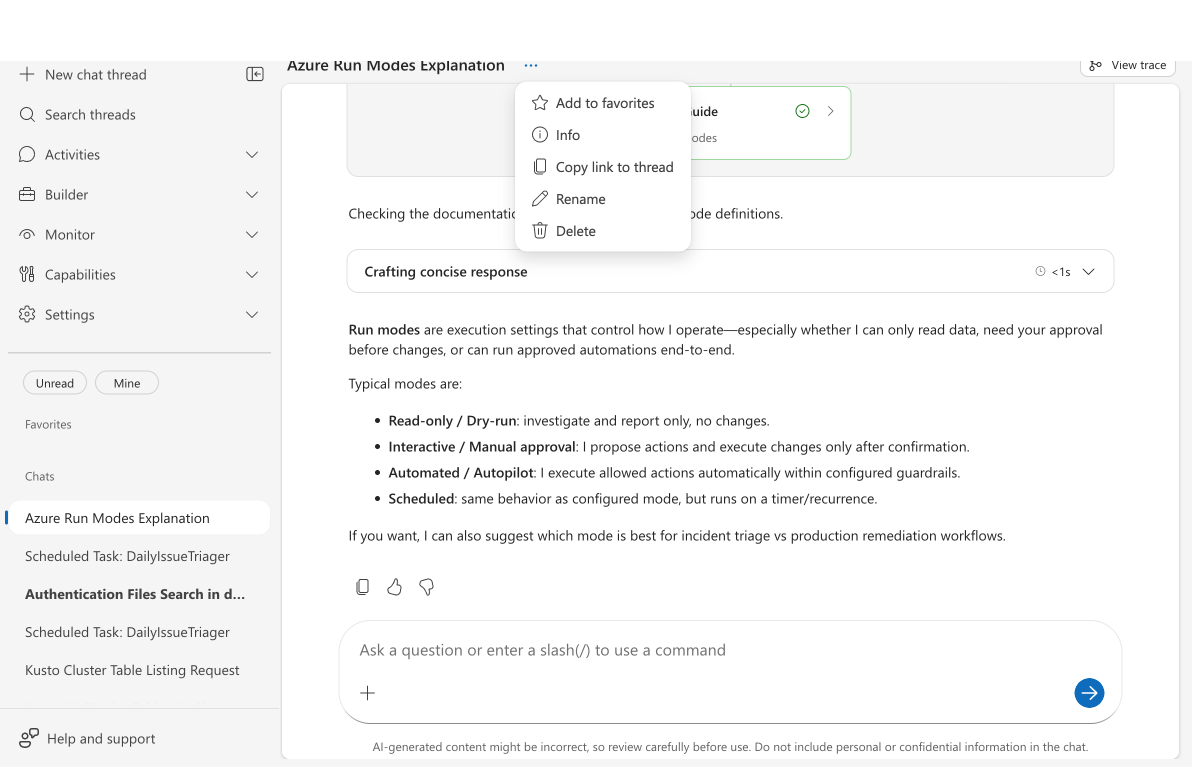
2. Your sidebar splits into two sections. Once you have favorites, the sidebar shows Favorites (top) with your starred threads, and Chats (below) with everything else. Both sections scroll independently with infinite loading.
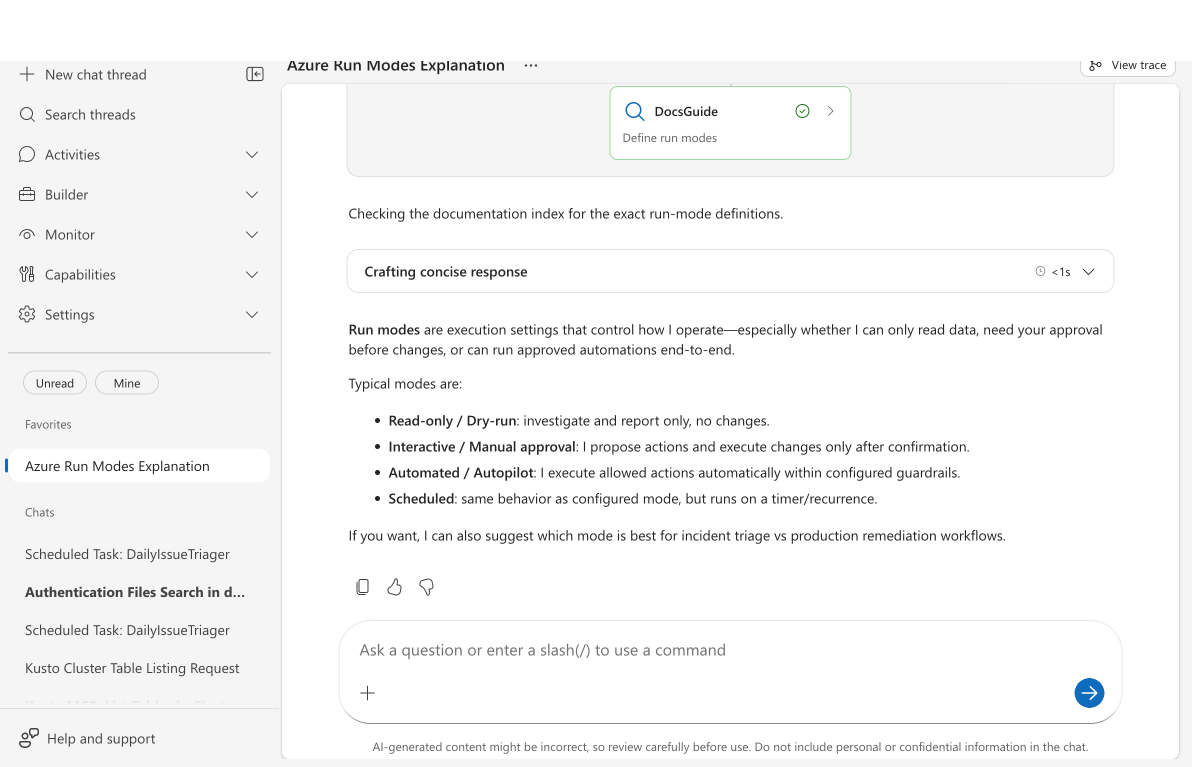
3. Mine is on by default. The Mine filter is active when you open the sidebar, showing only threads you started in Chats and threads you starred in Favorites. Toggle it off to see all threads on the agent.
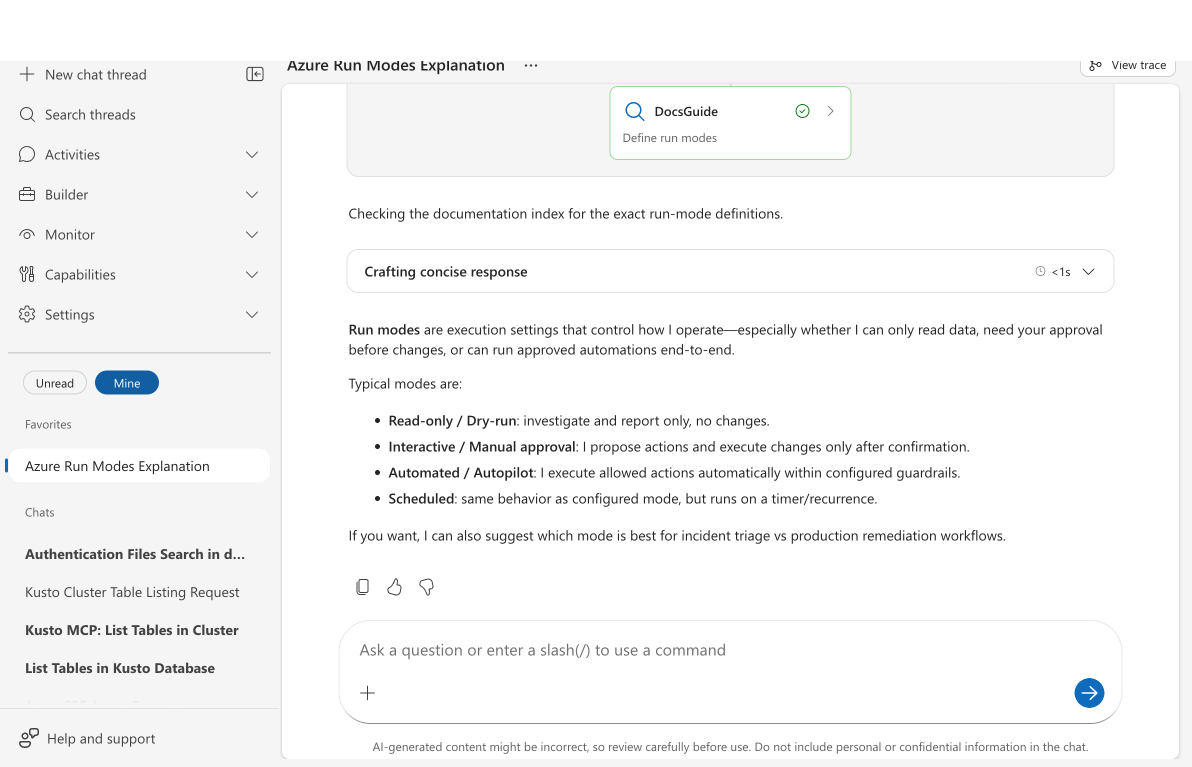
4. Combine filters for precision. Mine and Unread are independent toggles — activate both to see only your unread threads across both categories.
5. Unfavorite when done. Right-click a favorited thread and select Remove from favorites to move it back to the Chats section. Keep your Favorites list focused on active work.
6. Favorites persist across sessions. Your favorites are stored in the backend — they survive page refreshes, browser restarts, and device switches. The Mine filter is active by default — when you open the sidebar, you see your own threads first. The Unread filter resets on page refresh.
What makes this different
Unlike browser bookmarks or sticky notes, favorites live inside the product. They travel with your account, not your browser tab. Star a thread on your laptop, and it's still starred when you open the portal on a different machine.
Favoriting a thread pins it in the Favorites section for all users in the space. Teammates can independently star the same thread.
Unlike search, favorites are instant. You don't need to remember a thread title or keyword. Your active investigations are always at the top of the sidebar, one glance away.
Before and after
| Before | After | |
|---|---|---|
| Finding your thread | Scroll through 20–50 threads in a flat list | Favorites pinned at the top — zero scrolling |
| Shared agent noise | Every teammate's threads visible equally | Mine filter shows only your work |
| Marking importance | Rename threads with naming conventions | Star with one click — no workarounds |
| Returning after a break | Hunt for the thread you were working on | Favorites section shows exactly where you left off |
| Cross-session continuity | Start fresh every page load | Favorites persist — stored in backend |
Use cases
During an incident
Star the incident thread as soon as you start investigating. As teammates create their own threads and the sidebar grows, your incident is always at the top. After resolution, unstar it.
Shift handoff
The outgoing SRE stars threads they want the incoming SRE to pick up. The incoming SRE uses Mine to focus on just their assigned work.
Daily monitoring
Star the threads generated by scheduled tasks (daily health checks, cost reports) so they're always easy to find and review.
Related capabilities
| Capability | What it adds |
|---|---|
| Send Notifications | → Send investigation findings to Teams, Outlook, or any MCP-enabled tool |
| Scheduled tasks | → Star scheduled task result threads for quick daily review |
| Incident response | → Star active incident threads for fast access during triage |
Get started
Favorites and Mine filter require no configuration — they're available in every agent's chat sidebar. Open any agent, right-click a thread, and select Add to favorites.