Workflow Automation
- Incidents handled end-to-end without waking anyone
- Scheduled tasks run automatically with human oversight when needed
- Knowledge from past incidents applied consistently every time
The problem: manual handoffs slow everything down
Operational workflows span multiple tools and require someone to remember what comes next. You check status in one system, make a decision, execute in another, and notify your team in a third. Each handoff adds latency and risk.
How workflow automation works
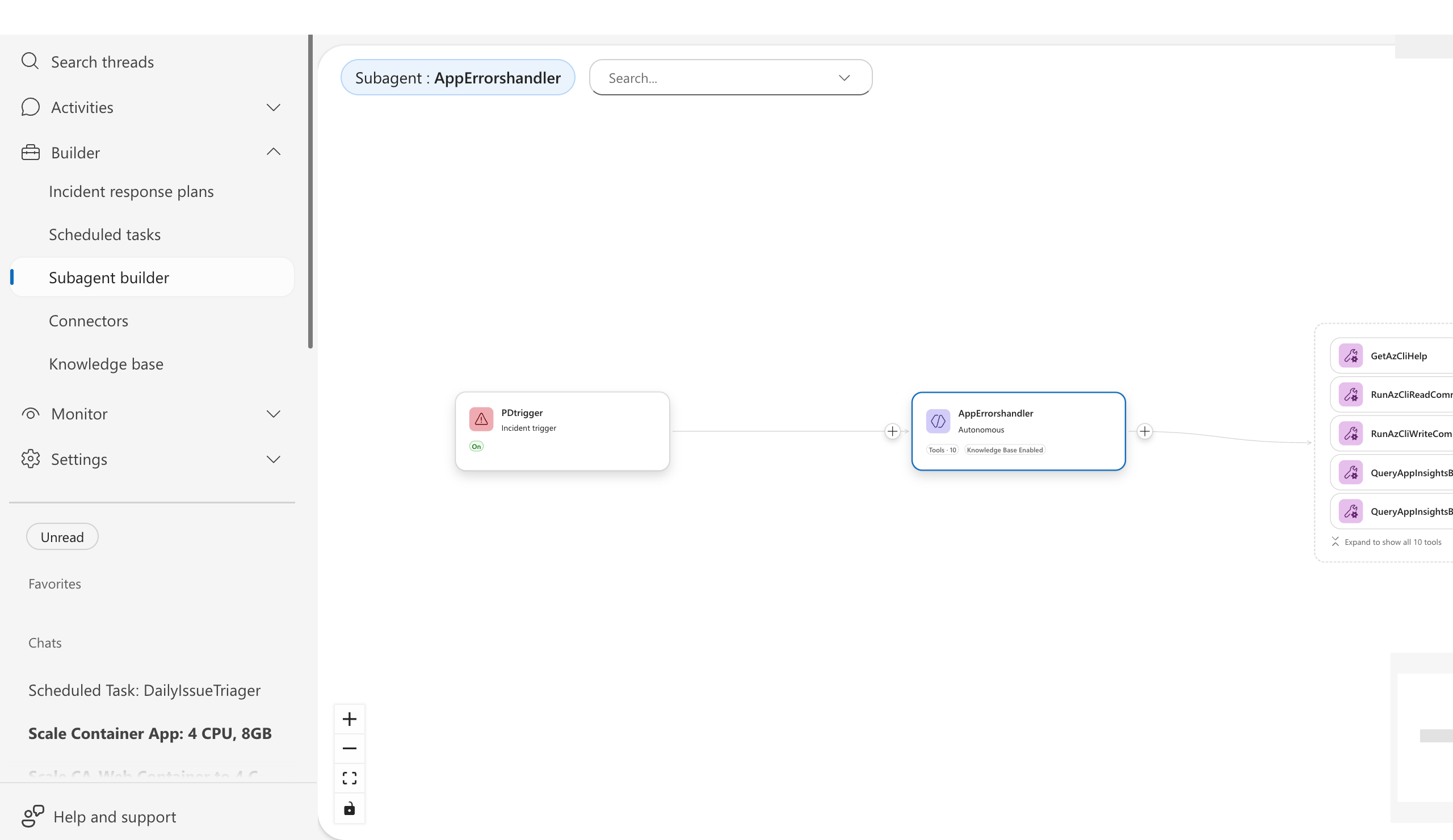
What you'll achieve:
- Automated workflows that run on schedule or in response to incidents
- Custom agents with specific tools for specialized tasks
- End-to-end flows: trigger → investigate → act → notify
When a trigger fires (scheduled time or incident), your agent:
- Receives the trigger — A scheduled task runs or an incident matches a response plan
- Invokes the custom agent — The configured custom agent starts with its tools and instructions
- Executes the workflow — The custom agent investigates, takes actions, and coordinates with other custom agents if needed
- Notifies your team — Results are posted to Teams, email, or your incident platform
Each custom agent has access to specific tools (from connectors) and follows its instructions autonomously or with approval, depending on the run mode.
What makes this different
Unlike scripts, your agent adapts when patterns change. Scripts break when inputs vary. Your agent reasons about what to do based on what it finds.
Unlike runbooks, your agent executes the workflow — not just documents it. Runbooks tell humans what to do. Your agent does it.
Unlike IFTTT-style automation, your agent investigates before acting. It doesn't blindly execute when a trigger fires — it assesses the situation and decides the appropriate response.
Before and after
| Before | After |
|---|---|
| Check status in monitoring tool | Agent queries automatically |
| Decide what to do based on data | Agent reasons and proposes action |
| Execute fix in another system | Agent executes via connected tools |
| Notify teammates in Teams | Agent sends contextual notification |
| Log what happened | Agent records actions in thread |
Building a workflow
Workflows combine three building blocks:
| Building block | What it does | Where to configure |
|---|---|---|
| Connectors | Provide tools from external systems (Outlook, Teams, GitHub, PagerDuty) | Builder → Connectors |
| Custom agents | Specialized workers with specific tool access and autonomy settings | Builder → Agent Canvas |
| Triggers | Start workflows on schedule or in response to incidents | Automation / Incident response plans |
For step-by-step setup, see Step 5: Automate Workflows in the getting started guide.
Example: Daily health report with email
This workflow checks Azure resource health and emails a summary:
- Connector: Add Send email (Office 365 Outlook)
- Custom agent: Create
health-reporterwithSendOutlookEmailtool - Scheduled task: Attach to custom agent with prompt:
Check the health of Azure resources in prod-rg:
1. Query Azure Resource Health for any degraded resources
2. Check Application Insights for error rate trends
3. Summarize findings
4. Email the report using SendOutlookEmail
The agent runs this daily, investigates, and sends the email—no manual steps.
Custom agent delegation
When a workflow needs different expertise at different steps, use multiple custom agents:
| Step | Custom agent | Why |
|---|---|---|
| Database diagnostics | @DatabaseExpert | Specialized KQL queries |
| Send notifications | @Notifier | Email and Teams tools |
| Create incidents | @IncidentCreator | PagerDuty/ServiceNow integration |
The orchestrator delegates tasks to custom agents as needed. See Custom agents.
Best practices
| Practice | Why it matters |
|---|---|
| Test in the Playground first | Verify your custom agent's behavior before attaching to a trigger |
| Start in Review mode | Verify the agent's judgment before full automation |
| Test with "Run now" | Validate scheduled workflows before production |
| One tool per custom agent | Easier to audit, debug, and update |
| Use descriptive names | email-health-report vs custom-agent-1 |
Before attaching a scheduled task, test your custom agent:
- Go to Builder → Agent Canvas
- Select Test playground view
- Pick a custom agent from the dropdown and click Apply
- Type your planned instructions in the Test panel and verify the agent executes them correctly
Once you're confident in the behavior, attach the trigger.
Get started
| Resource | What you'll learn |
|---|---|
| Step 5: Automate Workflows → | Build an automated health check with email notifications |
| Create a Scheduled Task → | Step-by-step tutorial for scheduled automations |
Related capabilities
| Capability | What it adds |
|---|---|
| Scheduled Tasks → | Proactive monitoring and recurring task patterns |
| Execute Mitigations → | Actions your workflows can take |
| Send Notifications → | Notification patterns and channels |
| Incident Response → | Response plan triggers |
| Custom agents → | Detailed custom agent configuration |
| Connectors → | Available tool integrations |