Upload Knowledge Documents
- Your agent creates and uploads runbooks during conversations — no manual file management
- Attach 31 file types in chat — including
.kql,.bicep,.tf,.har,.py, and.xlsx— for immediate analysis context - Upload 28 file types to Knowledge settings for persistent, indexed storage across all future conversations
- Incident resolutions become institutional knowledge automatically
The problem: knowledge dies with the conversation
Every incident your team resolves generates valuable knowledge — what went wrong, what commands fixed it, what to check first next time. But that knowledge lives in chat threads, engineer memory, and postmortems that nobody reads at 3 AM.
Your team has runbooks, but they go stale. The fix discovered during last night's incident? It's in someone's head, or buried in a conversation that scrolls out of view by next week. The next time the same issue occurs, a different engineer starts from scratch.
How your agent solves this
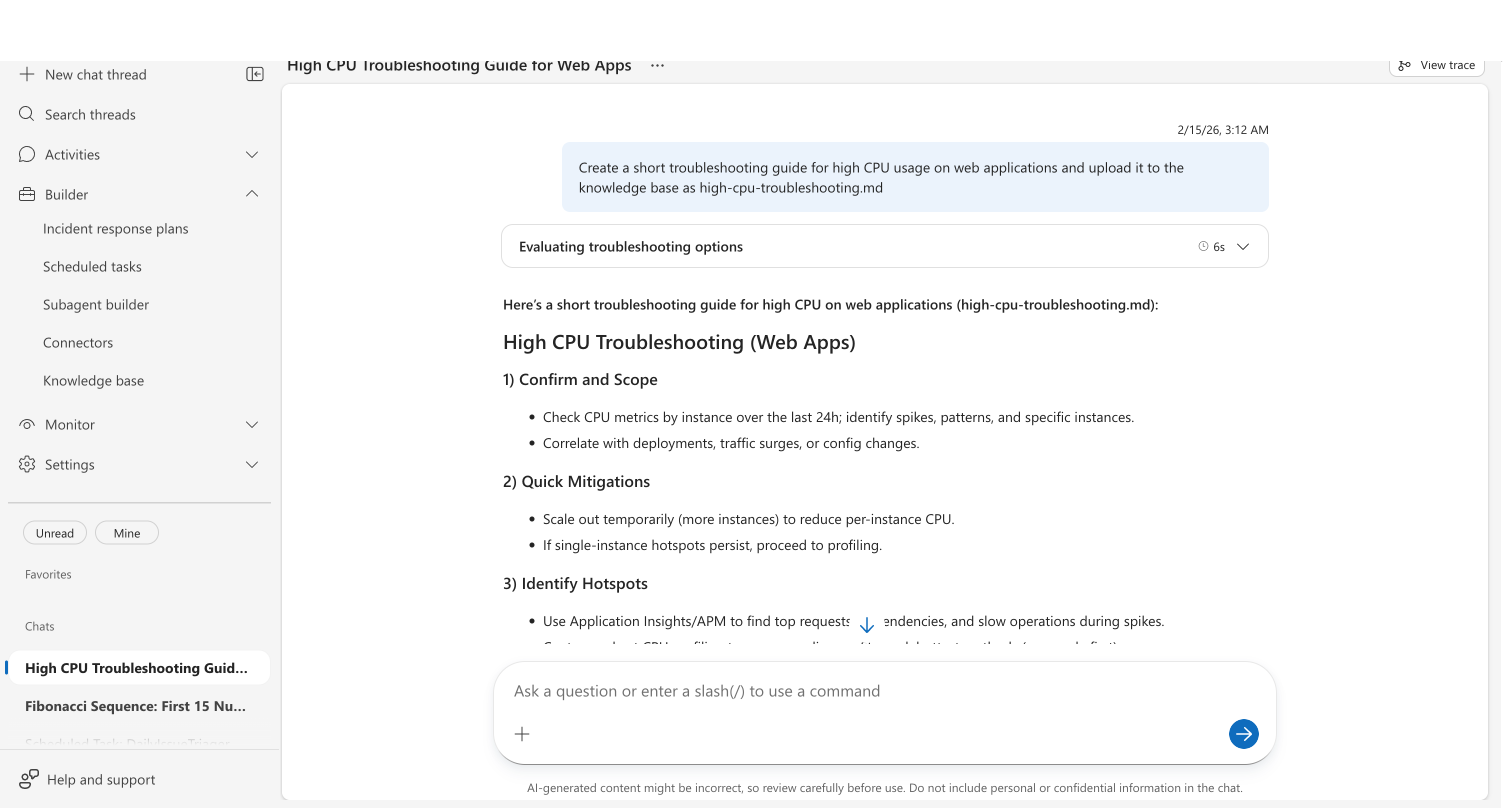
Your agent can upload documents to Knowledge settings during conversations using the Upload Knowledge Document tool. When your agent discovers a fix, creates a troubleshooting guide, or synthesizes investigation findings, it stores that knowledge directly — making it searchable for every future conversation.
"Create a runbook from the steps we just followed to fix this database
connection pool exhaustion issue and save it to Knowledge settings."
Your agent generates a structured runbook and uploads it in seconds. The document is indexed automatically and becomes searchable for future investigations.
Before and after
| Before | After | |
|---|---|---|
| Knowledge capture | Post-incident: engineer writes runbook (maybe) | Your agent captures the fix as it happens |
| Time to document | 30–60 minutes to write a runbook | Seconds — your agent generates and uploads inline |
| Knowledge freshness | Runbooks go stale within weeks | Knowledge settings grows with every resolution |
| Accessibility | Knowledge stuck in engineer's head or chat thread | Searchable by your agent across all future conversations |
| Format consistency | Varies by author | Structured, consistent documentation every time |
What makes this different
Unlike manual uploads, your agent creates knowledge proactively. You don't need to remember to document what you learned — your agent does it as part of the conversation.
Unlike chat history, uploaded documents are indexed for semantic search. When a similar issue occurs months later, your agent finds the relevant runbook automatically — through intelligent retrieval, not by scrolling through old threads.
Unlike wiki connectors, uploaded documents don't require external services. The knowledge lives directly in your agent's Knowledge settings, available instantly without syncing delays.
How it works
The Upload Knowledge Document tool accepts three parameters:
| Parameter | Required | Description |
|---|---|---|
| File name | Yes | Name with .md or .txt extension (e.g., database-pool-runbook.md) |
| Content | Yes | Full document text in Markdown or plain text format |
| Trigger indexing | Optional (default: true) | Whether to make the document searchable immediately |
When your agent uploads a document:
- Validates the filename and content (maximum 16 MB per file)
- Stores the document in your agent's Knowledge settings
- Indexes the content for semantic search
- Confirms the upload with a success message
If a document with the same filename already exists, the new content replaces it. This makes it easy for your agent to update knowledge — upload with the same name to refresh the content.
Supported file formats
Your agent handles files through three methods, each supporting different formats.
Chat attachments
Drag files into any chat to give your agent immediate context for analysis — troubleshooting scripts, configuration files, network traces, and more.
| Category | Extensions |
|---|---|
| Images | .png, .jpg, .jpeg, .gif, .webp, .svg |
| Documents | .txt, .md, .pdf, .docx, .pptx, .xlsx |
| Data and configuration | .json, .csv, .log, .yaml, .yml, .xml, .ini, .conf, .env |
| Web and network | .html, .har |
| Code and scripts | .ts, .js, .py, .sh, .sql, .kql |
| Infrastructure | .bicep, .tf |
Limits: 10 MB per file · 50 MB total per message · 5 files per message
Knowledge settings uploads
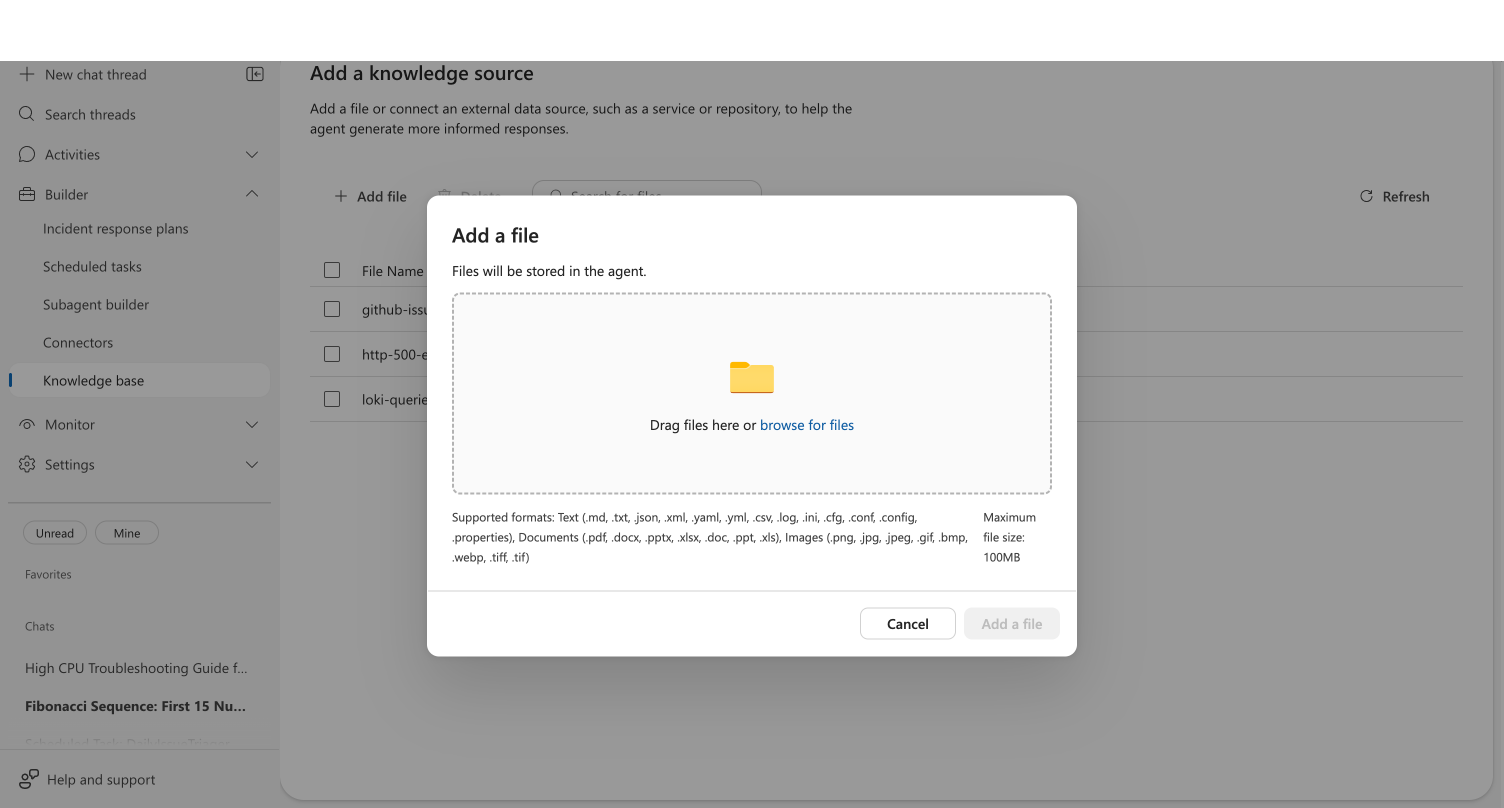
Upload files through Builder → Knowledge settings → Add file to persist documents for your agent to reference in future conversations. Uploaded files are indexed for semantic search.
The Browse button filters to .md and .txt files. To upload other supported formats (PDF, Word, images, CSV, and more), drag and drop the file into the upload area instead.
| Category | Extensions |
|---|---|
| Images | .png, .jpg, .jpeg, .gif, .webp, .bmp, .tiff, .tif |
| Documents | .txt, .md, .pdf, .docx, .pptx, .xlsx, .doc, .ppt, .xls |
| Data and configuration | .json, .csv, .log, .yaml, .yml, .xml, .ini, .conf, .cfg, .config, .properties |
Limits: 16 MB per file · 100 MB per upload
Knowledge settings uploads accept legacy Office formats (.doc, .ppt, .xls) and additional image formats (.bmp, .tiff, .tif) that chat attachments do not. Chat attachments support code, scripts, infrastructure, and web formats that Knowledge settings does not.
Agent-generated documents
When your agent creates documents during conversations (using the Upload Knowledge Document tool), it generates .md or .txt files and saves them directly to Knowledge settings. This is what happens when you ask your agent to "save this as a runbook."
Example: capturing incident knowledge
During an incident investigation, ask your agent:
We just resolved the high CPU issue on web-app-prod. It was caused by a
memory leak in the connection pool. Create a troubleshooting guide from
what we learned and upload it to Knowledge settings.
Your agent generates a structured troubleshooting guide with:
- Scoping steps — how to identify the issue
- Quick mitigations — immediate actions to reduce impact
- Root cause analysis — what to investigate
- Resolution steps — the fix that worked
- Prevention — how to avoid recurrence
The next time a similar CPU issue occurs, your agent automatically references this document during investigation — turning one engineer's experience into shared team knowledge.
What you need
| Requirement | Details |
|---|---|
| Agent version | 26.1.57.0 or later |
| Knowledge settings | Enabled on your agent |
| Write permissions | Your agent needs write access to Knowledge settings |
| Run mode | Review or Autonomous — write actions require approval in Review mode |
Limits
| Chat attachments | Knowledge settings uploads | Agent tool | |
|---|---|---|---|
| Maximum file size | 10 MB | 16 MB | 16 MB |
| Maximum total | 50 MB per message | 100 MB per upload | — |
| Maximum files | 5 per message | — | 1 per action |
| Supported extensions | 31 | 28 | 2 (.md, .txt) |
| Filename characters | — | Letters, numbers, hyphens, underscores, dots | Same |
| Maximum filename length | — | 1,024 characters | Same |
When to use something else
| Scenario | Better approach |
|---|---|
| Connecting live wiki content that stays in sync | Connect Knowledge Sources |
| Uploading binary files (PDF, Word, images) | Drag and drop into Builder → Knowledge settings → Add file (Browse button filters to .md/.txt only) |
| Bulk importing many documents at once | Use the POST /api/v1/agentmemory/upload REST API |
| Keeping code repositories up to date automatically | Connect a GitHub or ADO connector |
Get started
| Resource | What you'll learn |
|---|---|
| Upload knowledge documents → | Add runbooks and docs to your agent's Knowledge settings |
Related capabilities
| Capability | What it adds |
|---|---|
| Connect Knowledge Sources → | Connect live wiki content that updates automatically |
| Root Cause Analysis → | Investigate issues — then capture the findings |