Tools & Skills
- See every tool and skill — built-in, custom, and MCP tools plus system and custom skills, organized by category
- Toggle on or off at the space level — changes apply across all agents instantly
- Smart defaults — both PagerDuty and ServiceNow incident management skills are enabled out of the box
- Inherited counts on canvas — each agent card shows how many global tools and skills it inherits, so you can verify configuration at a glance
- Reset to defaults when you want to start fresh — one action restores the baseline configuration
The problem: capabilities are spread across multiple pages
Your SRE Agent comes with dozens of built-in tools and skills — querying logs, managing incidents, running diagnostics, applying domain-specific expertise. You may also have custom tools built for specific workflows, MCP connector tools from external integrations, and custom skills from the Skill Builder.
Managing all of this means navigating between separate Tools and Skills pages. The Tools page has three tabs (Built-in tools, MCP servers + services, Custom tools). The Skills page has two tabs (Built-in skills, Custom skills). Want to understand your agent's full capability set? That's five tabs to check, with accordion categories to expand in each one.
How Tools & Skills works
The Tools and Skills pages under Capabilities provide a centralized place to view and configure every capability available to your agent.
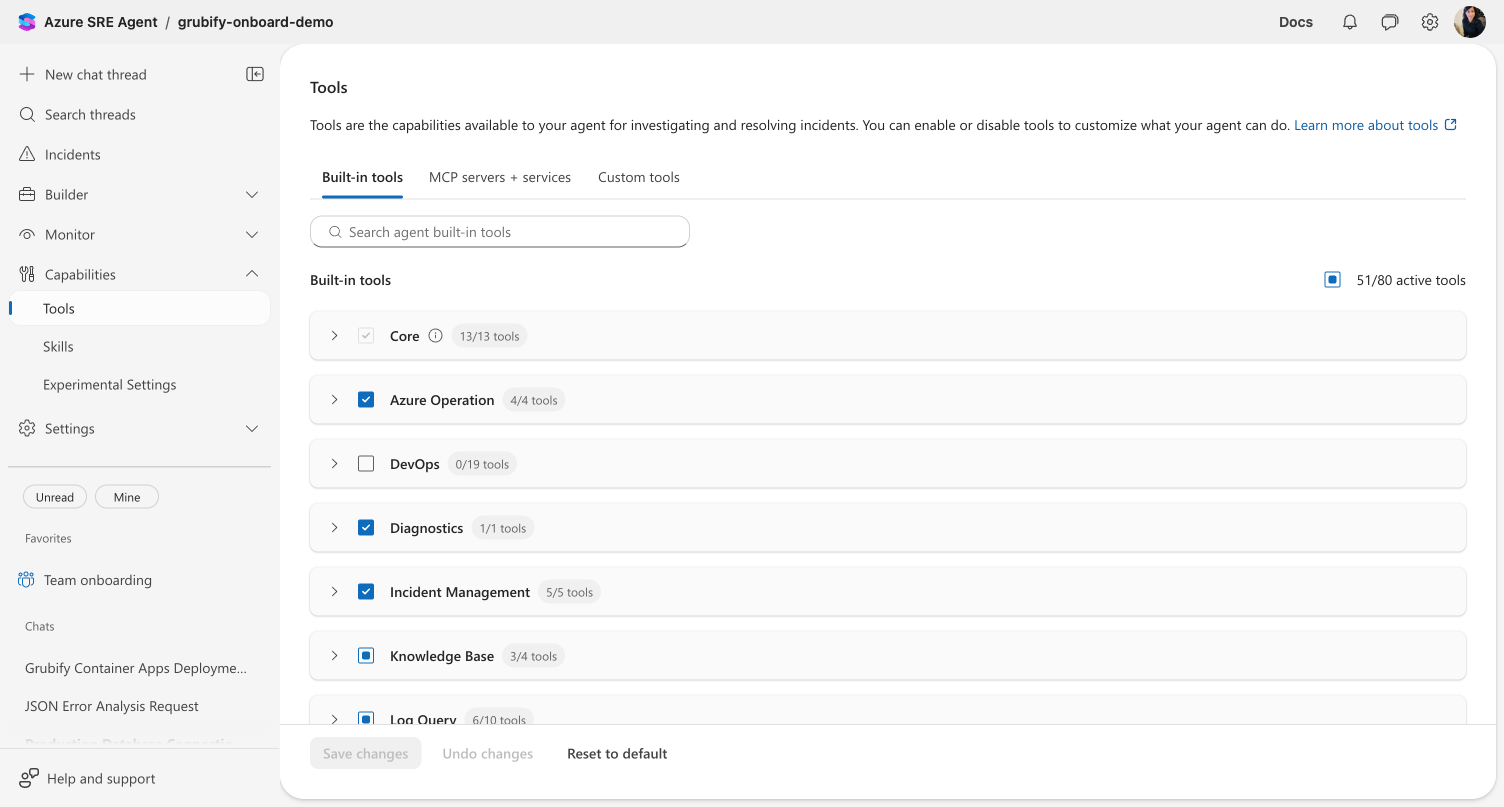
Tools
The Tools page organizes your agent's tools into three tabs:
| Tab | What it shows |
|---|---|
| Built-in tools | Platform-provided capabilities grouped by category — Core, Azure Operation, DevOps, Diagnostics, Incident Management, Knowledge Base, Log Query, and more |
| MCP servers + services | Tools from your connected MCP server connectors, added through the Plugin Marketplace |
| Custom tools | User-defined tools created through Kusto tool creation, Python tool creation, or extended agent YAML |
Each tool shows its name and description with a checkbox to toggle it on or off. Core tools (like CreateFile, FileSearch, and GrepSearch) are always enabled and cannot be disabled — they're fundamental to the agent's operation.
The header shows active counts (for example, "51/80 active tools") for immediate visibility into your configuration.
Skills
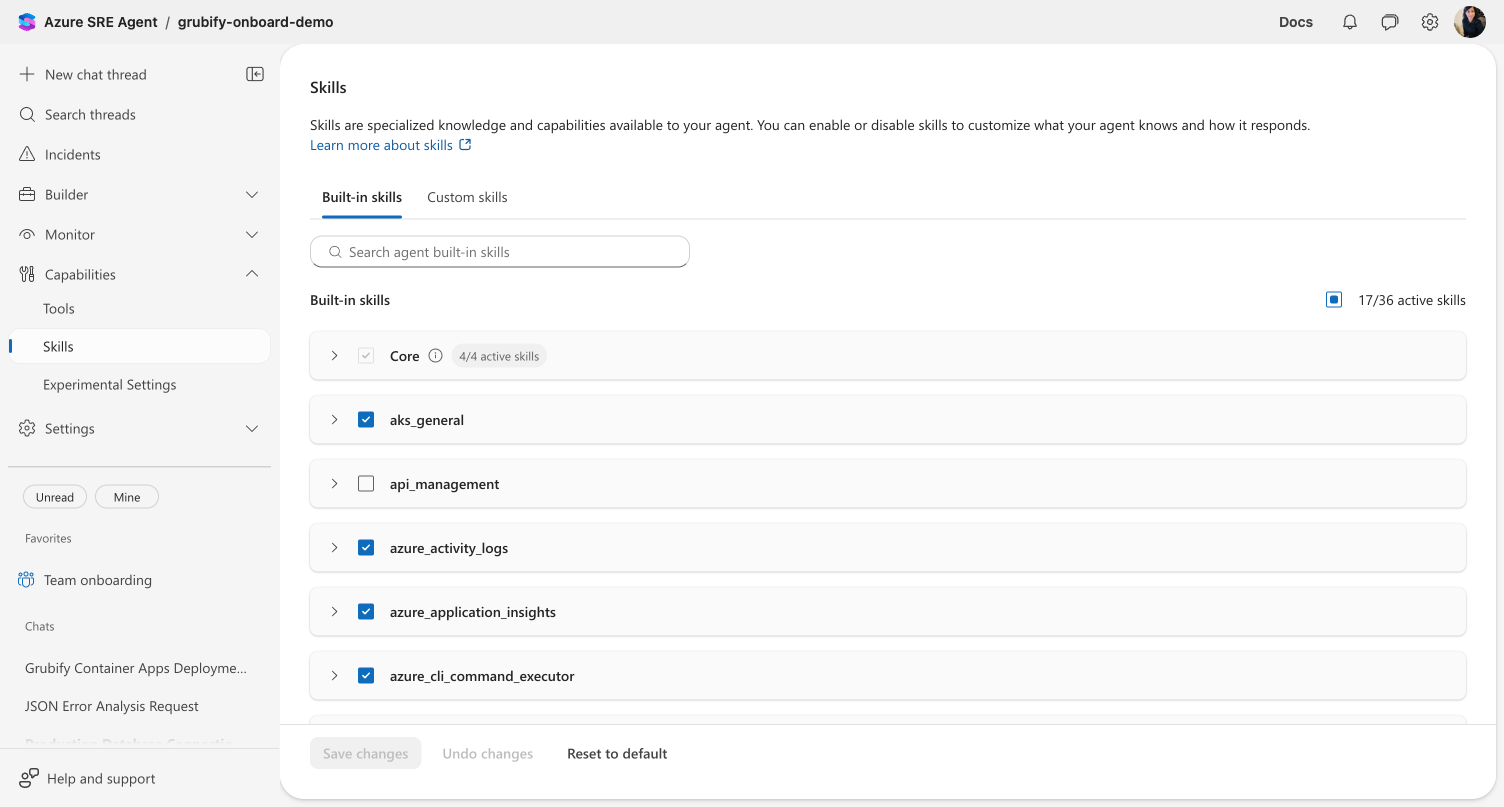
The Skills page organizes your agent's domain expertise into two tabs:
| Tab | What it shows |
|---|---|
| Built-in skills | System-provided skills grouped by domain — Core skills (always enabled), plus skills for Azure diagnostics, incident management, and more |
| Custom skills | Skills you've created through the Skill Builder or extended agent YAML |
Skills provide specialized knowledge and workflows for specific domains. For example, the aks_general skill gives your agent expertise in diagnosing AKS cluster issues, while azure_activity_logs enables querying activity log data.
Environment-aware defaults
Your agent's default skill configuration includes the incident management skills most commonly used by external customers:
| Default incident skills | Status |
|---|---|
| PagerDuty incident management | Enabled by default |
| ServiceNow incident management | Enabled by default |
Both skills are included out of the box so your agent is ready to work with whichever platform your team uses.
Common defaults for all environments include skills for AKS diagnostics, Azure Activity Logs, Application Insights, CPU and memory diagnostics, code repository management, metrics visualization, and more.
Default-enabled tools include Azure CLI read and write commands, kubectl read and write commands, Python code execution, web page fetching, Outlook email tools, Teams messaging tools, knowledge and scheduling tools, and more. Kubectl and Az CLI tools appear in the Azure Operation category and follow the same toggle pattern — kubectl write commands require human approval before executing.
Core skills — scheduled tasks, memory search, self-referencing manual, and code execution — are always enabled and cannot be disabled.
Use Reset to default to apply the latest environment-appropriate defaults, including any newly added platform skills.
Making changes
- Browse tools across tabs — expand categories to see individual items. Click any tool or skill name to open a detail dialog with its full description.
- Search using the search box to find specific tools or skills by name
- Toggle individual items, entire categories, or all items using the checkboxes — toggled items show a Save to enable or Save to disable badge until you save
- Save changes to apply your configuration — a confirmation dialog shows exactly which items are being enabled or disabled
- Undo changes to revert to the last saved state before saving
- Reset to default to restore all tools and skills to platform defaults
Seeing inherited tools on the agent canvas
When you configure tools and skills on this page, every custom agent that doesn't have its own tool overrides automatically inherits your configuration. The agent canvas makes this visible — each agent card shows exactly how many tools and skills it inherits.
Agent cards display one of two states:
| Card state | What it shows | When it appears |
|---|---|---|
| Inherited | "Inherits N tools · M skills" as a clickable link | Agent uses the space-level configuration from this page (no custom overrides) |
| Custom | "Tools · N" badge | Agent has its own tool selection that overrides the space defaults |
The inherited count reflects the exact number of enabled tools and skills from your space-level configuration. If you enable 51 tools and 12 skills on this page, every agent without custom overrides shows "Inherits 51 tools · 12 skills."
Click the inheritance link on any agent card to open the agent editor, where you can override with a custom selection. The editor shows the exact count of inherited global tools and skills, and explains that selecting tools will override the defaults.
This visibility also appears in the agent info panel, table view, and the create/edit agent dialog.
How overrides work
When you select custom tools or skills for a specific agent, that agent stops inheriting the space defaults for that category. The canvas card changes from "Inherits N tools · M skills" to "Tools · N" showing only the custom count.
To restore inheritance, remove all custom tool selections from the agent. It automatically falls back to inheriting the space-level configuration.
What makes this different
Centralized management. Configure tools and skills from dedicated pages under Capabilities. Toggle a tool once, and it applies to every agent in the space.
Category-level control. Enable or disable an entire category of tools with a single checkbox. Active counts in each category header give immediate visibility into your configuration state.
Smart defaults. Your agent starts with both PagerDuty and ServiceNow incident management skills enabled, so it's ready for whichever platform your team uses. Disable the one you don't need, or keep both if you use multiple systems.
Safety built in. Core tools and skills stay always-on — they can't be accidentally disabled. The Reset to default option lets you undo all customization with one action.
Before and after
| Before | After |
|---|---|
| Tools and skills on separate pages with separate tabs | Organized into clear category accordions with active counts per category |
| Same default skills regardless of incident platform | Both PagerDuty and ServiceNow skills enabled by default — ready for either platform |
| Category counts not visible at a glance | Active counts shown in each category header (e.g., "5/5 active") |
| No visual feedback when toggling items | "Save to enable" / "Save to disable" badges show what will change before you save |
| Agent cards showed "Tools · 0" with no indication of inherited capabilities | Agent cards show "Inherits 51 tools · 12 skills" — exact inherited count visible at a glance |
How tools are managed at each level
The Global Tools page is one layer in how SRE Agent manages tool availability:
| Level | Feature | What it controls | Scope |
|---|---|---|---|
| What tools exist | Workspace Tools → | The underlying capabilities — file operations, terminal, Python, Azure CLI | Defines the toolbox |
| Space-wide on/off | Global Tools page (this page) | Which tools are enabled or disabled for the entire space | All agents |
| Per-subagent | Subagent tool configuration | Which specific tools each subagent can use, overriding space-level settings | Individual subagents |
The Global Tools page manages the middle layer. Tools must exist (via workspace tools, MCP connectors, or custom definitions) before they appear here, and per-subagent configuration can further restrict which tools a specific subagent uses.
Related capabilities
| Capability | What it adds |
|---|---|
| Workspace Tools → | The underlying tools that the Global Tools page manages |
| Kusto Tools → | Create deterministic query tools that appear in the Custom tools tab |
| Plugin Marketplace → | Add MCP connectors whose tools appear in the MCP Servers tab |
| Workflow Automation → | Build automated workflows using the tools configured here |
Get started
Follow the Manage Global Tools tutorial for a step-by-step walkthrough of browsing, toggling, and resetting tools and skills.