Create Kusto Tool
A parameterized Kusto tool that runs exact KQL queries against your Azure Data Explorer database with deterministic, repeatable results. Learn more → Kusto Tools. Time: ~15 minutes.
Prerequisites
- Azure Data Explorer cluster with AllDatabasesViewer role granted to the agent's managed identity (see Kusto Tools prerequisites)
- Kusto connector configured (see Setup Kusto Connector)
- Access to Builder in SRE Agent portal
Steps
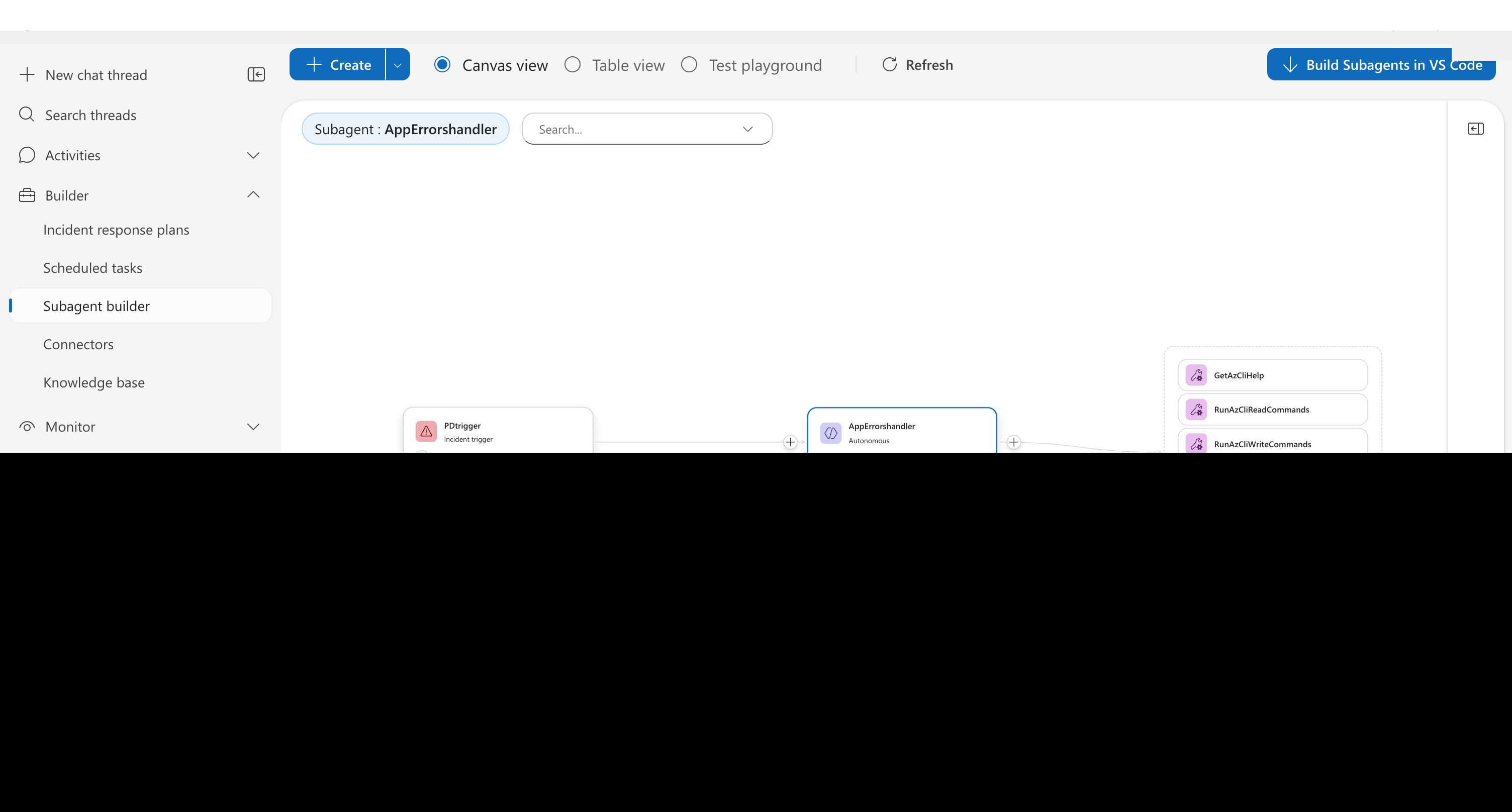
Step 1: Navigate to the Agent Canvas
- Open the SRE Agent portal
- Select your agent
- Click Builder in the left navigation
- Click Agent Canvas
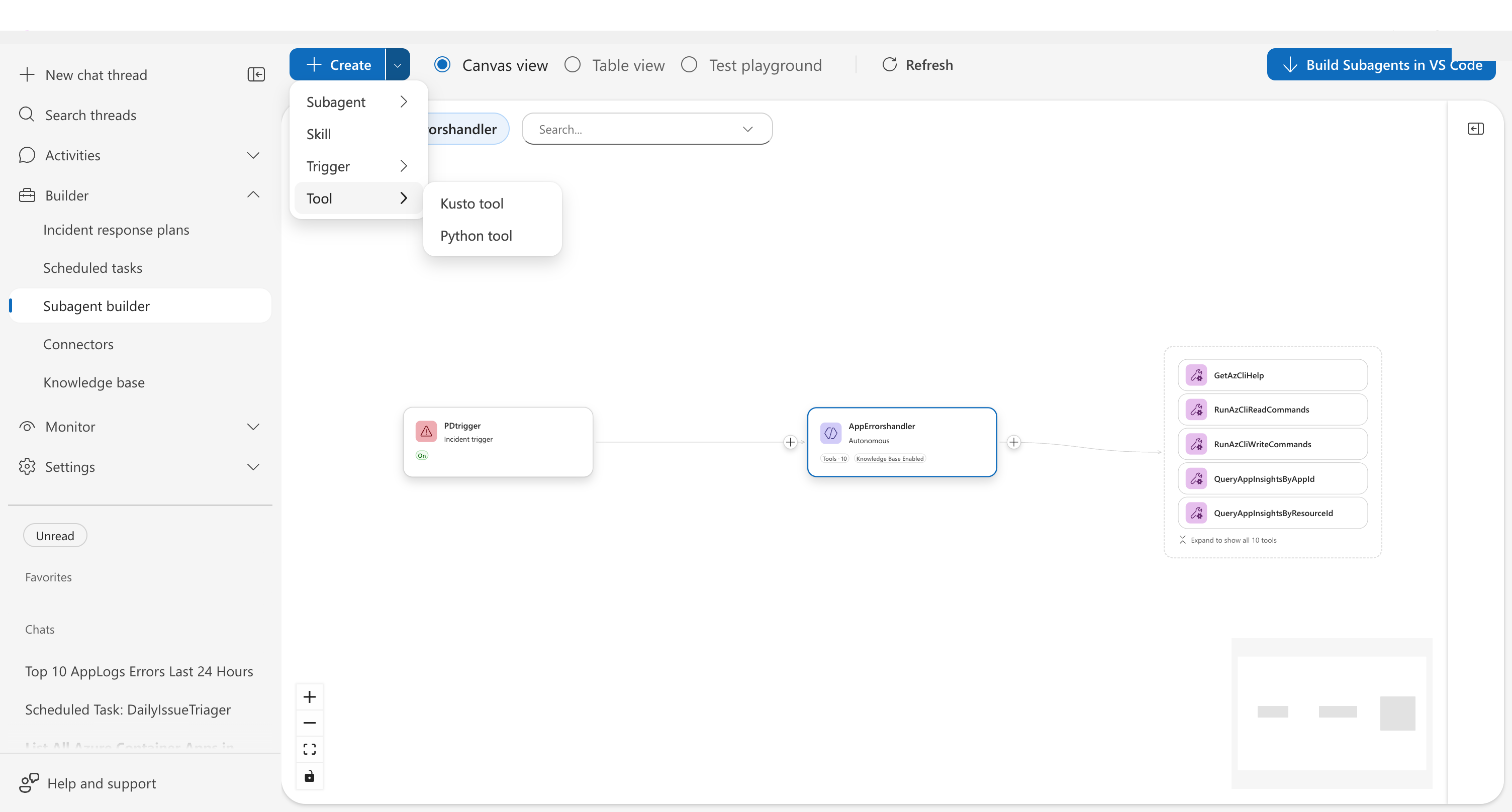
Step 2: Open the tool creation form
- Click the Create dropdown in the top toolbar
- Select Tool → Kusto tool
Step 3: Fill in the tool details
Complete the form:
| Field | Value | Description |
|---|---|---|
| Tool name | QueryAppLogs | How the agent references this tool |
| Description | "Query AppLogs table for errors in the specified time range" | When the agent should use this tool |
| Connector | (select your Kusto connector) | The ADX connection to use |
| Database | (auto-populated from connector URL) | Your database name |
| Query | See below | Your KQL query with parameters |
Example query:
AppLogs
| where Timestamp > ago(##timeRange##)
| where Level == "Error"
| order by Timestamp desc
| take 10
The ##timeRange## syntax creates a parameter. When someone asks "show errors from the last 24 hours," the agent fills in timeRange = 24h.
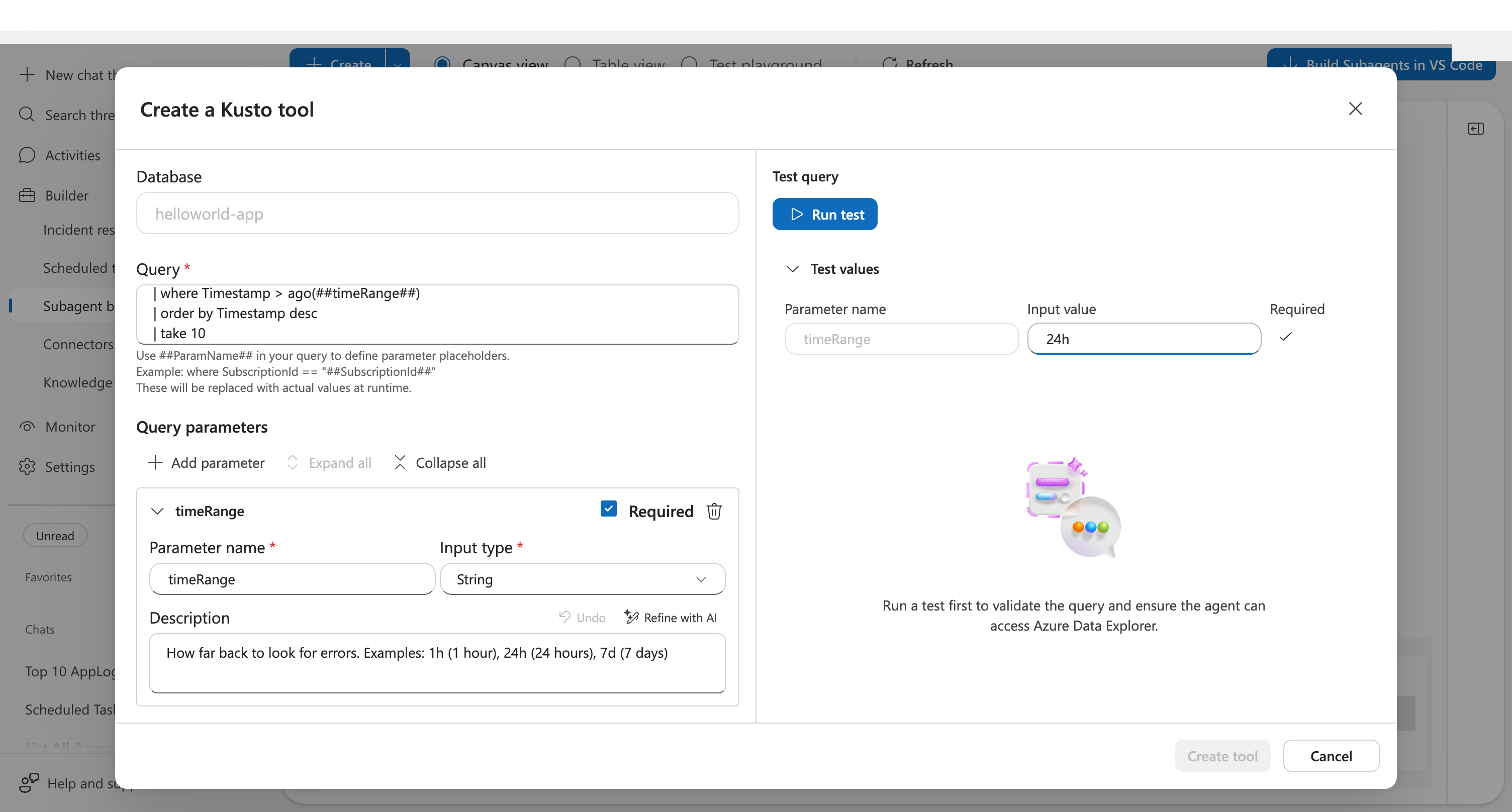
Step 4: Add the parameter
- Scroll to the Parameters section
- Click Add parameter
- Enter:
- Name:
timeRange - Type: String
- Description: "How far back to look (e.g., 1h, 24h, 7d)"
- Name:
The parameter appears in the Parameters table below your query.
Step 5: Test the query
- Click Test at the bottom of the form
- Enter a test value for
timeRange(e.g.,7d) - Verify the query executes successfully
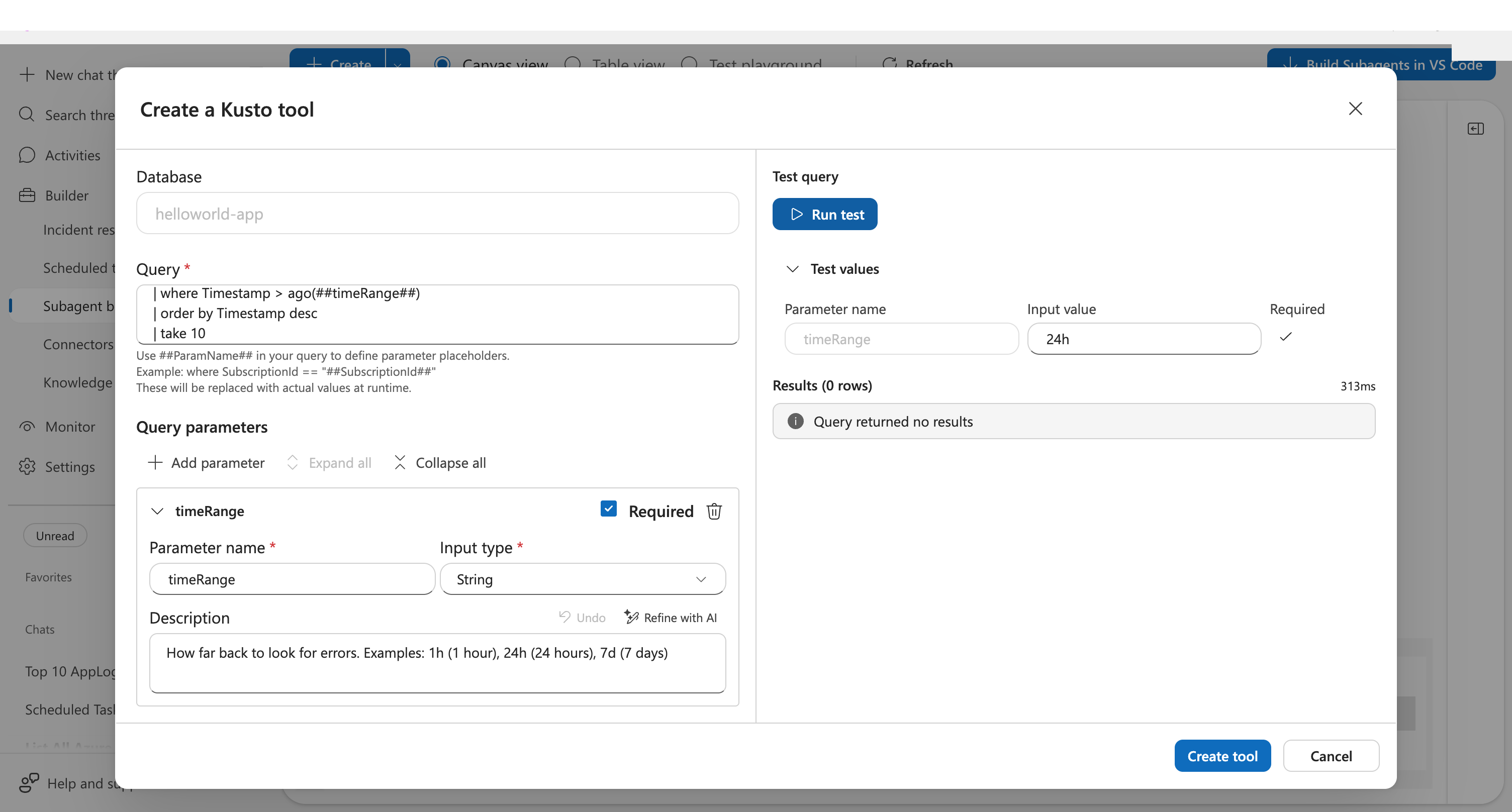
Checkpoint: You should see execution time and a green checkmark confirming the query runs. Even if it returns 0 rows, the checkmark means the query syntax is valid.
Step 6: Create the tool
Click Create to save your Kusto tool.
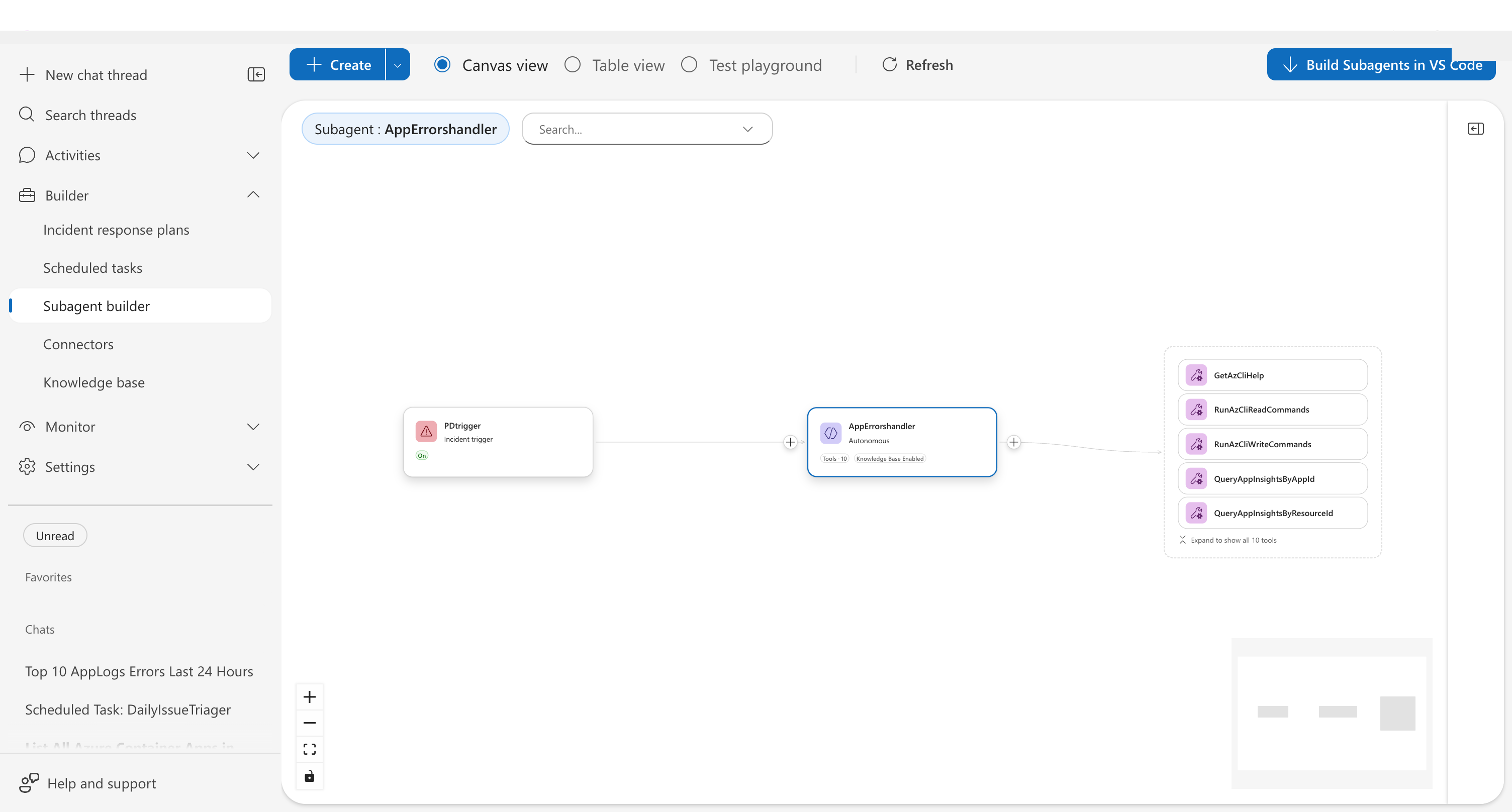
Step 7: Add the tool to a custom agent
Your tool is created but not yet attached to a custom agent. To use it:
- In the Canvas view, find your custom agent
- Click the + button on the right side of the custom agent card
- Select Add existing tools
- Check your Kusto tool from the list
- Click Add tools
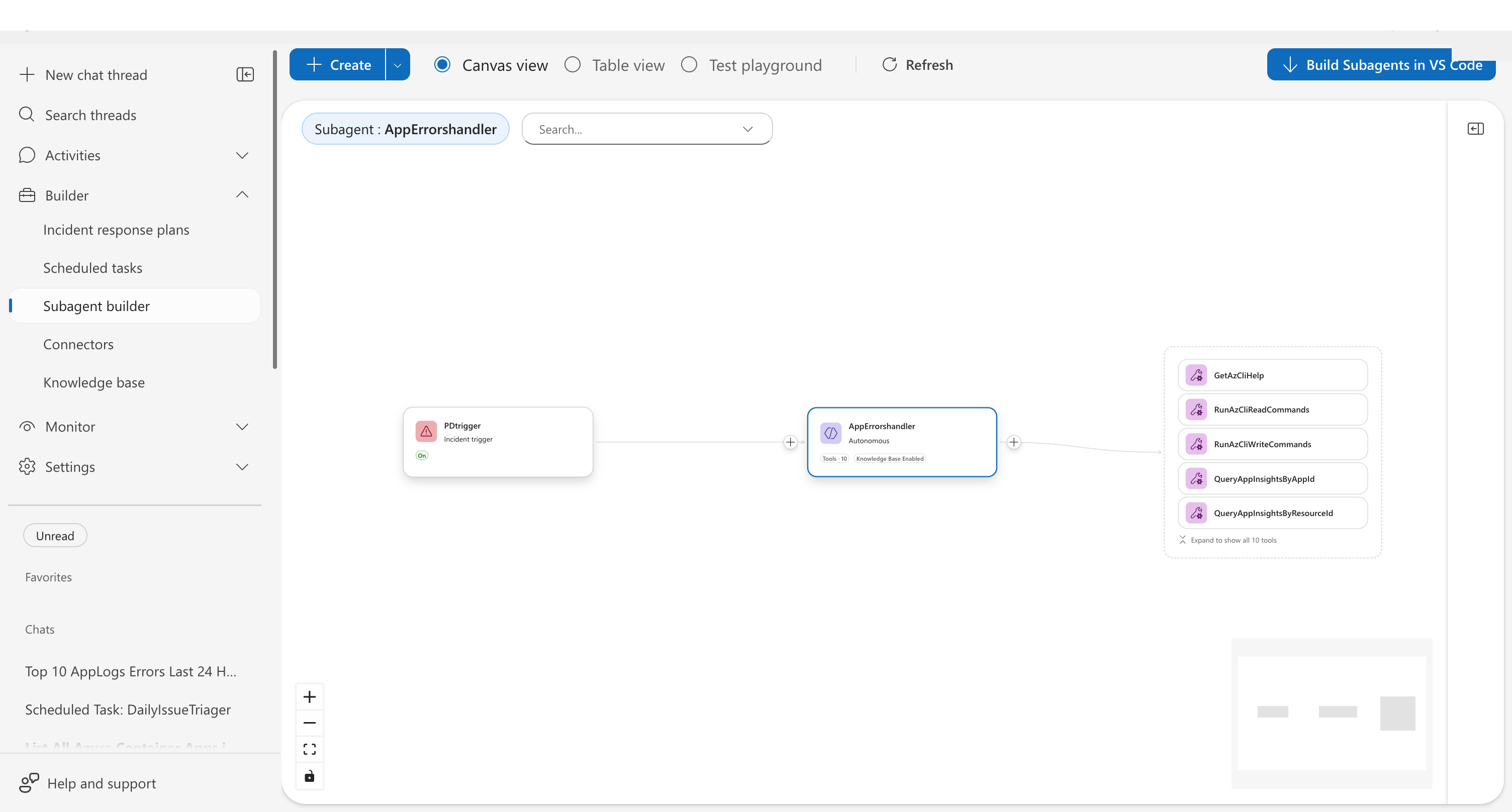
The tool count on your custom agent card increases after adding.
Step 8: Test in the playground
- Click Test Playground in the left navigation
- Select your custom agent from the dropdown
- Ask: "Show me errors from the last 7 days"
- The agent invokes your tool with
timeRange = 7d
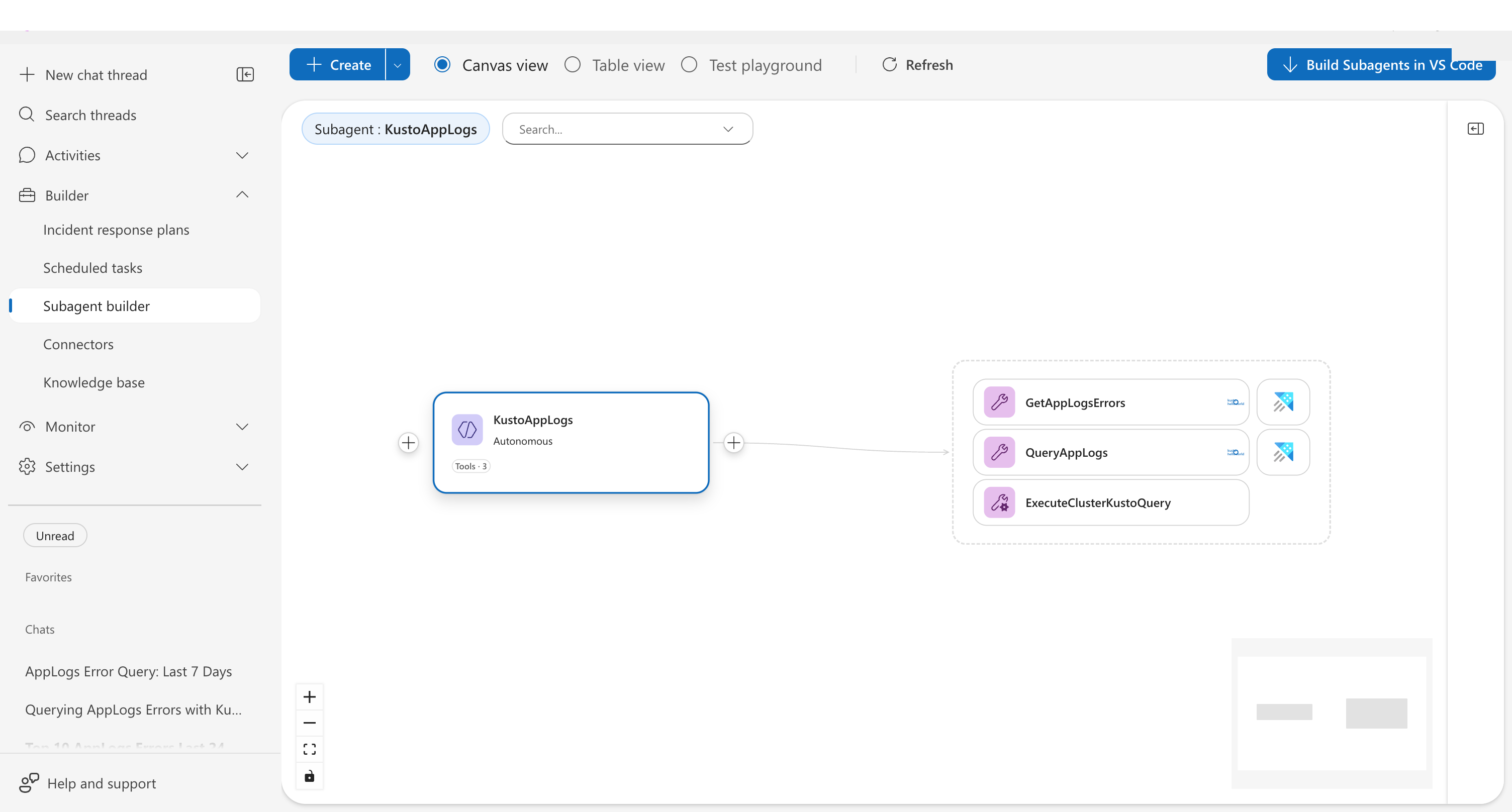
Checkpoint: You see the agent call your Kusto tool and return query results. The exact query you wrote runs against your cluster.
Parameter syntax
Use ##parameterName## or $parameterName to mark parameter placeholders in your queries:
query: |-
  AppExceptions
  | where TimeGenerated > ago(##timeRange##)
  | where ServiceName == "$serviceName"
Both syntaxes work identically. The agent substitutes values at runtime.
Execution modes
| Mode | Use when |
|---|---|
Query | Query is defined inline in YAML (most common) |
Function | Query logic is stored as a function on the ADX cluster |
Script | Query is in an external .kql file |
# Function mode example
spec:
  type: KustoTool
  mode: Function
  function: GetRecentErrors

# Script mode example
spec:
  type: KustoTool
  mode: Script
  file: queries/complex-analysis.kql
Example: Deployment correlation tool
api_version: azuresre.ai/v2
kind: ExtendedAgentTool
metadata:
  name: get-recent-deployments
spec:
  type: KustoTool
  connector: devops-logs
  mode: Query
  database: deployments
  description: "Get deployments in a time range for a service"
  toolMode: Auto
  query: |-
    Deployments
    | where TimeGenerated > ago(##timeRange##)
    | where ServiceName == "##serviceName##"
    | project TimeGenerated, Version, DeployedBy, Environment
    | order by TimeGenerated desc
  parameters:
    - name: serviceName
      type: string
      description: "Name of the service"
    - name: timeRange
      type: string
      description: "How far back to look (e.g., 1h, 24h)"
Edit or delete a tool
Edit
- On the Agent Canvas, click the tool node to open the info panel
- Click the edit (pencil) icon in the panel header
- The edit dialog opens with your current settings — modify the query, parameters, or connector
- Click Save
Delete
- Click the tool node to open the info panel
- Click the ⋯ (more actions) menu in the panel header
- Select Delete tool
- Confirm the deletion in the dialog
Deleted tools are immediately removed from any custom agents that were using them.
What you learned
- How to create a Kusto tool with parameterized KQL queries
- How to use parameter syntax (
##paramName##) for dynamic values - How to choose between Query mode and Command mode
- How to assign tools to custom agents for specialized use
Related
| Resource | What you'll learn |
|---|---|
| Kusto Tools capability | Full reference for all Kusto tool options |
| Create Python Tool | Build tools with custom Python logic |
| Custom agents concept | Learn how custom agents organize tools |