Connecting SRE Agent to Azure DevOps (Cross-Tenant)
How to connect Azure SRE Agent to ADO repos when the agent and ADO live in different Entra ID tenants.
- Quick validation or interactive use -> use the Auth (OAuth) flow when adding a repo. It's the fastest way to confirm that the agent can reach your ADO org and that your ADO permissions are set up correctly, because the token rides on your user identity - no app registration, no FIC, no service principal in the target tenant.
- Production / unattended use -> after OAuth proves the path works, switch to MI + FIC (the steps on this page) for a durable, non-user-bound credential. OAuth tokens follow the signed-in user; MI + FIC keeps working when no one is signed in.
Setup
Prerequisites
- Azure SRE Agent deployed (any tenant), in Running state
- SRE Agent Administrator role on the agent (adding knowledge sources requires admin)
- An Azure DevOps organization in the target tenant
- Project Collection Administrator role in the target ADO org (to add the service principal)
- Permission to create app registrations and federated identity credentials in the agent's tenant
Step 1 - Create the SRE Agent
Create the Azure SRE Agent resource in the Azure portal. This automatically provisions a User-Assigned Managed Identity (UAMI) in the resource group.
Note three values from the UAMI - you'll need them later:
- Client ID (Application ID) of the UAMI
- Object (Principal) ID of the UAMI - used as the FIC subject in Step 3
- Tenant ID of the agent's tenant
If your ADO organization is in the same tenant as the agent, skip ahead to Step 5 - add the UAMI directly to ADO with no app registration or FIC needed.
Step 2 - Create a Multi-Tenant App Registration
In the tenant where the SRE Agent lives:
- Go to Microsoft Entra ID -> App registrations -> New registration
- Under Supported account types, select Accounts in any organizational directory (multi-tenant)
- Register the app
- Note the Application (client) ID - you'll need it in every subsequent step
For background on multi-tenant SP creation, see Multitenant considerations for service principal creation.
Step 3 - Add a Federated Identity Credential (FIC)
Link the SRE Agent's managed identity to the app registration so it can authenticate without secrets.
- On the app registration from Step 2, open Certificates & secrets -> Federated credentials -> Add credential
- From the Federated credential scenario dropdown, select Managed Identity
- Pick the SRE Agent's UAMI from the managed identity picker
- The fields will auto-populate. Verify:
| FIC Field | Value |
|---|---|
| Issuer | https://login.microsoftonline.com/<your-tenant-id>/v2.0 (auto-populated) |
| Subject | The UAMI's Object (Principal) ID (auto-populated) |
| Audience | api://AzureADTokenExchange (auto-populated) |
- Add a Name and optional description, then click Add
If you enter incorrect values, the FIC is created without error - the failure only appears at token exchange time. Double-check Issuer, Subject, and Audience.
This establishes trust: the UAMI can now request tokens as the multi-tenant app - no secrets to manage. See Configure an application to trust a managed identity for the full schema.
Step 4 - Create the Service Principal in the ADO Tenant
The multi-tenant app registration from Step 2 lives in the agent's tenant. ADO needs a service principal (an instance of that app) in its own tenant.
az login --tenant <ADO-tenant-id>
az ad sp create --id <app-client-id-from-step-2>
For more on this command, see Manual git integration - multitenant SP creation.
Step 5 - Add the Service Principal to ADO
ADO uses its own permission system - not Azure RBAC, not Entra app permissions.
"Azure DevOps doesn't use Microsoft Entra ID application permissions. All access control is managed through the Azure DevOps permission system."
5a. Add to the Organization
- Open ADO -> Organization Settings -> Users
- Select Add users
- Enter the display name of your service principal. If multiple identities share a name, confirm by cross-checking its Object ID in the Enterprise Applications blade in Entra (not the App Registration Object ID).
- Set Access Level to Basic (minimum)
"Ensure that the service principal has at least a Basic license. Stakeholder licenses don't provide repository access." - ADO docs
5b. Add to the Project
- Open Project Settings -> Permissions
- Add the service principal to a security group:
| Goal | Security Group | What It Grants |
|---|---|---|
| Read-only access | Readers | View code, work items, pipelines |
| Read + write access | Contributors | Clone, push, create PRs, run pipelines |
Without project-level access, the agent cannot detect repositories when you try to add them - the connection appears successful but the project picker shows nothing.
5c. Grant Repository Access
- Open Project -> Repos -> select your repo -> Security
- Add the service principal and grant the appropriate permissions (Read, Contribute, etc.)
References: About permissions and security groups · Default security groups (Readers, Contributors, Project Administrators, Build Administrators, Release Administrators).
Step 6 - Add the Repo from Knowledge Sources
In the SRE Agent portal:
- Open your agent at sre.azure.com
- In the left sidebar, expand Builder -> select Knowledge sources
- Click Add repository
- Select the Azure DevOps platform card
- Under Choose sign in methods, select Managed Identity
- Fill in the form:
| Field | Value |
|---|---|
| Organization | The ADO organization name (the part after dev.azure.com/, e.g. contoso) |
| Managed identity | The SRE Agent's managed identity from the dropdown - either system-assigned or user-assigned works |
- If your ADO is in a different tenant than the agent, check Use managed identity as federated identity credential. (If your ADO is in the same tenant as the agent - the path described in the tip in Step 1 - leave this box unchecked and skip to step 9.)
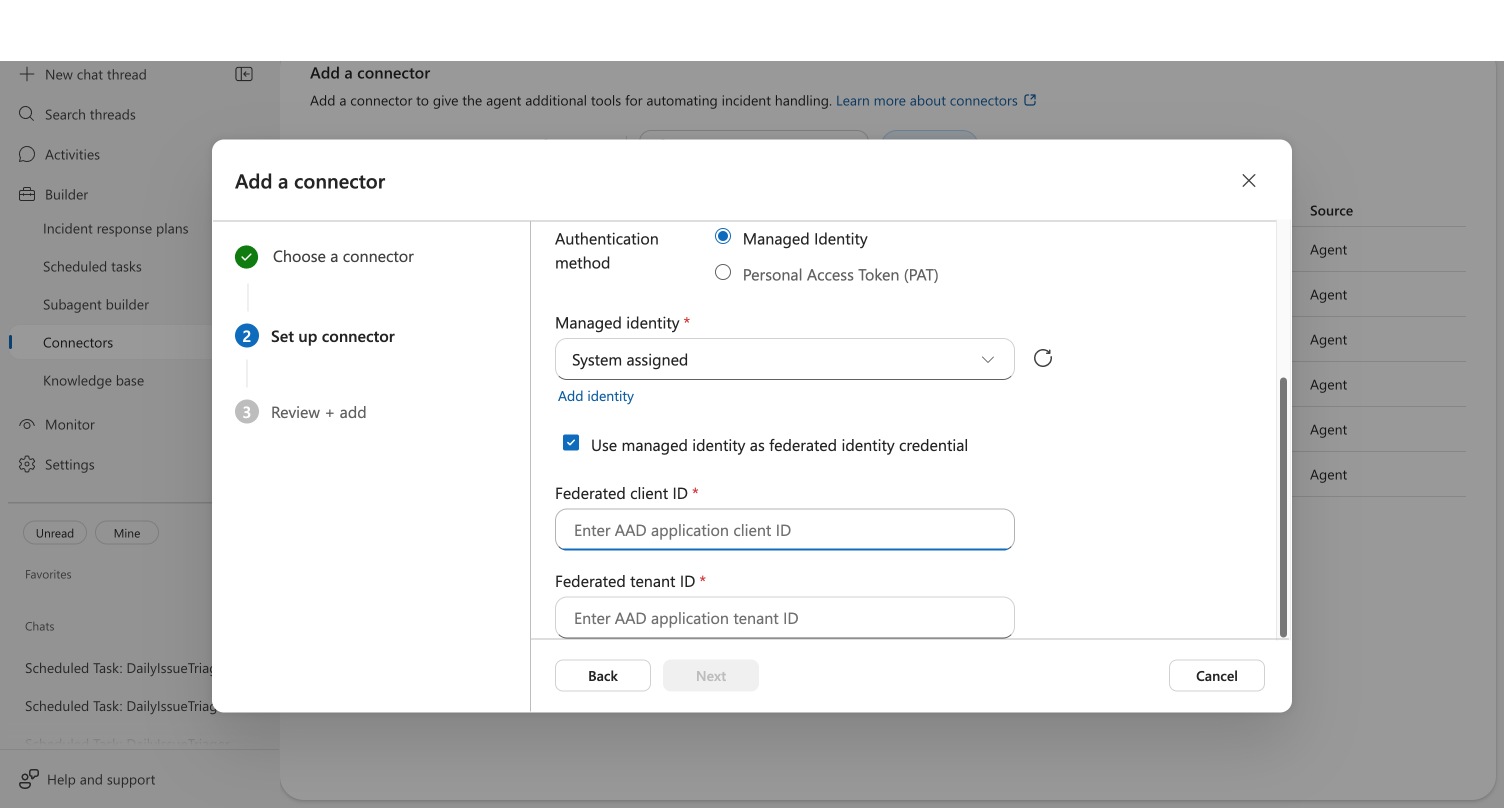
- Cross-tenant only - enter the federated values:
| Field | Value |
|---|---|
| Federated client ID | Application (client) ID of the app registration from Step 2 |
| Federated tenant ID | Tenant ID where the app registration lives (the agent's tenant) |
- Click Connect. The button changes to Connected when the token exchange succeeds.
For cross-tenant setups, the most common cause is an FIC misconfiguration in Step 3 (wrong subject, issuer, or audience). For same-tenant setups, confirm the UAMI was added to ADO in Step 5. See Troubleshooting.
Step 7 - Pick the Project and Repos
- Click Next to advance to the repository selection step
- From the Azure DevOps Project dropdown, select the project containing your repositories
- Click Add to add a repository row
- From the Repository dropdown, pick a repository (sorted alphabetically)
- Enter a Display name (and optional description)
- Repeat for additional repos
- Click Save
The selected repositories appear on the Knowledge Sources page. The agent clones them into its workspace and uses git, grep, and glob over the cloned files when answering questions - there's no separate indexing step to wait for.
How It All Fits Together
SRE Agent UAMI (Tenant A)
    -> Federated Identity Credential (FIC)
        -> Multi-tenant App Registration (Tenant A)
            -> Service Principal (Tenant B, where ADO lives)
                -> ADO Permissions: Org (Basic) + Project (Readers/Contributors) + Repo
                    -> Knowledge sources -> Add repository -> repos cloned into agent workspace ✅
Troubleshooting
| Symptom | Likely Cause | Fix |
|---|---|---|
| Connect succeeds but the project picker shows no projects | Missing project-level permissions | Add the SP to the project Readers group (Step 5b) |
The Git repository… doesn't exist or you don't have permissions | Stakeholder access level | Change to Basic (Step 5a) |
| Service principal not found in ADO tenant | SP not created in the ADO tenant yet | Run az ad sp create (Step 4) |
| FIC token exchange fails silently | Wrong FIC subject, issuer, or audience | Verify all three values on the app registration (Step 3) - Issuer must end in /v2.0, Subject must be the UAMI's Object ID, Audience must be exactly api://AzureADTokenExchange |
Managed Identity as FIC mode requires both FederatedClientId and FederatedTenantId | Only one of the federated fields was filled in | Provide both Federated client ID and Federated tenant ID in Step 6 |
| Identity dropdown is empty in the wizard | Agent has no managed identity attached | Attach a UAMI to the agent in the Azure portal Identity blade |
If you can't tell whether you're hitting an identity problem (FIC mis-wired, SP missing from the target tenant, missing app permissions) or an ADO permission problem (SP not added to the org, wrong project group, wrong repo ACL), add the same repo via the OAuth (Auth) flow first. OAuth uses your user identity, so it bypasses the entire FIC / app-registration / SP-creation chain. If OAuth works and MI + FIC doesn't, the problem is in the identity setup, not in ADO. If OAuth also fails, fix ADO permissions first.
What you learned
- How to create a multi-tenant app registration and a Federated Identity Credential trusted by your agent's UAMI
- How to create the service principal in the ADO tenant and grant it Basic + project + repo permissions
- How to add a cross-tenant ADO repo from the Knowledge sources wizard with FIC enabled
- How to recognize and recover from common FIC and ADO permission errors
Related
| Resource | What you'll learn |
|---|---|
| Connect ADO Repo with Managed Identity | full deep-dive on the Add Repository wizard (same-tenant or cross-tenant) |
| Cross-Account ADO Access (OAuth) | sign in with a different tenant account via browser popup - no app registration needed |
| Cross-Tenant ADO Work Items (OAuth) | OAuth path when you also need to create work items |
| Cross-Tenant Connector Access | architectural overview of cross-tenant connector mechanisms |
Next steps
- Set up another connector
- Create a scheduled task to automate recurring queries
- Run your first investigation using connected data
Sources
| Source | Link |
|---|---|
| ADO: Service principals & managed identities | learn.microsoft.com |
| ADO: About permissions and security groups | learn.microsoft.com |
| Fabric: Cross-tenant SP creation | learn.microsoft.com |
| Entra: Federated identity credentials | learn.microsoft.com |