Create and Test an HTTP Trigger
A webhook that automatically triggers your agent to run a compliance check whenever a new Azure Container App revision is deployed. You'll create the trigger in the portal, test it with Run Now, then call it with a real payload using curl.
Prerequisites
- An agent in Running state with at least one Azure subscription configured
- Azure CLI installed (
azcommand) — for testing the webhook call
Scenario
Your team deploys container app revisions multiple times a day. Each deployment should meet compliance standards — correct resource limits, health probes configured, ingress rules set. Instead of manually checking after every deploy, you'll create an HTTP trigger that your CI/CD pipeline calls after each deployment, and the agent runs the compliance check automatically.
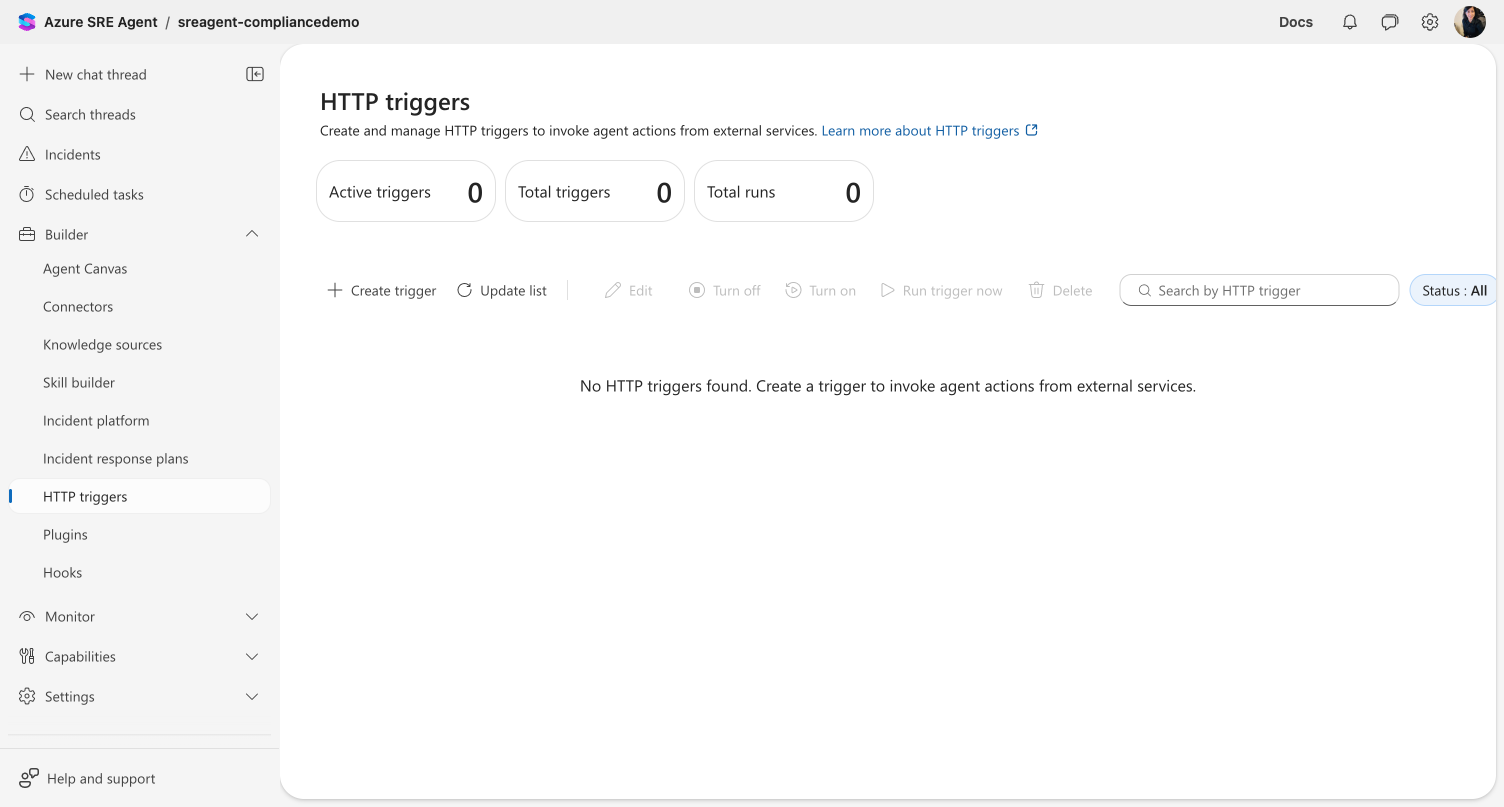
Step 1: Open Automation
Navigate to Automation in the left sidebar.
Checkpoint: The Automation page loads. If you have no automations yet, it shows an empty state prompting you to create your first automation.
Step 2: Create the trigger
Click Create in the toolbar and select HTTP trigger. The Create HTTP trigger dialog opens.
Fill in the form:
| Field | Value |
|---|---|
| Trigger name | Container App Compliance Check |
| Trigger details | A new container app revision was deployed. Run a compliance check on the app: verify resource limits (CPU/memory), health probes, ingress configuration, and scaling rules are configured correctly. Report any issues found. App details: {payload.app_name} in resource group {payload.resource_group}. Revision: {payload.revision_name}. |
| Agent autonomy level | Autonomous (Default) |
| Model tier | General Purpose (default) |
| Message grouping for updates | New chat thread for each run |
Leave Response subagent at its default unless you want a specific subagent to handle the check.
Click Create Trigger.
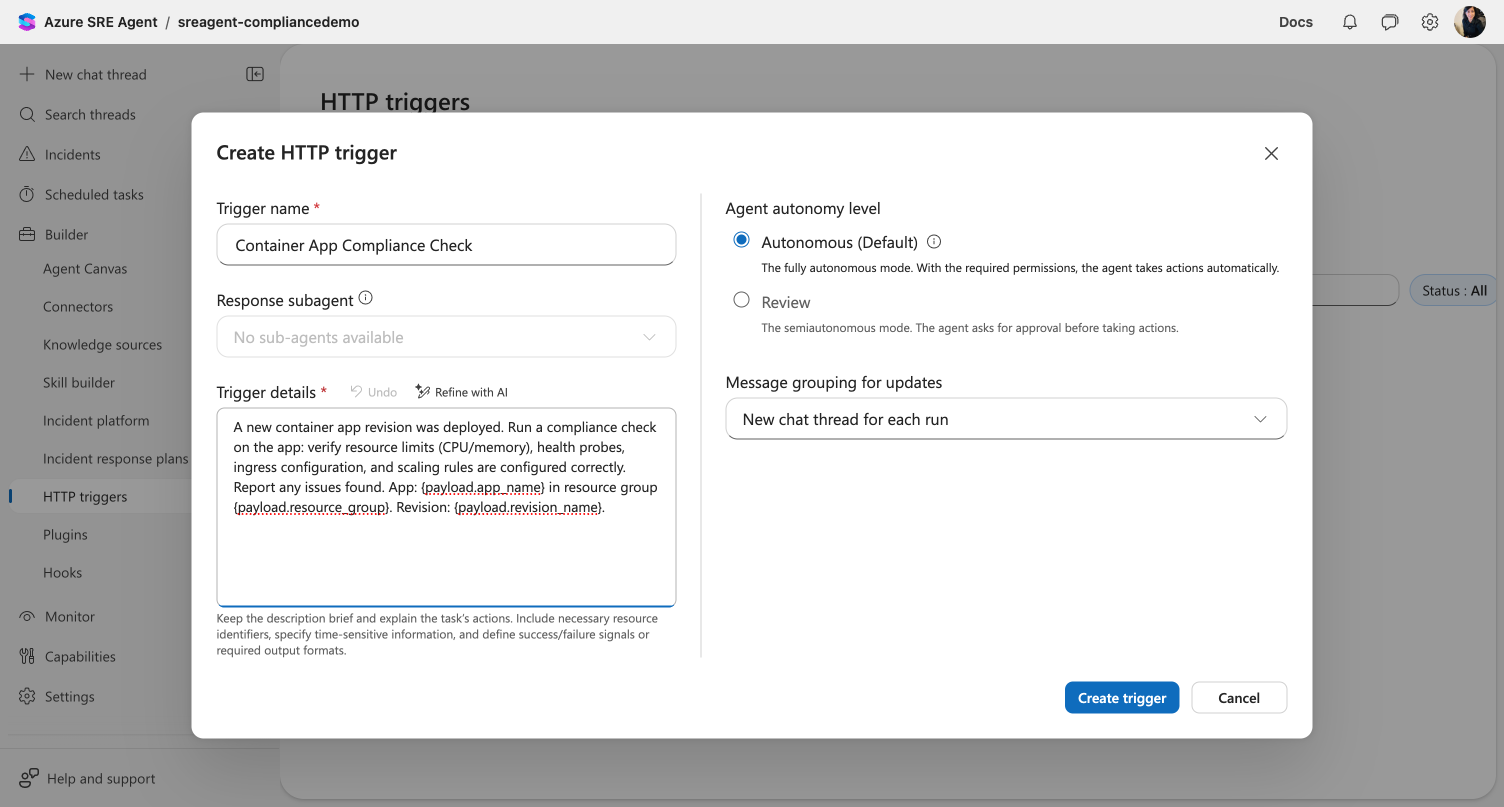
Checkpoint: The trigger appears in the Automation list with status On (green badge).
Step 3: Copy the trigger URL
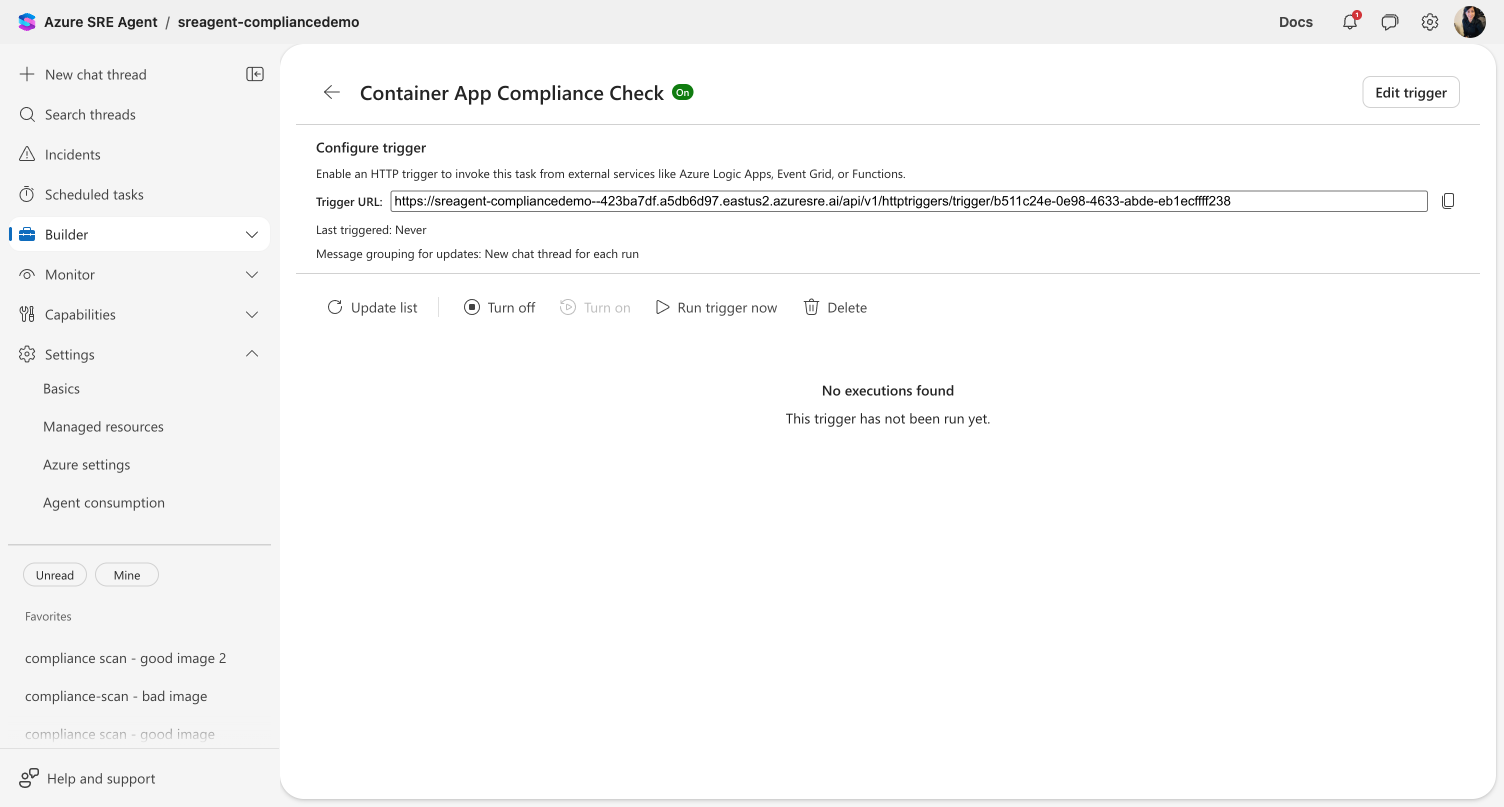
Click the trigger name Container App Compliance Check to open the detail view.
You'll see:
- Trigger URL — the webhook endpoint with a copy button
- Status — On
- Last called — Never
- Message grouping — New thread for each run
Click the copy button next to the trigger URL. Save it — you'll use it in Step 5.
Checkpoint: You have the trigger URL copied. It looks like: https://<your-agent>.sre.azure.com/api/v1/httptriggers/trigger/<trigger-id>
Step 4: Test with Run Now
Click Run trigger now in the toolbar. This executes the trigger immediately without an external call.
Wait a few seconds, then click Update list to refresh the execution history.
Checkpoint: The execution history shows a new row with a timestamp, a linked thread, and success status. Click the thread link to see the agent's response.
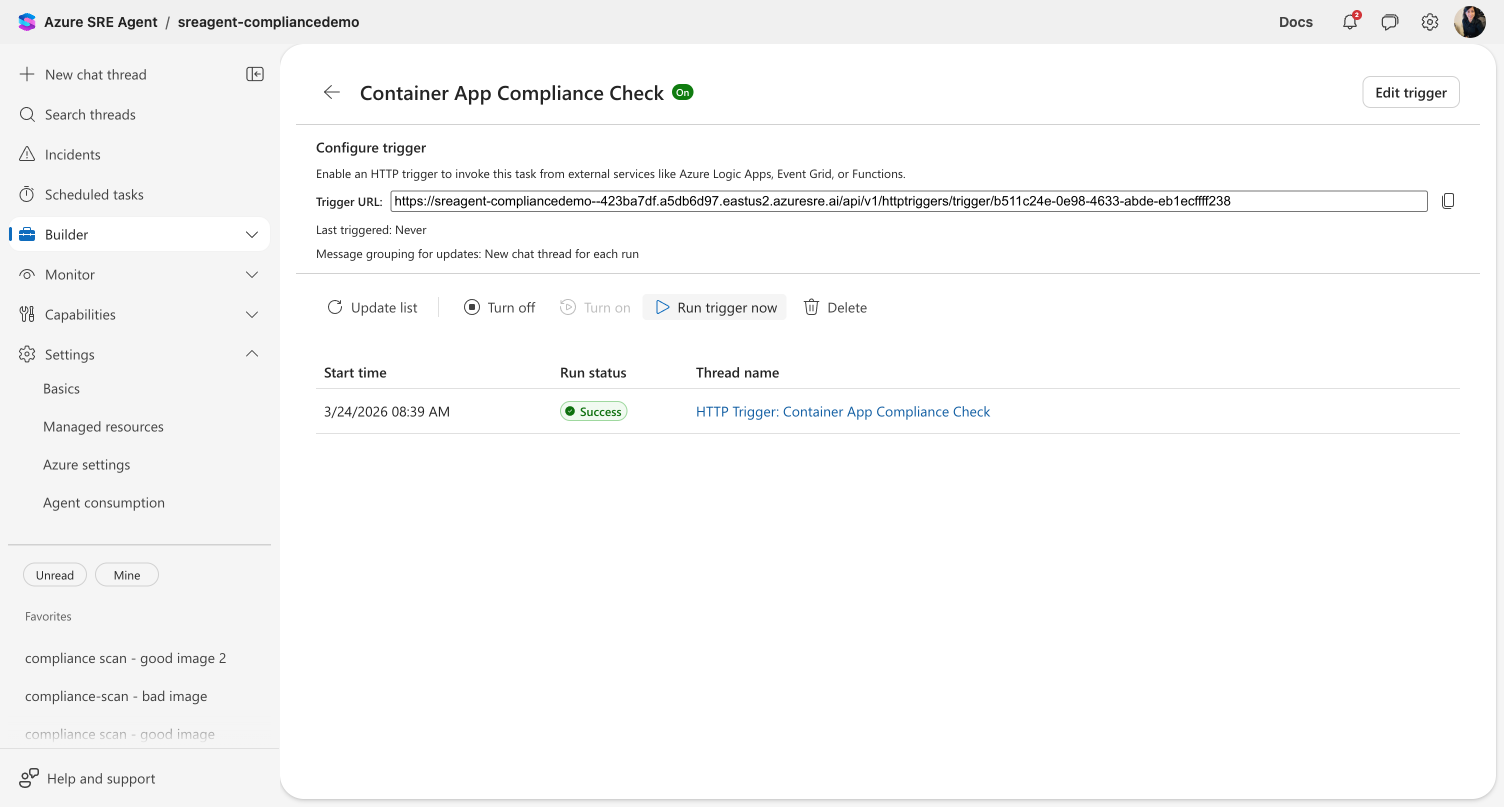
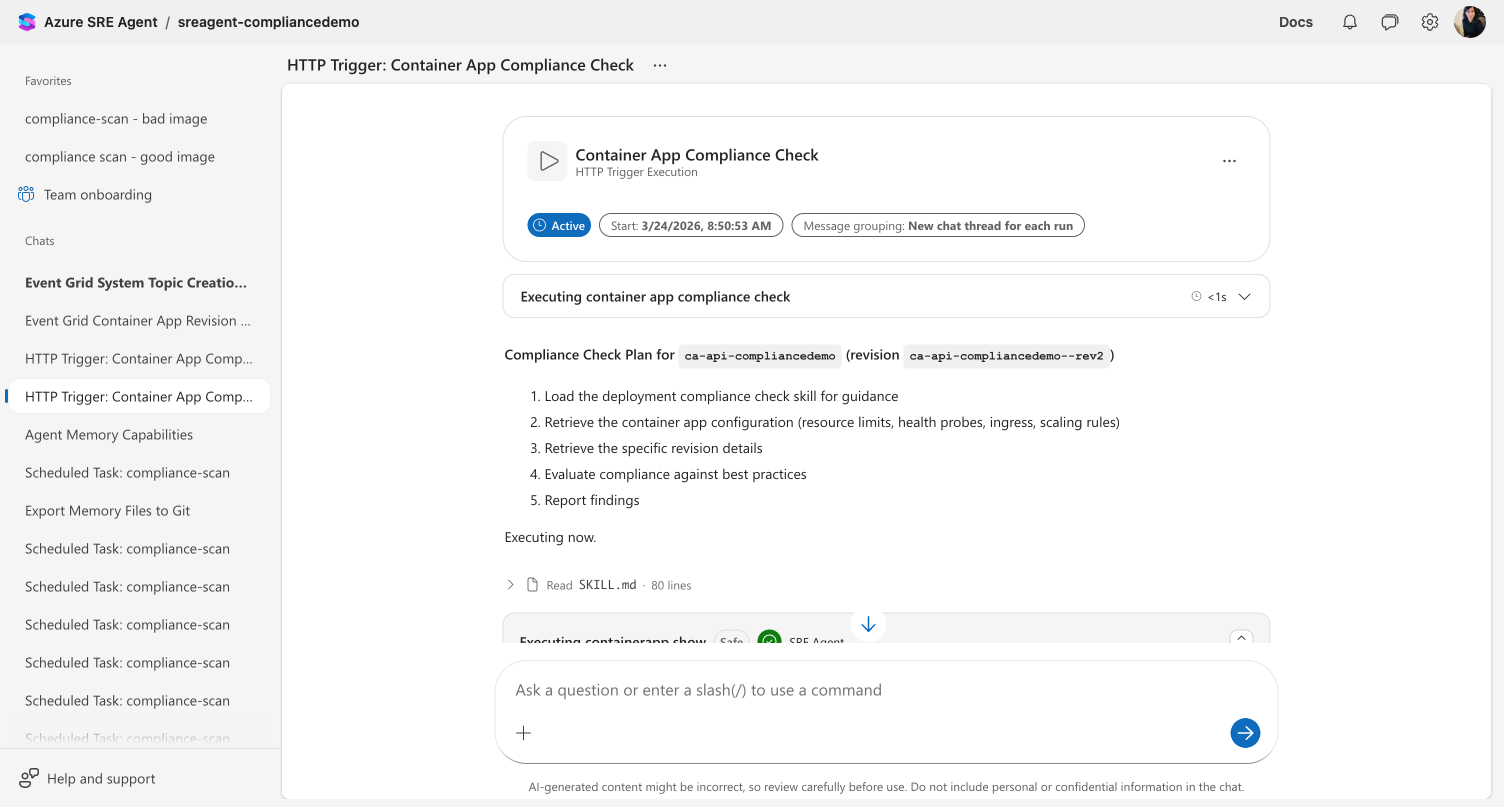
The agent creates a thread titled "HTTP Trigger: Container App Compliance Check". Inside, you'll see the execution card with the compliance check plan, followed by the agent's full investigation:
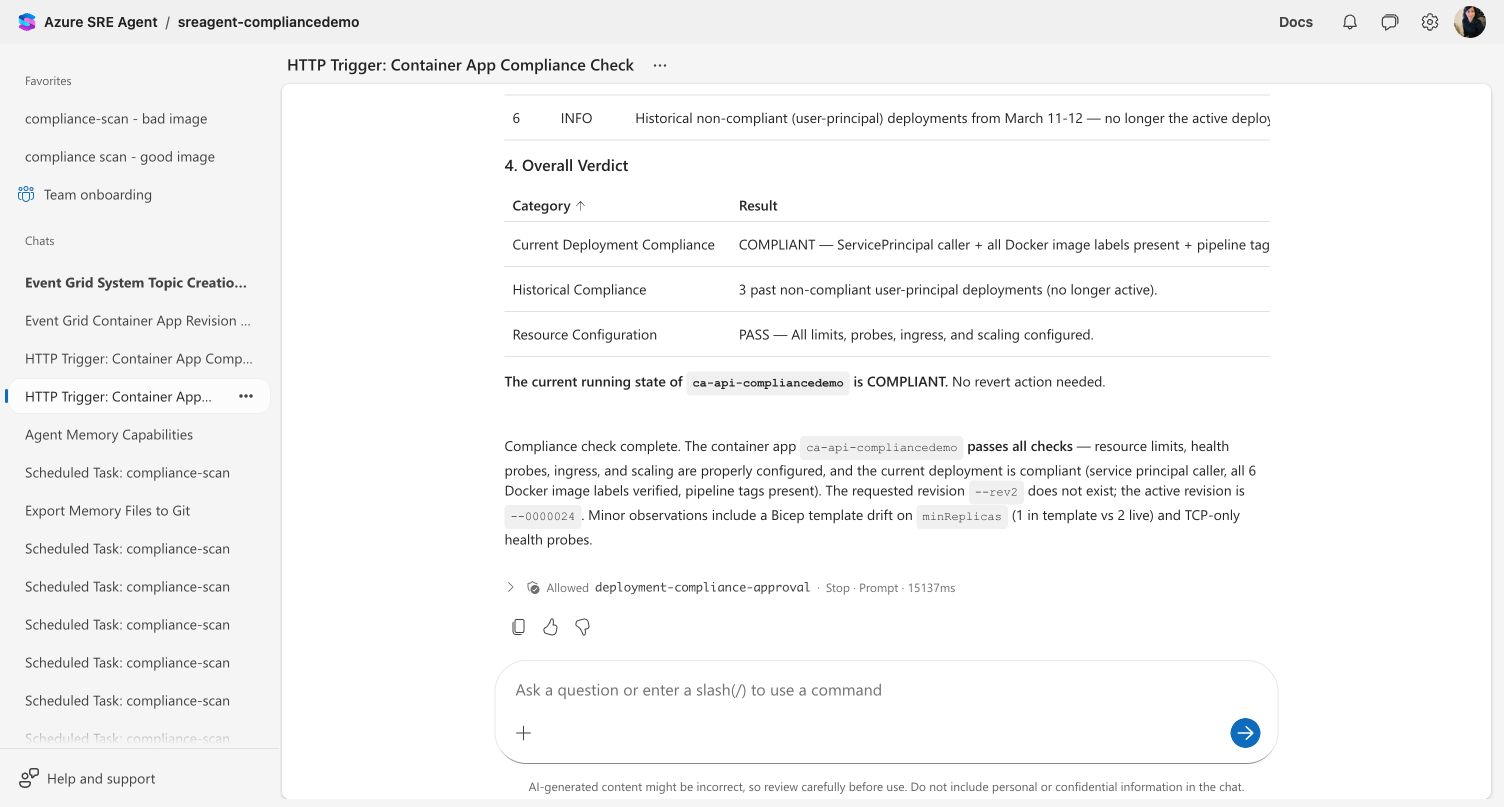
After the agent finishes, it produces a verdict table with compliance results:
Step 5: Call the trigger from the command line
Now test it the way your CI/CD pipeline would — with a real payload. Open a terminal and run:
# Get an ARM token (use the SRE Agent app ID as the resource)
TOKEN=$(az account get-access-token --resource 59f0a04a-b322-4310-adc9-39ac41e9631e --query accessToken -o tsv)

# Call the trigger with container app deployment details
curl -X POST \
  "<YOUR_TRIGGER_URL>" \
  -H "Authorization: Bearer $TOKEN" \
  -H "Content-Type: application/json" \
  -d '{
    "app_name": "checkout-api",
    "resource_group": "rg-production",
    "revision_name": "checkout-api--v3",
    "deployed_by": "github-actions",
    "image": "myregistry.azurecr.io/checkout-api:v3.2.1"
  }'
Replace <YOUR_TRIGGER_URL> with the URL you copied in Step 3.
What happens: The agent receives your prompt with {payload.app_name}, {payload.resource_group}, and {payload.revision_name} replaced with the actual values. Any fields that don't match a placeholder (like deployed_by and image) are appended as raw JSON context.
The response returns immediately with HTTP 202:
{
  "message": "HTTP trigger execution initiated",
  "executionTime": "2026-03-24T10:30:00Z",
  "threadId": "thread-abc123",
  "success": true
}
Checkpoint: Go back to the portal, click Update list in the detail view. You should see a second execution in the history — this one from the external call. Click the thread link to see the agent's compliance check with the real app details populated.
Step 6: Integrate with your pipeline
Add the trigger call to your CI/CD pipeline's post-deployment step. Here's an example for GitHub Actions:
- name: Trigger SRE Agent compliance check
  if: success()
  run: |
    TOKEN=$(az account get-access-token --resource 59f0a04a-b322-4310-adc9-39ac41e9631e --query accessToken -o tsv)
    curl -s -X POST "${{ secrets.SRE_TRIGGER_URL }}" \
      -H "Authorization: Bearer $TOKEN" \
      -H "Content-Type: application/json" \
      -d '{
        "app_name": "${{ env.APP_NAME }}",
        "resource_group": "${{ env.RESOURCE_GROUP }}",
        "revision_name": "${{ env.REVISION_NAME }}",
        "deployed_by": "${{ github.actor }}",
        "commit": "${{ github.sha }}"
      }'
Store your trigger URL as a GitHub secret (SRE_TRIGGER_URL) — never hardcode it in your workflow file.
What you learned
- How to create an HTTP trigger with a compliance check prompt and payload placeholders
- How
{payload.fieldname}in your prompt gets replaced with values from the webhook body - How to test a trigger using Run Now (no payload) and curl (with payload)
- How to integrate the trigger into a CI/CD pipeline post-deployment step
- How execution history tracks every invocation with thread links and status
Related
| Resource | What you'll learn |
|---|---|
| HTTP Triggers → | Architecture, authentication, and use case details |
| Create a scheduled task → | Time-based automation alongside event-driven triggers |
| Create a subagent → | Route trigger execution to a specialized agent |