Install a Plugin from a Public Marketplace
An agent with a public marketplace registered, a plugin installed, and its skills available for use. Learn more → Plugin Marketplace.
Prerequisites
- An Azure SRE Agent in Running state
- SRE Agent Author or Administrator role on the agent. See User roles.
- The Plugins page visible under Builder in the sidebar
Step 1: Open the Plugins page
In the SRE Agent portal, expand Builder in the sidebar and select Plugins.
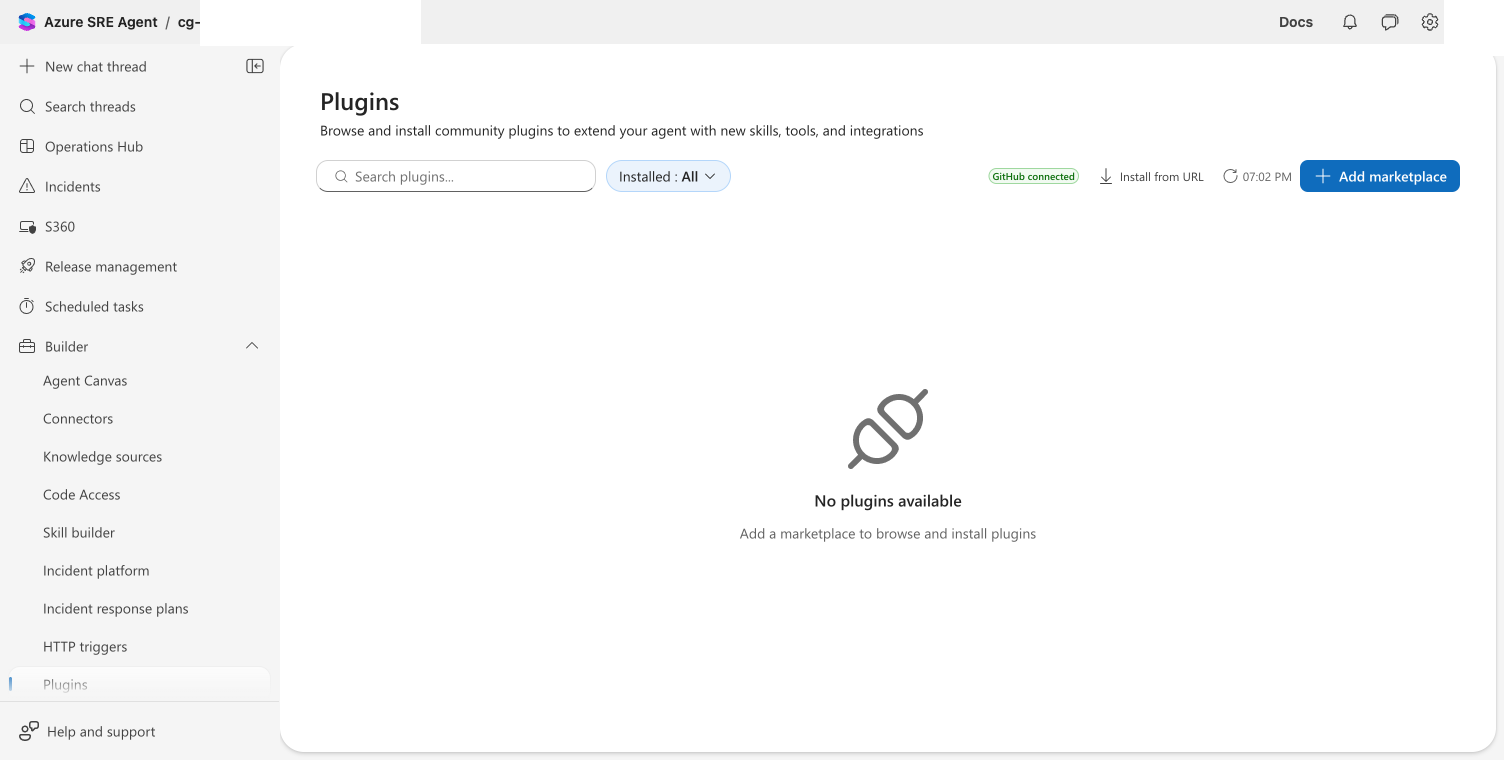
Step 2: Add a marketplace
- Select Add marketplace in the toolbar
- In the Marketplace URL or owner/repo field, enter
Azure/sre-agent-plugins - The auth section shows your GitHub connection status

- Select Add
The dialog dismisses and a toast confirms the marketplace is being added. The clone runs in the background — while it's in flight, a status banner appears at the top of the Plugins page and a small spinner overlays the marketplaces gear button. When the clone completes, a success toast announces the marketplace is ready and plugin cards appear in the grid.

Step 3: Preview a plugin
Select a plugin card to open its detail page. You can see:
- The plugin name, author, and a link to the source repository
- Available skills (select a skill name to preview its content)
- MCP server requirements, if any
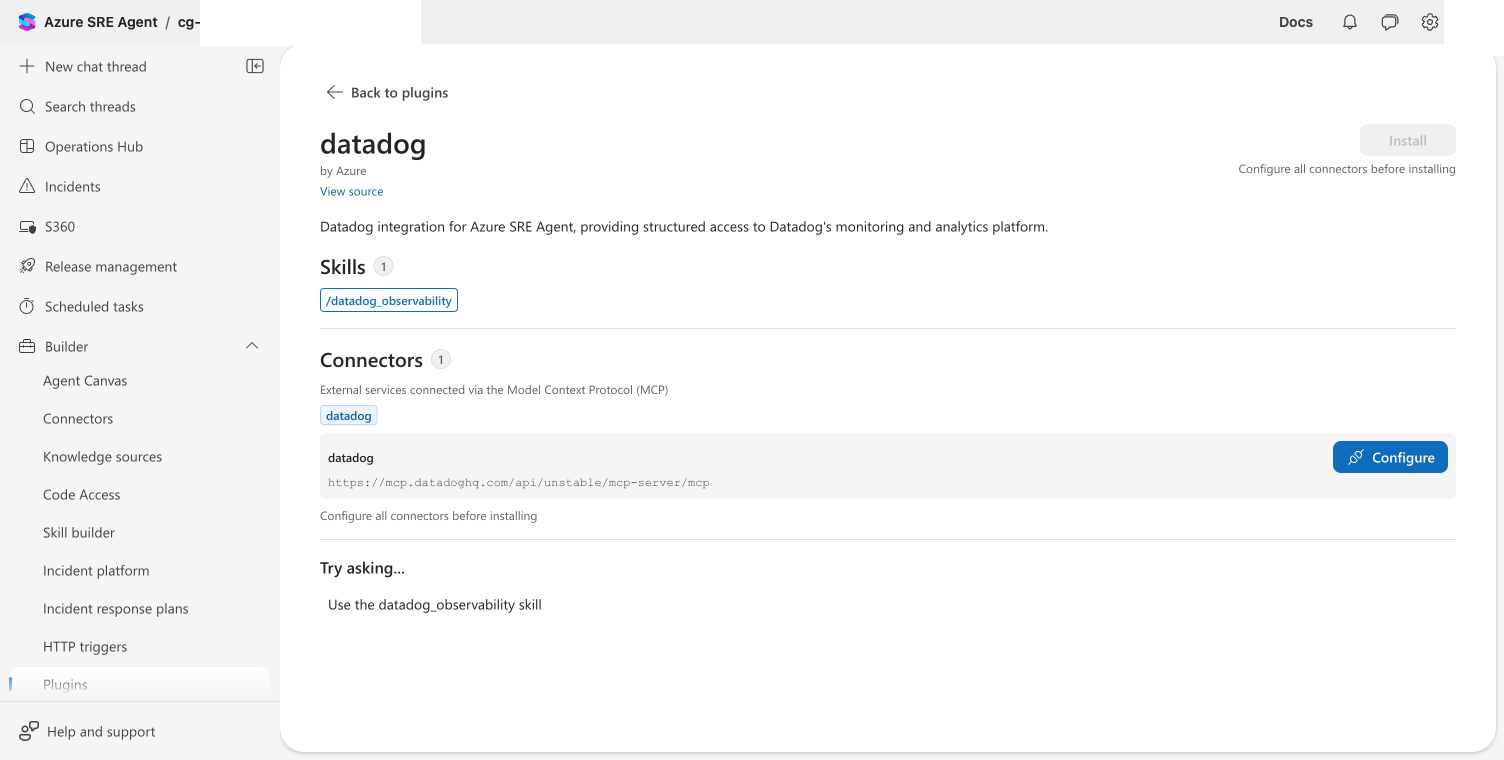
Plugins that include MCP servers can be installed at any time. The agent records the required MCP servers and surfaces a Connector setup required banner on the installed plugin's detail page if matching connectors aren't configured yet. Set those connectors up separately under Settings > Connectors — the plugin will pick them up automatically once their URL or command matches.
Step 4: Install the plugin
Select Install. The plugin's skills are imported into your agent and pinned to the current git commit.
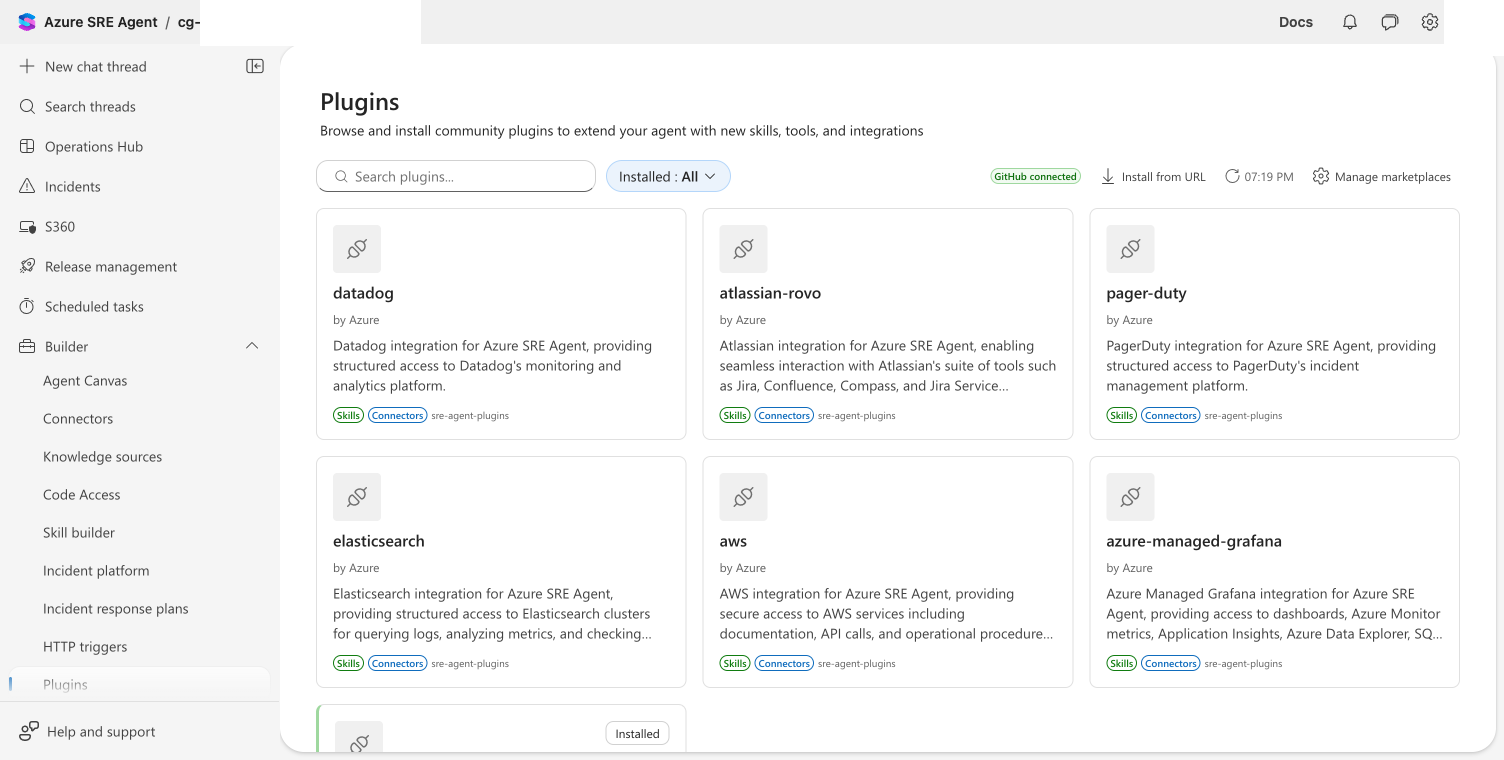
Checkpoint: The plugin card shows an Installed badge. The imported skills appear in Builder > Skill builder.
Step 5: Verify in Skill builder
Navigate to Builder > Skill builder to confirm the imported skill is listed and available.

Using the REST API
You can also add a marketplace and list plugins via the REST API:
# Add a marketplace
curl -X POST "https://<agent-endpoint>/api/v2/plugins/marketplaces" \
  -H "Authorization: Bearer $TOKEN" \
  -H "Content-Type: application/json" \
  -d '{
    "metadata": { "name": "sre-agent-plugins" },
    "spec": {
      "sourceType": "github",
      "sourceUrl": "Azure/sre-agent-plugins",
      "owner": { "name": "Azure" }
    }
  }'

# List installations
curl "https://<agent-endpoint>/api/v2/plugins/installations" \
  -H "Authorization: Bearer $TOKEN"
Next steps
- Install a plugin from a URL for standalone plugins without a marketplace
- Add a private marketplace for plugins hosted in private repos
- Plugin Marketplace for marketplace formats and authoring your own