Connect to ServiceNow
- Connect your ServiceNow instance to receive and manage incidents automatically
- Choose between Basic Authentication (username/password) or OAuth 2.0 Client Credentials (token-based, recommended for production)
- Once connected, your agent acknowledges, investigates, and updates ServiceNow incidents
Time: 15 minutes
Prerequisites
Before you begin, make sure you have:
- An Azure SRE Agent created and running
- A ServiceNow instance with admin access
- For OAuth 2.0 Client Credentials: An OAuth application registered in ServiceNow with a client ID and client secret
- For Basic Authentication: A ServiceNow user with incident management permissions
- Contributor on the SRE Agent resource to save connector settings
- For portal-managed OAuth API Connections: Owner or User Access Administrator at the resource group or subscription scope, in addition to Contributor, so the portal can grant the agent's runtime managed identity Logic App Contributor on the connection
Choose your authentication method
| Method | Security | Best for | Setup time |
|---|---|---|---|
| OAuth 2.0 Client Credentials | Token-based, automatic refresh, no stored passwords | Production environments, security-conscious teams | ~10 min |
| Basic Authentication | Username and password stored | Quick setup, dev/test environments | ~5 min |
OAuth 2.0 Client Credentials is recommended for production use. Tokens refresh automatically, and no user password is stored in your agent configuration.
Option A: Connect with OAuth 2.0 Client Credentials
Prepare ServiceNow for Client Credentials
Before connecting from the portal, register an OAuth application in your ServiceNow instance that supports the Client Credentials grant:
- In your ServiceNow instance, navigate to System OAuth → Application Registry
- Create an OAuth application for external clients with the Client Credentials grant
- Fill in:
- Name: A descriptive name (e.g.,
Azure SRE Agent) - Active: Checked
- Name: A descriptive name (e.g.,
- Click Submit and note:
- Client ID — displayed on the application page
- Client Secret — click the lock icon to reveal; copy it immediately
The Client Secret is shown only once in some ServiceNow versions. Copy it before navigating away.
Configure in the portal
- Navigate to your agent in the Azure SRE Agent portal
- In the left navigation, select Incidents → Connect an incident platform
- In the wizard, select ServiceNow
If another platform is already connected, a confirmation dialog appears. Confirm to disconnect the current platform before proceeding. Only one incident platform can be active at a time.
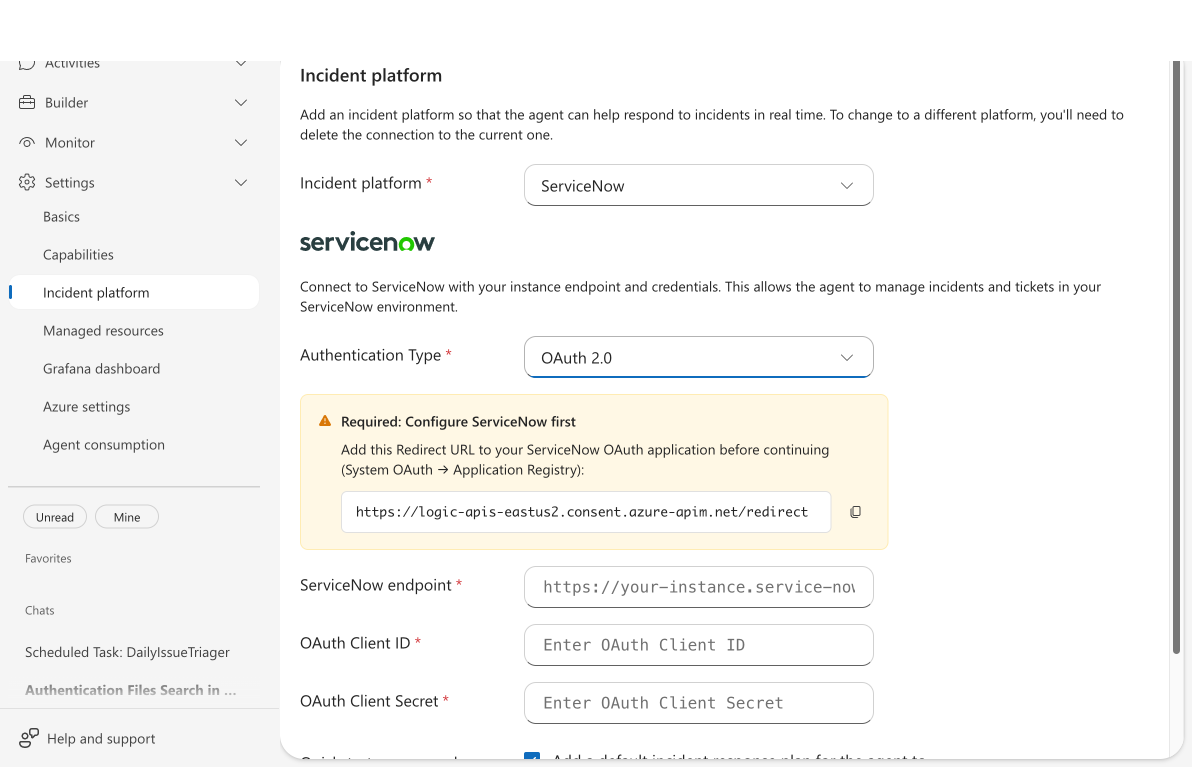
- Set Authentication Type to OAuth 2.0 Client Credentials (Service Account)
- Enter your ServiceNow details:
- ServiceNow endpoint: Your instance URL (e.g.,
https://your-instance.service-now.com) - OAuth Client ID: From your ServiceNow OAuth application
- OAuth Client Secret: From your ServiceNow OAuth application
- ServiceNow endpoint: Your instance URL (e.g.,
- Click Next, complete the optional Generate insights step, then click Save.
Verify your connection
After saving, the Incidents page shows a green "ServiceNow is connected." status indicator. Your agent can now receive and manage incidents from ServiceNow.
Checkpoint: Open the platform connection menu on the Incidents page to see Edit and Disconnect, confirming the connection is active.
Your agent can now automatically receive, investigate, and update ServiceNow incidents. Set up response plans to control which incidents your agent handles.
Option B: Connect with Basic Authentication
Create a ServiceNow integration user
Create a dedicated user in ServiceNow for the agent:
- In ServiceNow, go to User Administration → Users
- Create a new user with:
- A recognizable username (e.g.,
sre-agent-integration) - A strong password
- Roles:
itiland incident management permissions (or equivalent)
- A recognizable username (e.g.,
Configure in the portal
- Navigate to your agent in the Azure SRE Agent portal
- In the left navigation, select Incidents → Connect an incident platform
- In the wizard, select ServiceNow
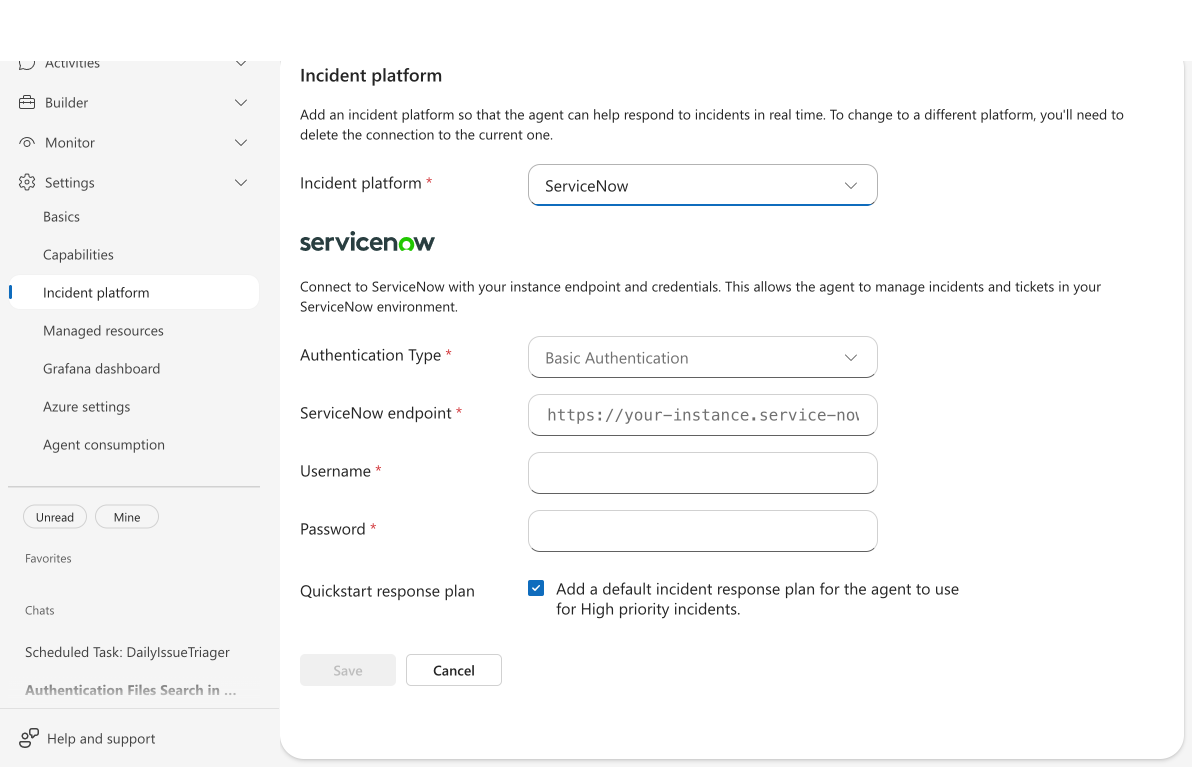
- Leave Authentication Type as Basic Authentication (default)
- Enter your ServiceNow details:
- ServiceNow endpoint: Your instance URL (e.g.,
https://your-instance.service-now.com) - Username: The integration user's username
- Password: The integration user's password
- ServiceNow endpoint: Your instance URL (e.g.,
- Click Next, complete the optional Generate insights step, then click Save.
Verify your connection
The portal validates connectivity automatically. You should see a green "ServiceNow is connected." status indicator on the Incidents page.
Set up response plans
Once ServiceNow is connected, create response plans to define how your agent handles incidents.
You can optionally enable Quickstart response plan during setup, which creates a default response plan for high-priority incidents automatically.
When you enable Quickstart response plan, your agent creates a default plan based on the platform:
| Platform | Default plan handles | Autonomy level |
|---|---|---|
| ServiceNow | Critical (Priority 1) incidents | Autonomous |
| Azure Monitor | Sev3 alerts | Autonomous |
| PagerDuty | P1 incidents | Autonomous |
ServiceNow priority values:
| Priority | ServiceNow value | Label |
|---|---|---|
| Critical | 1 | Critical |
| High | 2 | High |
| Moderate | 3 | Moderate |
| Low | 4 | Low |
| Planning | 5 | Planning |
What your agent can do with ServiceNow
Once connected, your agent interacts with ServiceNow incidents throughout their lifecycle:
| Capability | Description |
|---|---|
| Read incidents | Fetch incident details, related records, and discussion history |
| Post discussion entries | Add investigation findings and updates to incident work notes |
| Acknowledge incidents | Mark incidents as acknowledged when investigation begins |
| Change priority | Adjust incident priority based on investigation findings |
| Resolve incidents | Close incidents with resolution notes after successful mitigation |
Change credentials
To update your ServiceNow connection:
- Go to Incidents and open the platform connection menu
- Select Edit
- Update your endpoint, authentication type, or credentials
- Click Next, complete the optional Generate insights step, then click Save
Disconnect ServiceNow
To disconnect your ServiceNow integration:
- Go to Incidents and open the platform connection menu
- Click Disconnect
- Confirm the disconnection
Disconnecting permanently removes the connection. Your agent stops receiving and managing ServiceNow incidents.
Troubleshooting
OAuth Client Credentials fails
- Confirm your OAuth application supports the Client Credentials grant and is Active in ServiceNow
- Double-check your Client ID and Client Secret
- Ensure your ServiceNow instance allows external OAuth connections
Connection shows "Not Connected" after setup
- OAuth Client Credentials: Verify the OAuth application supports the Client Credentials grant, then edit the connection from the platform connection menu
- Basic auth: Verify the endpoint URL, username, and password are correct
- Confirm the ServiceNow endpoint is reachable from Azure (no firewall blocking)
"Unable to connect to ServiceNow endpoint"
- Verify the endpoint URL format:
https://your-instance.service-now.com(no trailing slash) - Confirm your ServiceNow instance is accessible from the public internet
- Check that the integration user has sufficient permissions
"Invalid OAuth credentials"
- Regenerate the Client Secret in ServiceNow and try again
- Verify the Client ID matches the one in your ServiceNow OAuth application
- Confirm the OAuth application is active and not expired
Related
- Incident platforms — How incident platforms work with your agent
- Automate Incident Response — Configure response plans and automation
What you learned
In this tutorial, you:
- Connected your ServiceNow instance to Azure SRE Agent using OAuth 2.0 or Basic Authentication
- Verified the connection is active and healthy
- Learned how to set up response plans for ServiceNow incidents
- Understood what your agent can do with ServiceNow (read, post, acknowledge, resolve incidents)