Set Up Azure DevOps Connector
An authenticated connection to your Azure DevOps organization so your agent can read repositories, wikis, and work items during investigations. Choose OAuth for automatic token management or PAT for service account scenarios.
Prerequisites
- An agent created in the Azure SRE Agent portal
- An Azure AD account with access to your Azure DevOps organization
- SRE Agent Administrator or Author role on the agent
Step 1: Navigate to Connectors
- Open your agent in the Azure SRE Agent portal
- In the left sidebar, expand Builder
- Select Connectors
You'll see the connectors list showing any existing connectors for your agent.
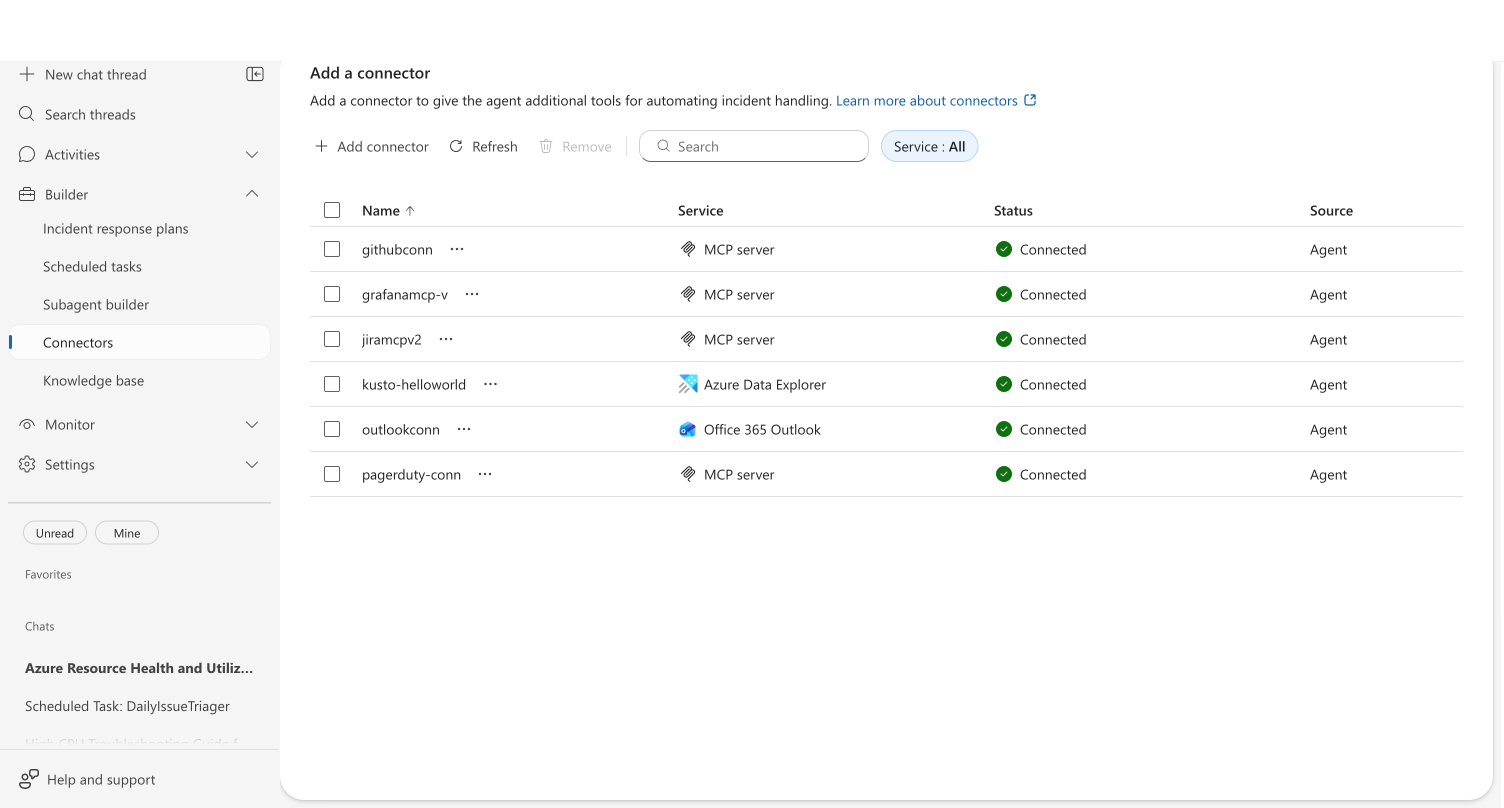
Step 2: Add an Azure DevOps OAuth connector
- Click Add connector in the toolbar
- Select the Code Repository tab, then select Azure DevOps OAuth connector
- Click Next
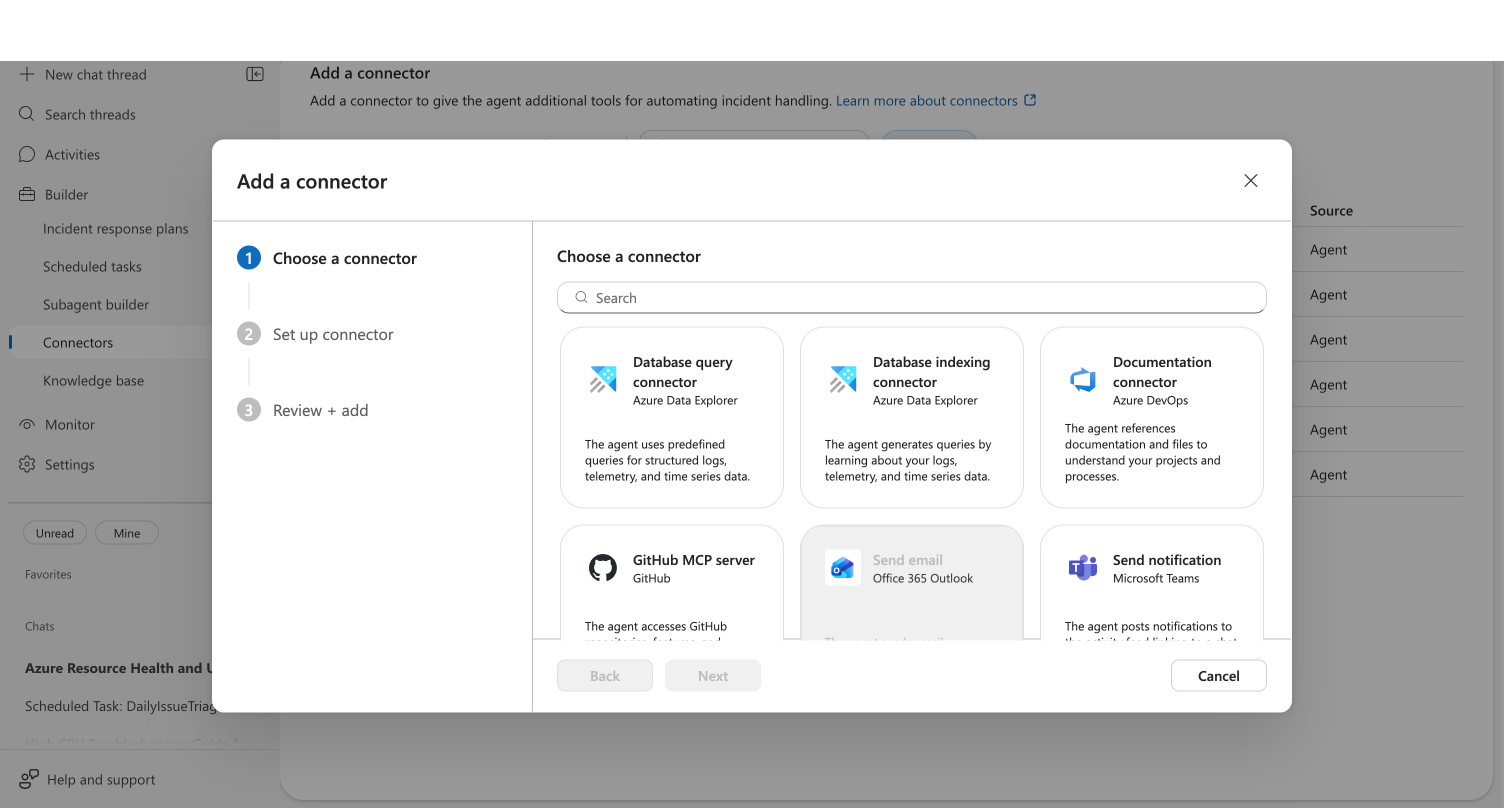
Step 3: Configure the connector
The setup form has three fields:
Name
Enter a name for this connector. The name must:
- Start with a letter
- Contain only letters, numbers, and hyphens
- Be 3–32 characters long
Example: ado-contoso or my-org-connector
Organization
Enter your Azure DevOps organization name — the part after dev.azure.com/ in your URL.
For example, if your URL is https://dev.azure.com/contoso, enter contoso.
The organization name must:
- Start with a letter or digit
- Contain only letters, numbers, and hyphens (no trailing hyphens)
- Be up to 50 characters long
- Be unique among your existing Azure DevOps OAuth connectors
Each Azure DevOps OAuth connector maps to one organization. If you need access to multiple organizations, create a separate connector for each one.
Authentication method
Choose how your agent authenticates to Azure DevOps:
| Method | Best for | Token lifecycle |
|---|---|---|
| User account | Quick setup with your Azure AD identity | Auto-refreshes — no manual renewal |
| Managed identity | Unattended production agents | Managed by Azure — no expiration |
OAuth uses your Azure AD session so you never manage tokens manually. Tokens refresh automatically in the background. Choose PAT only when you need a service account connection or CI/CD pipeline integration. See the alternative PAT path below.
Step 4a: Sign in with User account (OAuth)
If you selected User account:
- Click Sign in to Azure DevOps
- An Authorize Azure DevOps consent dialog appears, listing the permissions your agent needs:
- Read and write access to repositories and projects
- Act on behalf of the signed-in user
- Click Authorize to grant access
- On success, you'll see Connected to Azure DevOps with a green checkmark
Checkpoint: The "Connected to Azure DevOps" card appears with a green checkmark. If you see an error instead, check that your Azure AD account has access to the specified organization.
Click Sign in with different account to re-authenticate with a different Azure AD identity.
Step 4b: Use Managed identity (alternative)
If you selected Managed identity:
- Select a managed identity from the dropdown (system-assigned or user-assigned)
- If your Azure DevOps organization is in a different Azure AD tenant, configure the Federated Identity Credential (FIC) fields for cross-tenant authentication
- Proceed to the review step
Managed identity is ideal for production agents that need persistent, unattended access without user interaction. The agent authenticates using the managed identity credential directly — no user sign-in required.
Choose managed identity when your agent runs unattended, such as in automated workflows or scheduled tasks that query ADO repositories.
Step 5: Review and add
- Click Next to proceed to the review step
- Verify the connector details:
- Name: your chosen name
- Organization: your ADO organization
- Type: Azure DevOps OAuth
- Click Add connector to create the connector
Your connector now appears in the connectors list with a Connected status indicator.
Step 6: Verify access
Test that your agent can access your Azure DevOps repositories.
Ask your agent:
What repositories are available in my Azure DevOps organization?
Or, for a specific check:
Show me recent commits in the payment-service repository.
If your agent returns repository information, your connector is working. If you see a "Token lacks Code.Read permission" error, re-authenticate and ensure your account has the vso.code scope.
Step 7: Try creating a pull request (preview)
With your ADO connector active, your agent can create pull requests directly from chat.
- Open a chat thread with your agent
- Type: "Open a pull request in https://dev.azure.com/my-org/my-project/_git/my-repo from feature/fix to main titled 'Update retry logic'"
- In Review mode, click Continue to approve the PR creation
Checkpoint: You should see a tool card with a clickable link to the created PR in Azure DevOps.
Create pull requests requires Review or Autonomous run mode. The source branch must already exist with your changes committed.
Alternative: Set up with PAT authentication
If your team uses Personal Access Tokens (PATs) instead of OAuth, use the Documentation connector for Azure DevOps:
- In Step 2, select Documentation connector (Azure DevOps) instead of Azure DevOps OAuth connector
- Click Next
- Enter a Name and your Azure DevOps URL (repository or wiki URL)
- Under Authentication method, select Personal Access Token (PAT)
- Enter your Azure DevOps PAT in the secure input field
- Click Next to review, then Add
Your PAT is stored securely and cannot be retrieved after saving. The connector tests connectivity before saving — if the PAT lacks the required vso.code scope, the connector creation fails with a clear error message.
Accepted URL formats:
https://dev.azure.com/{org}/{project}/_git/{repo}https://{org}.visualstudio.com/{project}/_git/{repo}- Wiki URLs:
https://dev.azure.com/{org}/{project}/_wiki/wikis/{wiki}
Use PAT authentication when your organization already manages Azure DevOps PATs, when you need a service account connection without user-specific OAuth, or when integrating with CI/CD pipelines.
Edit or remove a connector
Edit
- In the connectors list, click the ⋯ (more actions) menu on the connector row
- Select Edit connector
- The edit dialog opens with your current settings — modify the organization, re-authenticate, or change the managed identity
- Click Save
Delete
To remove a single connector:
- Click ⋯ on the connector row → Delete connector
- Confirm the deletion
To remove multiple connectors at once:
- Select connectors using the checkboxes in the grid
- Click Remove in the toolbar
- Confirm in the deletion dialog
What you learned
- How to add an Azure DevOps connector using OAuth or Managed identity authentication
- The difference between OAuth (auto-refreshing) and PAT (manually managed) authentication
- How to verify that your agent can access your ADO repositories
- How to create pull requests in ADO repos directly from chat
- How to set up PAT authentication via the Documentation connector
- How to set up multiple connectors for different organizations
Troubleshooting
| Issue | Solution |
|---|---|
| "Authorize Azure DevOps" dialog doesn't appear | Refresh the page and try again. If your Azure AD session expired, sign in again at the portal |
| "Invalid or expired token" | Your Azure AD session has expired. Refresh the portal page to get a new session, then try signing in again |
| "Azure DevOps access token not configured. Please authenticate." | No OAuth token exists for this connector. Edit the connector and sign in again |
| "Token lacks Code.Read permission" | Re-authenticate with an account that has Code.Read permissions in the organization |
| "Organization not configured for this connector" | Organization name is missing. Delete and re-create the connector with the correct organization name |
| "A connector for this organization already exists" | Each organization can only have one connector. Edit the existing one or delete it first |
| "A connector with this name already exists" | Another connector already uses this name. Choose a different name |
| Sign-in button is disabled | Enter your organization name first — the button enables once the Organization field is filled |
Related
| Resource | What you'll learn |
|---|---|
| Connect source code | Connect Azure DevOps repositories as knowledge sources |