Set Up MCP Connector
An MCP connector to the GitHub MCP server and working tool calls in chat. The same steps work for Datadog, Splunk, New Relic, and any partner connector. Learn more → MCP Connectors & Tools.
Prerequisites
- An active Azure SRE Agent in Running state
- A GitHub Personal Access Token (PAT) — create one here
Step 1: Add the GitHub MCP connector
- Go to sre.azure.com and select your agent
- Navigate to Builder > Connectors
- Click + Add connector
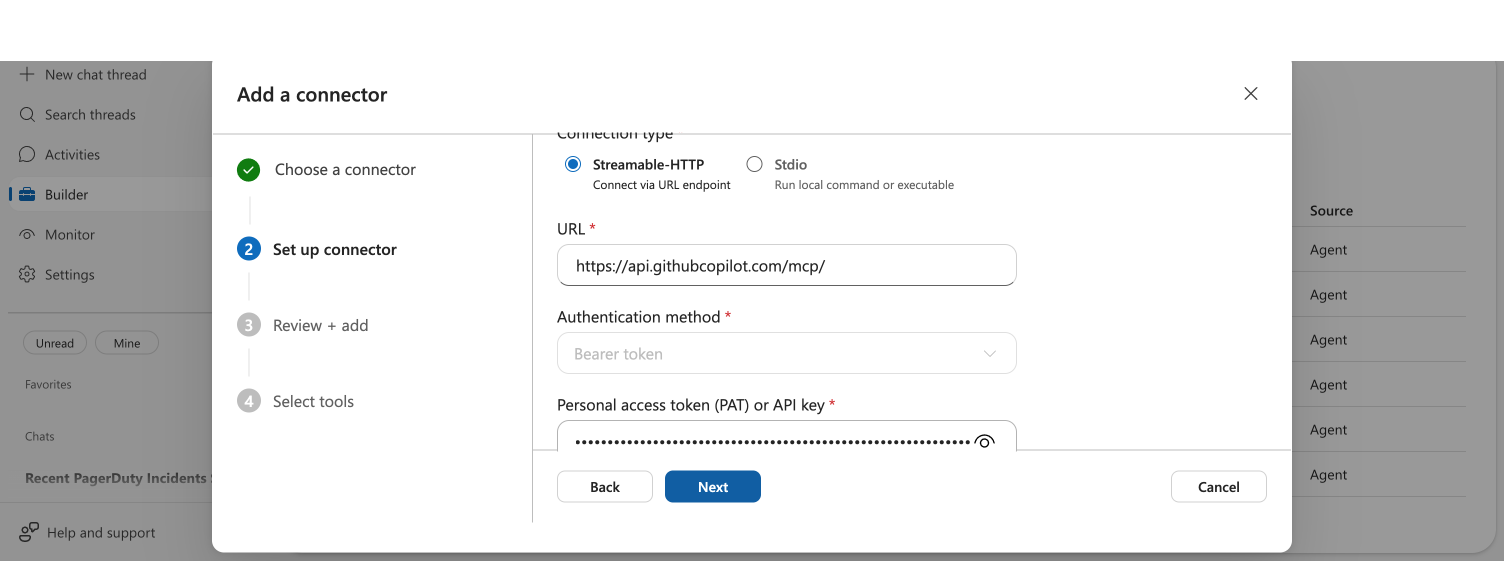
- Select GitHub MCP server — the URL (
https://api.githubcopilot.com/mcp/) and auth method (Bearer token) are pre-configured - Enter a name (e.g.,
github-mcp) and paste your GitHub PAT - Click Next, review the summary, then click Add connector
Checkpoint: You should see your connector appear in the list. Status shows Initializing briefly (~30 seconds), then Connected with a green checkmark.
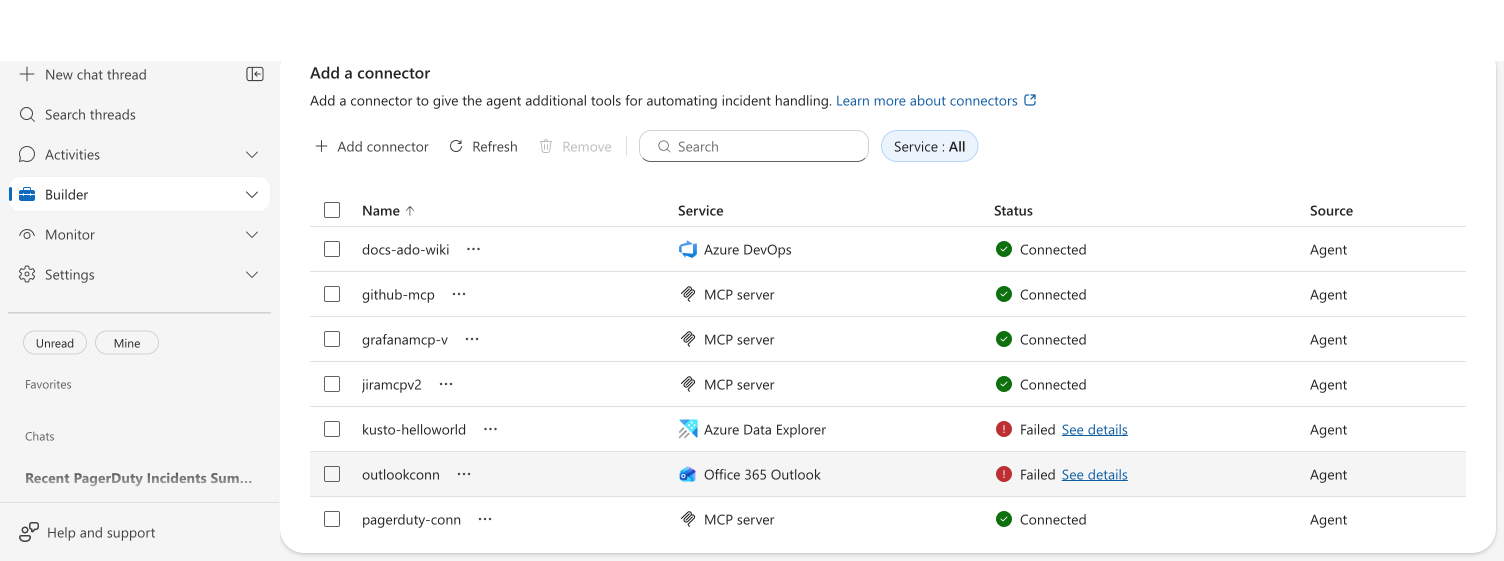
If the status shows Failed, check your PAT — it needs at least repo scope. If Disconnected, wait for the next 60-second health check.
Step 2: Select tools for your agent
During connector setup (or by editing the connector afterward), select which tools your agent can use directly in chat.
- After the connector shows Connected, click Edit on the connector
- In the MCP Tools section, check the tools you want available — or click Select all to add everything
- Click Save
Selected tools are now available directly in your main chat — no custom agent needed.
Checkpoint: The connector shows the number of tools selected for the main agent.
Your agent can use up to 80 tools total across all connectors (or 100 tools for agents using Anthropic models). The tool picker shows a capacity bar so you can manage your tool budget. Claude models require direct Anthropic opt-in and are not available to all tenants.
Step 3: Test in chat
-
Open a New chat thread
-
Ask a question that uses the connected tools. For example:
"Search for files related to authentication in my GitHub repositories"
-
Press Enter
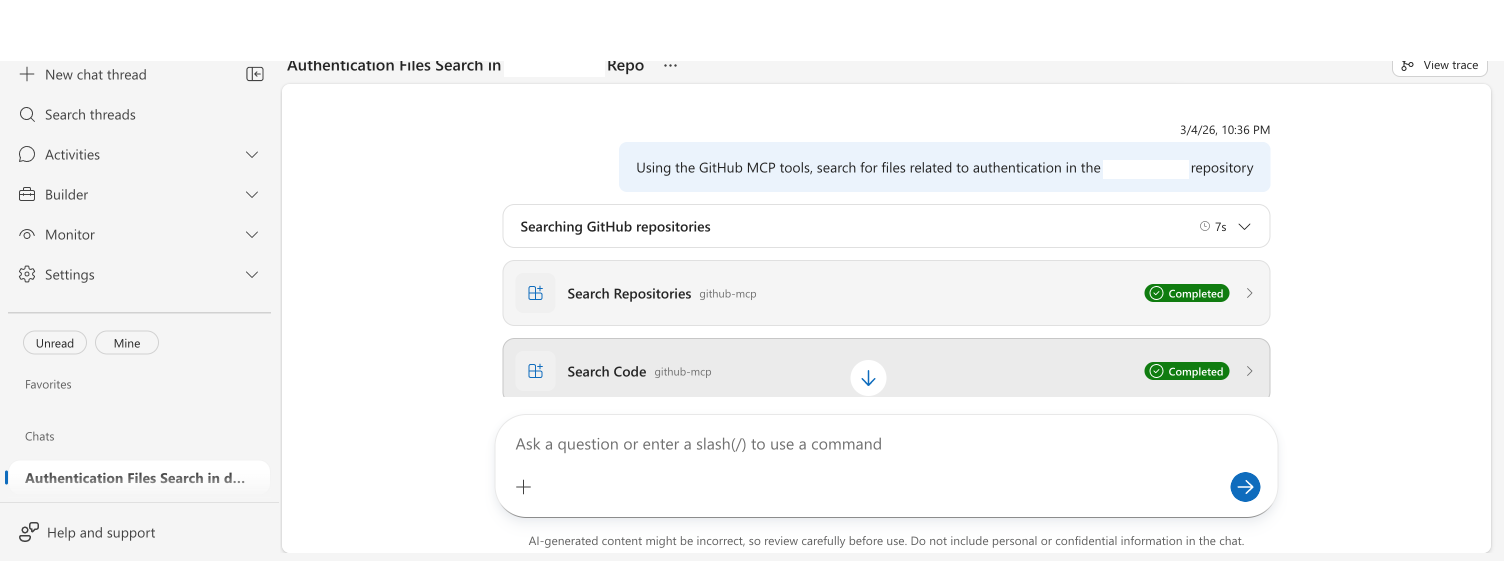
Checkpoint: Tool call cards show github-mcp as the connection, the tool name, and Completed status.
For complex workflows, you can also assign MCP tools to a custom agent on the Agent Canvas. This is useful when you want specialized agents for different platforms or need to control which tools are available in which context.
Use managed identity authentication (Preview)
Managed identity authentication for remote MCP connectors is in preview.
Remote MCP connectors support Azure Managed Identity as an authentication method. Instead of managing API keys or tokens, your agent uses its own managed identity to acquire Azure AD tokens automatically.
When to use managed identity
Use this authentication method when your remote MCP server accepts Azure AD tokens — for example, MCP servers hosted on Azure App Service, Azure Functions, or Azure Container Apps with Azure AD authentication enabled.
Steps
- Navigate to Builder > Connectors and click + Add connector
- Select MCP server and choose Streamable-HTTP
- Enter the server URL
- In the Authentication method dropdown, select Managed Identity
- Choose a managed identity from the dropdown — system-assigned or user-assigned
- The ARM token scope field defaults to
https://management.azure.com/.default. Change this if your MCP server requires a different scope (for example,api://<app-id>/.defaultfor a custom app) - Click Next, review the summary, and click Add connector
Checkpoint: The review step shows Authentication method: Managed Identity, the selected identity name, and the ARM token scope.
The default scope https://management.azure.com/.default works for MCP servers that accept Azure ARM tokens. If your MCP server uses a custom App Registration for authentication, use that app's scope instead — for example, api://your-app-id/.default.
Finding more MCP servers
| Registry | URL | What you'll find |
|---|---|---|
| Azure MCP Center | mcp.azure.com | Verified MCP servers for Azure services |
| MCP GitHub directory | github.com/mcp | Community and open-source MCP servers |
Configure tool approval policies (optional)
By default, all MCP tools run automatically. To require user approval before specific tools execute, add a requireApprovalTools list to the connector's ARM resource.
Find your connector's resource ID
az resource list \
  --resource-group <your-resource-group> \
  --resource-type "Microsoft.App/agents/dataConnectors" \
  --query "[?contains(name, 'github')].id" -o tsv
Require approval for all tools
az rest --method PATCH \
  --uri "<connector-resource-id>?api-version=2025-02-02-preview" \
  --body '{"properties":{"extendedProperties":{"requireApprovalTools":["*"]}}}'
Require approval for specific tools only
az rest --method PATCH \
  --uri "<connector-resource-id>?api-version=2025-02-02-preview" \
  --body '{"properties":{"extendedProperties":{"requireApprovalTools":["create_pull_request","delete_file"]}}}'
Verify the approval policy
-
Open a New chat thread
-
Ask your agent to invoke a gated tool — for example:
"Create a pull request in my repository with the title Test PR"
-
An approval card appears — click Approve to let the tool run, or Cancel to stop it
Checkpoint: For gated tools, you see an approval card before execution. For tools not in the list, the tool runs automatically.
Remove approval requirements
To revert all tools to auto-run:
az rest --method PATCH \
  --uri "<connector-resource-id>?api-version=2025-02-02-preview" \
  --body '{"properties":{"extendedProperties":{"requireApprovalTools":[]}}}'
For more details on how approval policies work, see Tool approval policies →.
Troubleshooting
| Issue | Solution |
|---|---|
| Status shows Failed | Check URL, credentials, and network access |
| MCP tools not in tool picker | Verify connector shows Connected in Builder > Connectors |
| Tool calls fail in chat | Verify tools are selected for the main agent — edit the connector and check the MCP Tools section |
| Hit the tool limit | Remove unused tools from other connectors to free capacity. Anthropic-model agents support up to 100 tools. |
| MI auth connector fails to connect | Verify the managed identity has permissions on the target resource. Check that the ARM scope matches the server's expected audience |
| Approval card not appearing | Verify the agent is in Review mode — Autonomous mode auto-approves all tools |
| Wrong tools require approval | Check tool names in requireApprovalTools — names are case-insensitive but must match exactly |
What you learned
- How to add a Streamable-HTTP MCP connector using a partner card (pre-configured URL + auth)
- How to select tools for the main agent so they're available directly in chat
- How to use managed identity authentication for remote MCP connectors (Preview)
- How to verify MCP tool calls via tool cards showing connection name and Completed status
- How to configure tool approval policies via the ARM API to gate specific tools behind user approval
Related
| Resource | What you'll learn |
|---|---|
| MCP Connectors & Tools → | Architecture, transport types, and health monitoring |
| Connectors → | How all connectors work in SRE Agent |
| Custom agents → | Specialized agents for advanced tool routing |