Set Up GitHub BYO App Connector
Connect your agent to GitHub using a Bring Your Own GitHub App — a service identity registered by your organization that signs authentication requests with an RSA key in Azure Key Vault.
App-based access to your GitHub repositories using a BYO GitHub App and a non-exportable Key Vault signing operation. All operations are attributed to your App identity, not an individual user. Learn more → GitHub Connector.
When to use BYO App
Use BYO App when:
- Your organization requires app-based auth and key custody controls.
- You are connecting
*.ghe.comrepositories (required). - You want installation-token based access rather than user tokens.
Prerequisites
- Running agent with Administrator or Standard User role
- A GitHub App created on your target host (
github.comor*.ghe.com) - GitHub org or repository admin access (to create/install or verify GitHub App scope)
- App private key imported into Azure Key Vault as an RSA key with the Sign operation enabled
- Agent system-assigned identity, or a user-assigned identity attached to the agent, with Key Vault Crypto User on the key or vault
Step 1: Create a GitHub App
If you already have a GitHub App with the right permissions, skip to Step 2.
- Go to your GitHub host:
github.com→ navigate to your org → Settings → Developer settings → GitHub Apps → New GitHub App<tenant>.ghe.com→ same path on your GHE instance
- Fill in the app details:
- GitHub App name: e.g.,
contoso-sre-agent-reader(prefix with your org name to avoid conflicts) - Homepage URL:
https://sre.azure.com - Webhook: Uncheck Active (the agent does not use webhooks)
- GitHub App name: e.g.,
- Under Permissions, set:
- Repository permissions → Contents: Read-only (required)
- Repository permissions → Metadata: Read-only (auto-selected)
- Optionally add Issues and Pull requests read access
- Under Where can this GitHub App be installed?, select Only on this account
- Click Create GitHub App
- Note the Client ID shown on the App settings page (starts with
Iv...— this is different from the numeric App ID)
Step 1b: Install the GitHub App
- On the GitHub App settings page, click Install App in the left sidebar
- Select your organization
- Choose All repositories or select specific repos
- Click Install
Step 2: Generate a private key
- On the GitHub App settings page, scroll to Private keys
- Click Generate a private key
- A
.pemfile downloads — this is the RSA private key the agent uses to authenticate
You'll import this file into Key Vault in the next step. Don't commit it to a repository or share it. Securely delete the local file after confirming the import.
Step 3: Import the private key into Key Vault
- Open the Azure portal and navigate to your Key Vault.
- Go to Keys → Generate/Import.
- Set Options to Import, enter a Name (for example,
sre-agent-github-app-key), and upload the.pemfile generated by GitHub. - Under Permitted operations, enable Sign, then select Create.
- Open the imported key and copy its Key Identifier URI:
https://myvault.vault.azure.net/keys/sre-agent-github-app-key
Both .../keys/<name> and .../keys/<name>/<version> are accepted. Use the unversioned URI to resolve the current key version. When rotating the key, coordinate the GitHub App key and the Key Vault key version so they continue to represent the same key pair.
Step 4: Grant Key Vault access to agent identity
- In Azure portal, open the Key Vault or imported key, then open Access control (IAM).
- Assign Key Vault Crypto User to the identity that the agent will use for this GitHub App:
- Use the agent's system-assigned managed identity for the default configuration.
- Use a user-assigned managed identity attached to the agent for per-App isolation.
- Wait for role assignment propagation.
The role can be scoped to the imported key. If you assign it at vault scope, the identity can perform cryptographic operations with other keys in that vault as allowed by the role.
Step 5: Configure BYO App in Code Access
-
Open your agent.
-
Navigate to Context → Code Access.
-
Click Add repositories.
-
Choose GitHub and enter host:
github.comfor public GitHub<tenant>.ghe.comfor Enterprise Cloud
-
Continue to Authenticate.
-
Select Bring your own GitHub App.
-
Enter:
- Client ID
- Private key URI (Key Vault) in the form
https://<vault>.vault.azure.net/keys/<key-name> - Key Vault identity (keep the system-assigned default or select an attached user-assigned identity)
-
Click Connect.
The wizard uses the selected identity to sign a GitHub App JWT in Key Vault, validates the Client ID against the selected GitHub host, and lists repositories available to the App. No private key material is returned to the agent.
If you see the green checkmark and "Connected as GitHub App", your credentials are valid. If Connect fails, verify your Client ID, Key Vault URI, and managed identity permissions.
If Code Access does not open from left navigation, refresh the agent page, expand Context again, and retry.
When you enter a *.ghe.com domain as the host, the wizard automatically selects Bring your own GitHub App — OAuth and PAT are not available for GHE hosts.
Step 6: Add repositories and verify
-
Select repositories and save.
-
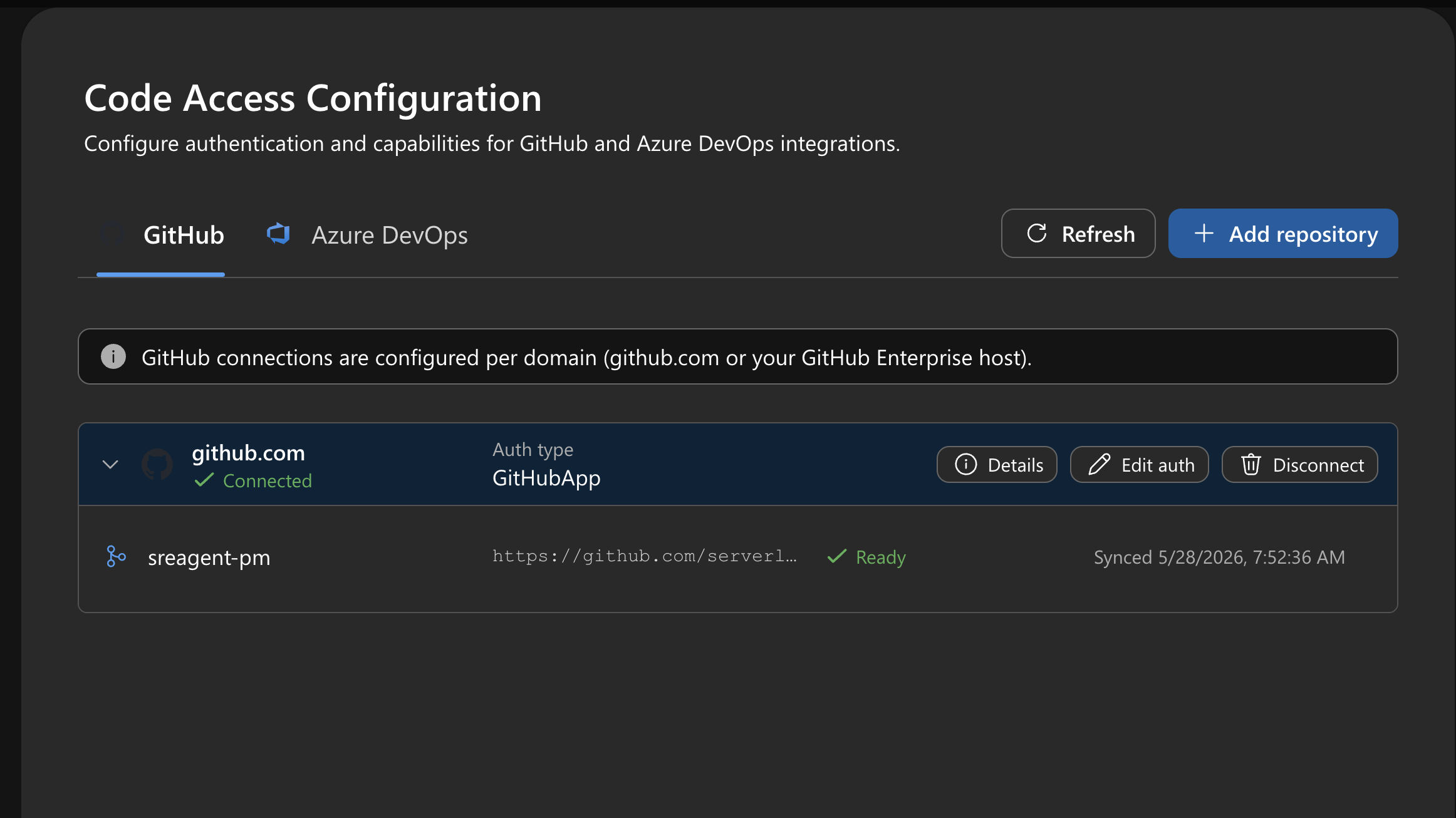
Confirm the Code Access card shows the connected host, auth type
GitHubApp, and a healthy connection.
- Test code access in chat:
What files are in the root of owner/repo?
If you also granted Issues permission to your GitHub App, verify issue operations:
List recent issues from owner/repo.
Per-App managed identity
By default, the agent uses its system-assigned managed identity to ask Key Vault to sign GitHub App JWTs. If you manage multiple GitHub Apps (for example, one per GHE instance), you can assign a different user-assigned managed identity to each App. This provides security isolation — each identity only has signing access to its own Key Vault key.
Select the identity in the Key Vault identity dropdown during Step 5.
Multi-host support
You can connect multiple GitHub hosts to the same agent. Each host has independent auth:
github.com→ OAuth, PAT, or BYO Appcontoso.ghe.com→ BYO Appengineering.ghe.com→ BYO App (with a different GitHub App)
Disconnecting one host does not affect others.
Troubleshooting
| Symptom | Likely cause | Fix |
|---|---|---|
| Auth validation fails | Wrong Client ID or wrong host | Verify app was created on the same host entered in Code Access |
| Key Vault signing fails | Wrong key URI, non-RSA key, Sign is disabled, or the selected identity lacks permission | Use a /keys/<name> URI, verify the imported key is RSA with Sign enabled, and grant Key Vault Crypto User to the selected identity |
| App connects but the repository is not listed | App is not installed on the repository | Update the GitHub App installation and include the repository |
| Repo shows Failed in Code Access | Missing app permissions or install scope | Verify Metadata: Read + Contents: Read and installation scope |
| Chat issues work but Code Access fails | Endpoint/path checks differ | Re-run connection test and verify metadata permission |
What you learned
- Your agent now authenticates to GitHub using a service identity (GitHub App) instead of a personal token
- The private key stays in Azure Key Vault — the agent requests signatures using managed identity
- Tokens are short-lived and auto-refreshed — no manual rotation needed
- BYO App works for both
github.comand*.ghe.comhosts - You can assign a different managed identity per GitHub App for security isolation
Related
| Resource | Purpose |
|---|---|
| GitHub Connector | Compare all connection types and auth methods |
| Set Up GitHub Connector (OAuth or PAT) | OAuth/PAT auth for github.com |
| Set Up MCP Connector | GitHub via MCP tools |