Step 1: Create and Set Up Your Azure SRE Agent
Deploy an Azure SRE Agent, connect source code and telemetry, and optionally grant access to Azure resources.
New customers can evaluate SRE Agent with no always-on cost for up to 30 days. Consumption charges still apply.
What you'll accomplish
- Deploy an Azure SRE Agent to your subscription
- Connect a code repository
- Connect a telemetry source
- Optionally grant the agent access to Azure resources
Prerequisites
| Requirement | When | Details |
|---|---|---|
| Azure subscription | Required | An active Azure subscription with permission to create resources. See Pricing and billing for Azure SRE Agent charges. |
| Role to create the agent | Required | Owner, or Contributor plus User Access Administrator, on the subscription or resource group where you create the agent. These permissions let the portal deploy the agent and assign your account SRE Agent Administrator on it. |
| Azure resource access | As needed | When you add Azure scopes during setup, you need an active Owner or User Access Administrator role assignment on every scope, directly or through inheritance. If you use PIM for a subscription, activate the eligible role before setup, then use Check PIM role assignments in the picker. These permissions let the portal assign the required Azure roles to the agent's managed identity. |
| Network access | Required | *.azuresre.ai must be reachable from your browser. |
Open the onboarding wizard
- Navigate to sre.azure.com.
- Sign in with your Azure credentials.
- Select Create agent. The wizard has three stages: Basics → Review → Deploy.
Basics
Fill in the fields to define your agent:
| Field | Description | Example |
|---|---|---|
| Subscription | The Azure subscription that will own the agent resource | My Production Subscription |
| Resource group | An existing resource group or create a new one | rg-sre-agent |
| Agent name | A unique name for your agent instance. If you grant the agent access to its own resource group, the two names must have different prefixes after truncation to 15 characters — see the naming rule below. | contoso-sre-agent |
| Region | Azure region for deployment | East US 2 |
| Model provider | Choose an available AI model provider for your agent | Varies by subscription and region |
| Application Insights | Create a new instance or use an existing one | Create new (default) |
| User-assigned managed identity | Create a new identity or attach an existing identity from an accessible subscription in the current tenant | Create new (default) |
After you select a region, the Model provider field appears. The available providers and default selection are loaded for your subscription and region. Options may include Azure OpenAI and Anthropic, depending on the supported models returned for the selected subscription and region.
For provider costs and consumption details, see Pricing and billing.
You can change the provider after creation in your agent settings.
When you choose Use existing for the user-assigned managed identity, you need permission to assign that identity. The Managed Identity Operator role on the identity provides the required permission. The portal preserves existing role assignments and creates only exact role assignments that are missing for the selected Azure scopes. To inspect assignments, you need Microsoft.Authorization/roleAssignments/read at each target scope. Where a required role is missing, you also need Microsoft.Authorization/roleAssignments/write and Microsoft.Resources/deployments/write so the portal can deploy the assignment at that scope.
An identity with Regional isolation is available only when its region matches the agent region. Identities without regional isolation can be selected across regions.
When granting the agent access to the resource group that contains it, ensure the agent name and resource group name have different prefixes after truncating each name to 15 characters (the comparison is case-insensitive).
The grant flow names the outer ARM deployment from the agent name and the nested role-assignment deployment from the target resource group name. Both prefixes are truncated to 15 characters and use the same suffix. In the agent's resource group, matching prefixes make the deployment names identical and the grant fails with:
cannot be saved, because this would overwrite an existing deployment which is still active
Retrying does not help — the failure is deterministic. Any one of these avoids it:
- Use agent and resource group names with different prefixes after truncation to 15 characters.
- Create the agent in a resource group other than the one you are granting permissions on.
- Add the resource group without granting permissions, then assign the roles to the agent's managed identity manually.
In EUDB regions, the wizard labels providers either Covered by EU Data Boundary commitments or Excluded from EU Data Boundary. Data may be processed in the United States.
See Data privacy and residency for provider data-handling details.
Click Next to proceed.
Checkpoint: All fields are filled, including the model provider. The Next button is enabled.
Review
The wizard shows a summary of your configuration. Verify:
- Subscription and resource group are correct.
- Agent name and region match your intent.
Click Create to begin provisioning.
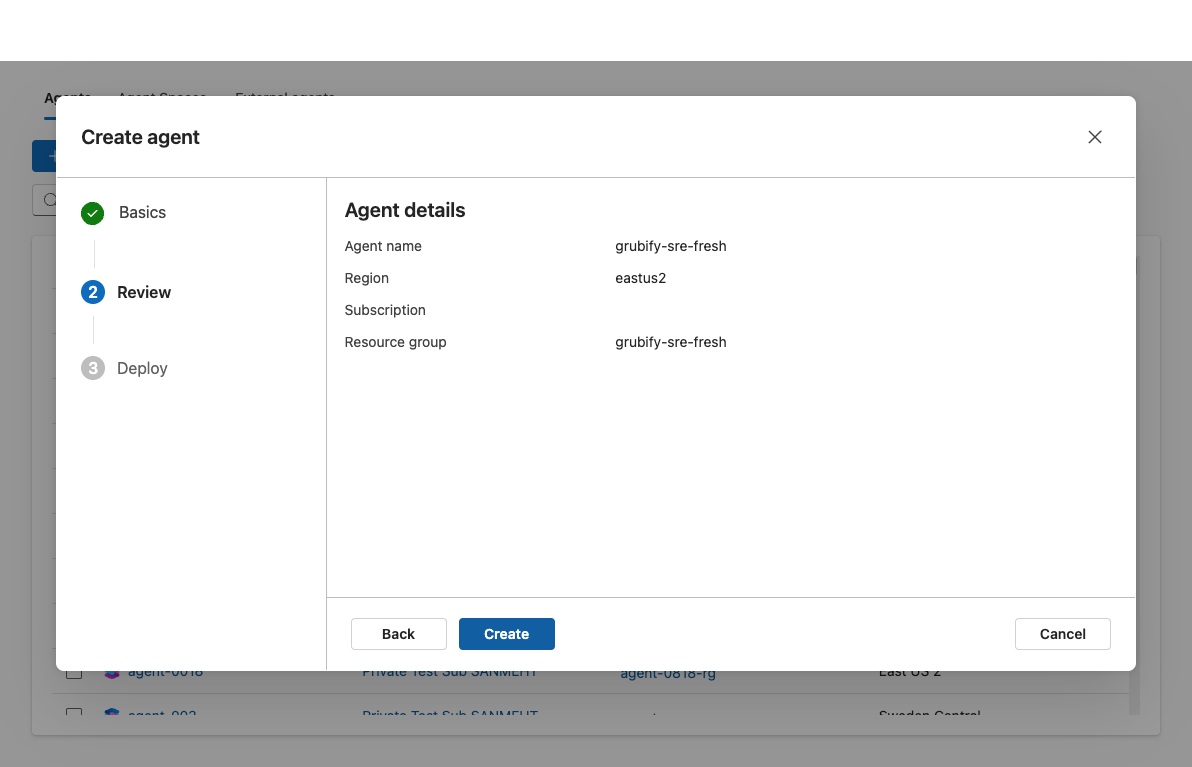
Checkpoint: The summary matches what you entered. No validation errors appear.
Deploy
The deployment creates the following Azure resources:
| Resource | Purpose |
|---|---|
| Managed identities (SAMI and UAMI) | Deployment creates or attaches the selected UAMI and enables both system-assigned and user-assigned identities on the agent. Use the UAMI for connector authentication and Azure RBAC assignments; the SAMI supports agent infrastructure. See Agent identity. |
| User role assignment | Assigns the current user SRE Agent Administrator on the new agent. |
| Azure SRE Agent resource | The agent itself |
| Application Insights and Log Analytics workspace | Created only when you select Create new for Application Insights. |
If you select an existing Application Insights resource, the deployment links it to the agent instead of creating new monitoring resources.
Wait for the deployment to complete. This typically takes 2–5 minutes.
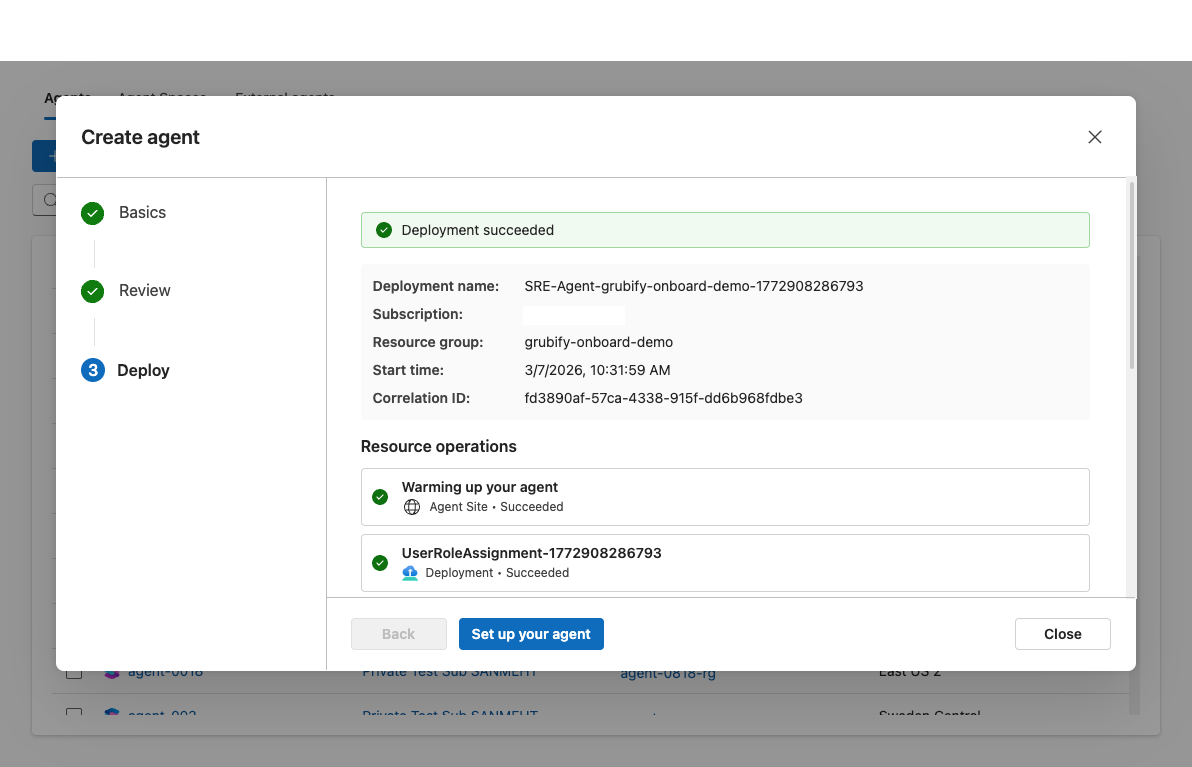
Checkpoint: Deployment status shows Succeeded. The deployment details list the agent resource and each supporting resource that was created.
Set up your agent
After deployment finishes, click Set up your agent to open the setup page. You'll see the header "More context. Better investigations." This page has two tabs:
| Tab | Data sources |
|---|---|
| Quickstart | Code, Logs, Azure resources, Incidents |
| Full setup | Everything in Quickstart + Knowledge files |
Start with the Quickstart tab. Source code and telemetry provide enough context to begin investigating. Azure resource access is optional.
Connect your code repository
- On the Code card, click the + button. Its tooltip is Connect repositories.
- In Connection, select GitHub, Azure DevOps, or GitLab.
- Select one of the authentication methods offered for that platform.
- GitHub: Your account, personal access token (PAT), or a bring-your-own GitHub App. GitHub Enterprise Cloud requires a GitHub App.
- Azure DevOps: Your account, managed identity, or PAT.
- GitLab: PAT.
- Click Next.
- In Add repositories, select one or more repositories.
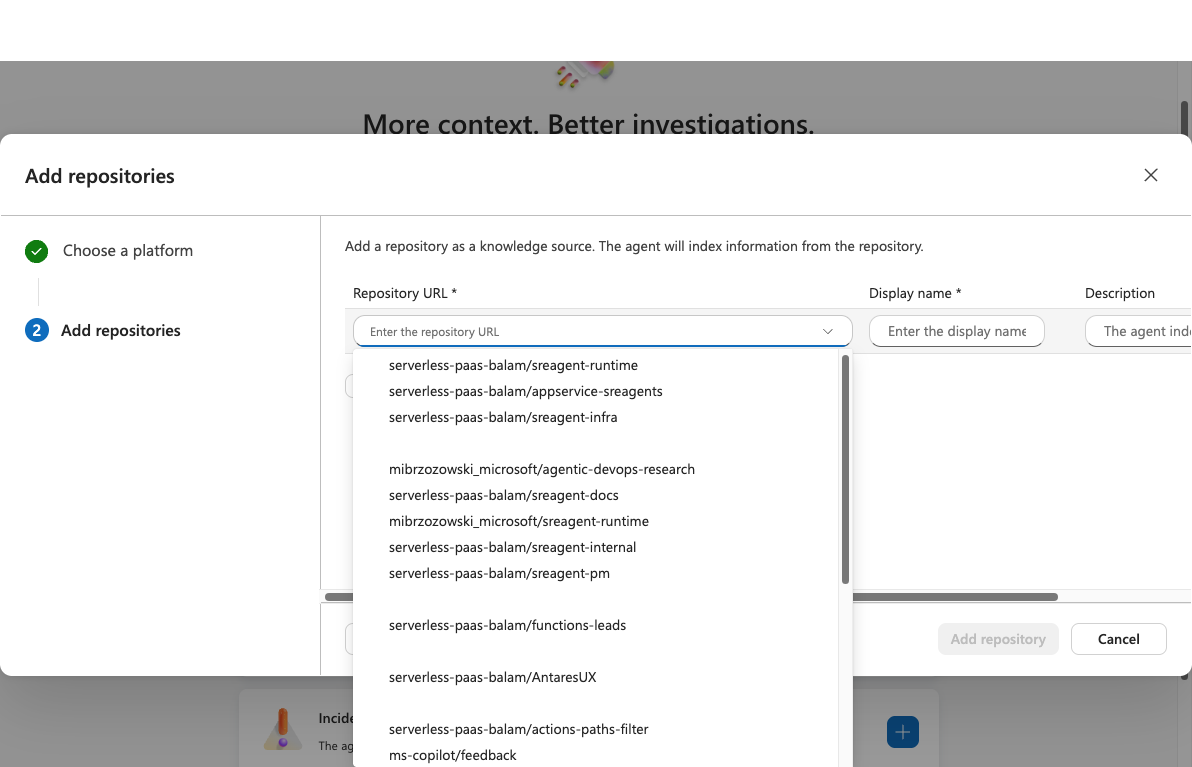
- Click Save.
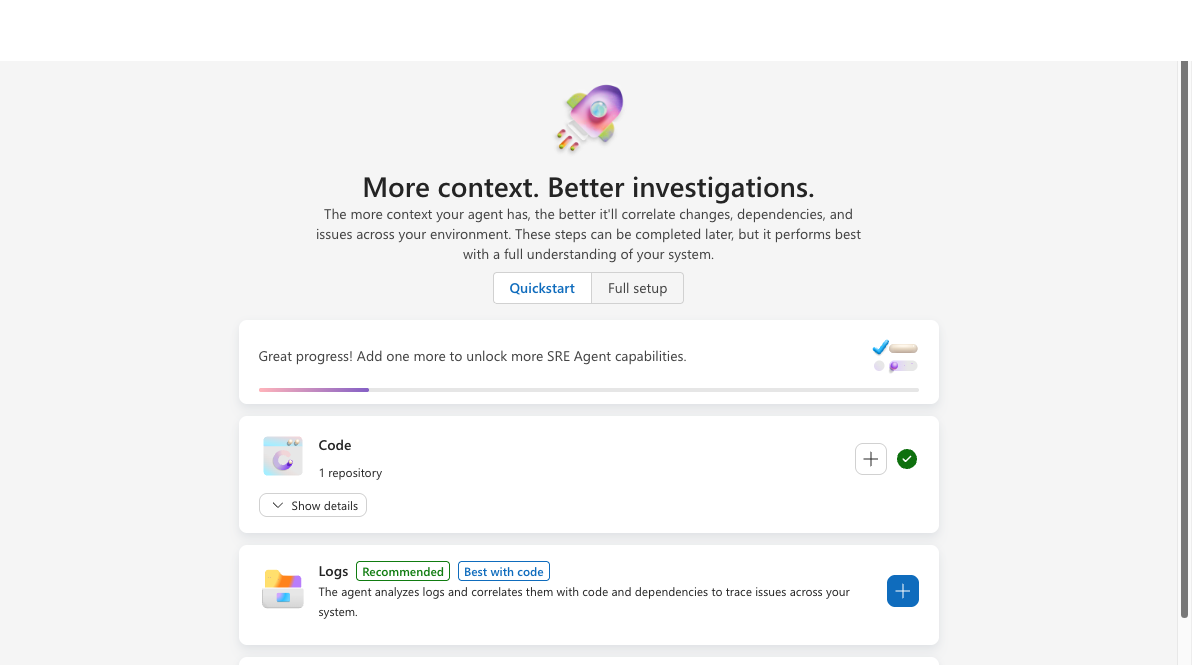
Checkpoint: The Code card shows a green checkmark and lists the connected repositories.
Connect the repository that contains the service you'll investigate first. Once connected, your agent immediately starts exploring the codebase and building expertise — learning your project structure, deployment configurations, and code patterns through Deep Context.
Connect your logs
Connecting log sources gives your agent access to production telemetry, including error traces, performance metrics, and application health data. Combined with source code, this lets your agent correlate production issues with code changes during investigations.
For Log Analytics or Application Insights, the portal assigns Log Analytics Reader and Monitoring Reader to the agent's managed identity when you save the connector. You can connect multiple log sources. See Azure Observability and External Observability.
- On the Logs card, click the + button.
- The Configure logging provider dialog opens with three steps.
- In Step 1: Choose a logging provider, select a log source:
| Log source | What it provides |
|---|---|
| Azure Data Explorer | Query operational and application data stored in Azure Data Explorer. Read-only. |
| Log Analytics Workspace | Query logs, discover tables, check activity logs, and monitor metrics across your Log Analytics workspaces. Read-only. |
| Application Insights | Query application telemetry, trace requests, analyze dependencies, and monitor performance metrics. Read-only. |
Use the search bar at the top of the dialog to find the logging provider available for your environment. The provider list can vary by tenant and configuration.
- Click Next to proceed to Step 2: Set up logging provider.
- Complete the fields shown for the selected provider. Fields and authentication differ by provider.
- Click Next to review, then click Add connector.
Checkpoint: The Logs card shows a green checkmark and lists the connected telemetry source.
Verify log access
Ask your agent about a recent issue:
Check for any errors in the last 24 hours
Your agent queries the connected log source and returns results.
Add Azure resource access (optional)
Azure resource access is optional. Add it when you want the agent to inspect resource configuration, health, and metrics directly. Before you begin, review the Azure resource access requirements in Prerequisites.
Use resource-group scope by default. Choose a subscription or management group only when the agent needs broader access, and review the inherited blast radius before continuing.
- On the Quickstart tab, find the Azure resources card and click Add resources.
- In Choose resource type, select Management group, Subscription, or Resource group, then click Next.
If you chose Management group:
- Select one or more management groups.
- Review the inherited permissions. The agent receives Reader and Azure Monitor Monitoring Contributor on the management group and its descendants.
- Click the add button to continue. Its label reflects whether you selected one or multiple management groups.
If you chose Subscription:
- Select subscriptions: Use the search box to find subscriptions. Check the ones you want the agent to access.
- Click Next to review agent permissions.
- Review the permissions status. The agent's managed identity receives Reader and Azure Monitor Monitoring Contributor on each selected subscription.
- Click Add subscription for one selection or Add subscriptions for multiple selections.
If you chose Resource group:
- Filter by subscription: Use the multi-select Subscription filter to choose which subscriptions are shown.
- Select resource groups: Search by resource-group or subscription name, then select the resource groups you want the agent to access. The grid shows the resource group name, subscription, and region.
- Click Next to review agent permissions.
- Choose the permission level and review the role assignments:
- Reader assigns the base Reader, Monitoring Reader, and Log Analytics Reader roles, plus reader or operator roles required by the resource types in the group.
- Privileged keeps the base roles and adds contributor, administrator, or operator roles required by the resource types in the group.
- Click Add resource group.
Checkpoint: The Azure Resources card lists each connected management group, subscription, or resource group.
After you click the final add button, role assignment can take several minutes. To remove access, remove the scope from the Azure Resources card. The portal attempts to revoke the managed role assignments; manually remove remaining assignments only if it reports a partial cleanup failure. See Manage permissions and access.
Click "Done and go to agent"
Once you've connected your data sources, click Done and go to agent. This takes you into the agent chat to start team onboarding.
Checkpoint: The agent chat opens.
Related capabilities
| Capability | What it adds |
|---|---|
| Connectors | How the agent connects to external data sources |
| User Roles | Who can access your agent and what they can do |
| Permissions | How permission levels and RBAC roles work |