Step 2: Team Onboarding
Teach the agent about your team, who's on call, what services you own, and how you handle incidents. The agent can store relevant details from the onboarding conversation and connected sources as reusable context for later investigations.
New customers can evaluate SRE Agent with no always-on cost for up to 30 days. Consumption charges still apply.
What you'll accomplish
- Teach the agent your team — share who's on call, what services you own, and how escalation works
- Share your operational knowledge — tell the agent about your troubleshooting procedures, playbooks, and how your team handles incidents
- Let the agent explore your code — if you connected a repository during setup, the agent reads it to understand your architecture, frameworks, and dependencies
Prerequisites
| Requirement | Details |
|---|---|
| Agent created | Complete Step 1: Create and Set Up first |
You can still talk to the agent and complete team onboarding — the agent works without connected data sources. For richer context, go to Complete Your Setup first to connect source code and telemetry. Azure resource access is optional.
How team onboarding starts
When you click Done and go to agent from the setup page, the agent opens the "Team onboarding" thread — a pinned conversation in your Favorites sidebar.
The agent starts by building knowledge about your connected resources — exploring your code repository, Azure subscriptions, and any other data sources you connected during setup. You'll see a progress indicator while this happens, and you can chat about other topics in the meantime.
Once that's done, the agent greets you by name and begins the interactive onboarding interview.
Checkpoint: The "Team onboarding" thread appears in your Favorites sidebar. The agent shows progress as it builds knowledge from your connected context.
What the agent learns from your connected context
If you connected data sources during setup, the agent explores them automatically — you don't need to do anything.
Your codebase
The agent reads your connected repository — exploring the README, directory structure, frameworks, and dependencies. You'll see a summary of what it found.
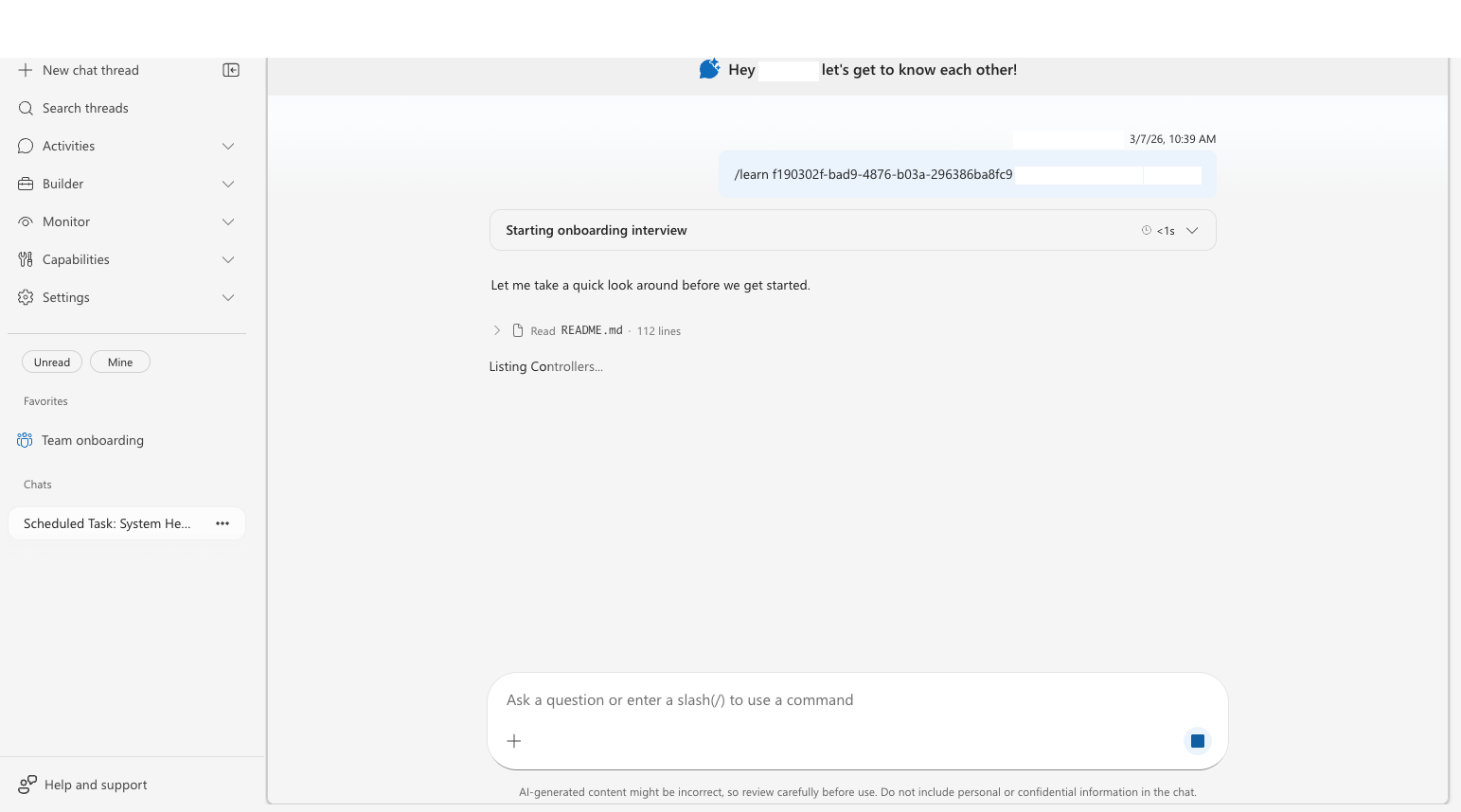
If anything's missing, just tell it:
"We also have a background worker in the
/jobsdirectory that processes queue messages."
The agent can add the correction to its stored context.
Your Azure resources
If you connected subscriptions or resource groups, the agent explores your infrastructure — listing services, resource types, and configurations.
What you share with the agent
The agent interviews you, and you can share things on your own too. Answer questions, volunteer details, or upload files whenever you're ready. The agent can retain relevant operational context, and you can add more later.
Your team
The agent asks about your team structure. Answer naturally — the agent extracts the important details.
Example conversation:
Agent: Tell me about your team. What services do you own, and what does your on-call rotation look like?
You: We're the Platform Reliability team, 6 engineers. We own the API gateway and the authentication service. On-call is weekly rotation, we use PagerDuty for alerting. Our escalation path goes to the senior on-call, then to the engineering manager.
Agent: Got it! I've saved this to memory. Here's what I recorded:
- Team: Platform Reliability, 6 engineers
- Services owned: API gateway, authentication service
- On-call: Weekly rotation via PagerDuty
- Escalation: Senior on-call → Engineering manager

Your procedures and knowledge
Share how your team handles incidents — upload files or describe procedures in chat. Both work equally well.
Upload a file: Click the + button in the chat input, select Attach file, and choose your file (Markdown, PDF, or text). The agent reads it, extracts key procedures, and saves them to memory.
Or just tell the agent: No formal documentation? Describe your procedures in chat:
"When we see high CPU on the API gateway, we first check upstream dependencies, then verify the connection pool, then review recent deployments."
The agent extracts relevant operational details and can retain them for later investigations, just as if you uploaded a file.

You can share more knowledge anytime by uploading files or describing procedures in chat.
Ask the agent what to do next
After onboarding, ask the agent what else you should set up. Try:
"What should I do next?" or "Where do I start?"
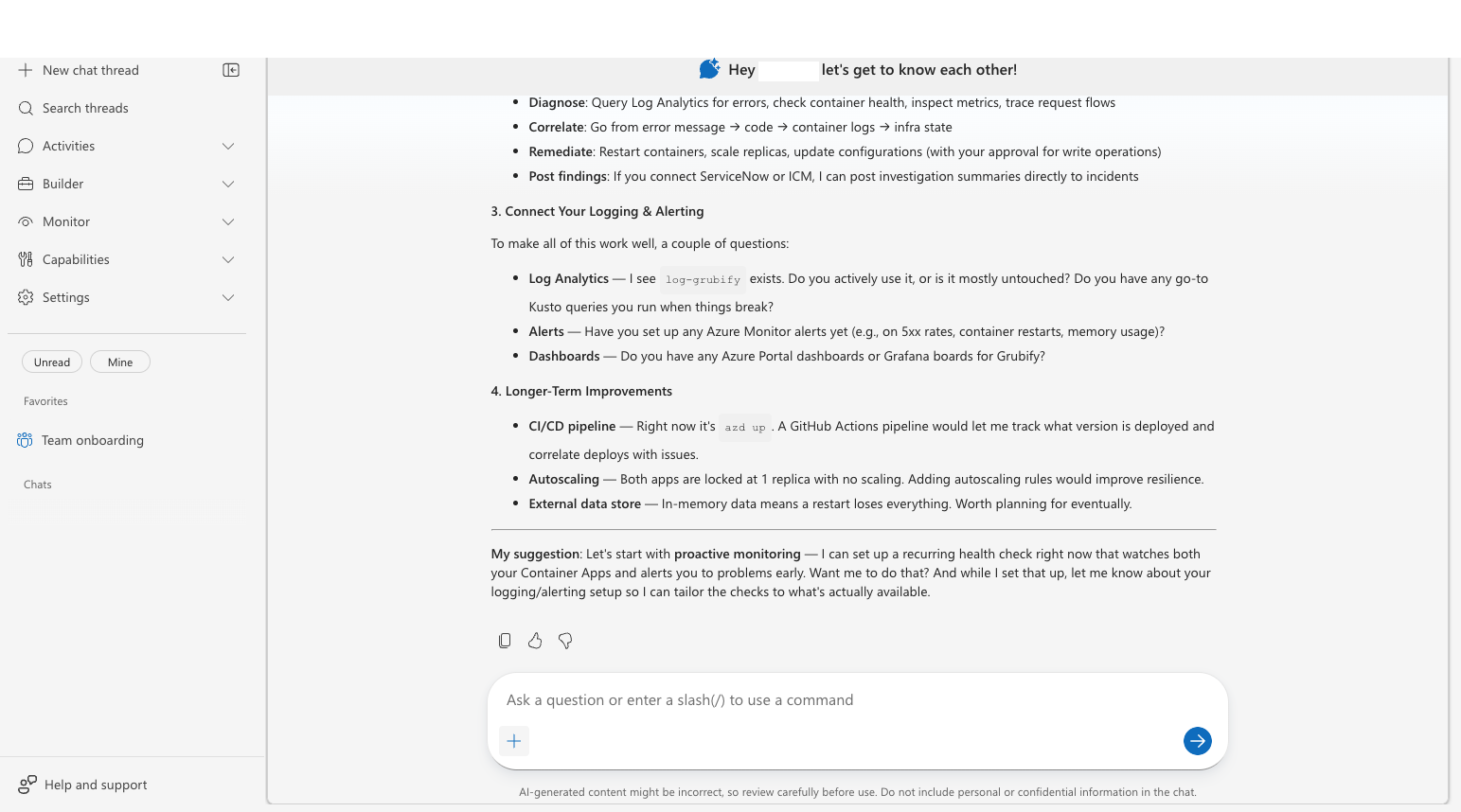
The agent gives you prioritized recommendations based on what you've connected and what's still missing — like connecting additional data sources, uploading more runbooks, or setting up incident response. For a full checklist, see Complete Your Setup.
Checkpoint: The agent displays a numbered list of recommendations tailored to your team.
What the agent remembers
After onboarding, the agent can retain context about your architecture, team ownership, escalation paths, and troubleshooting procedures. During later investigations, verify the sources and context the agent reports using rather than assuming every stored detail applies.
Related capabilities
| Capability | What it adds |
|---|---|
| Memory | How the agent stores and uses persistent knowledge |
| Permissions | How access levels and RBAC roles work |
Next step
If you skipped connecting data sources during setup, now is a good time to go to Complete Your Setup and connect source code and telemetry. Add Azure resource access only if the agent needs live resource context.