HTTP Triggers
- Webhook endpoints for your agent — create URLs that trigger agent actions when called via HTTP POST
- Pass context from your tools — send JSON data in the request body and the agent receives it as part of its prompt
- Execution history — track every invocation with timestamps, thread links, and success/failure status
- Enable/disable without deleting — toggle triggers on and off as needed
The problem: alerts and pipeline failures need manual triage
Your team already has alerting, observability, and workflow tools — Datadog, Dynatrace, Jira, Splunk, Grafana — and CI/CD pipelines that break. When something goes wrong, the response is the same every time:
- An engineer gets paged, opens the monitoring tool, reads the alert, then manually opens logs, metrics, and deployment history across multiple dashboards to figure out what happened
- A pipeline fails, and someone has to stop what they're doing, check the build output, correlate with recent changes, and decide whether to rollback or fix forward
- A Jira ticket lands with "production latency degradation" — and an SRE spends 30 minutes gathering context before even starting to investigate
- Context is scattered — the Datadog alert says "CPU spike on prod-api" but the root cause requires correlating logs from three services, checking recent deployments, and reviewing Dynatrace traces
How HTTP triggers work
HTTP triggers let you connect any tool that supports webhooks directly to your SRE Agent. Instead of an engineer doing manual triage, the system that detected the problem — whether it's a Datadog alert, a Dynatrace anomaly, a Jira workflow transition, or a pipeline failure — tells the agent to investigate, passing along the context automatically.
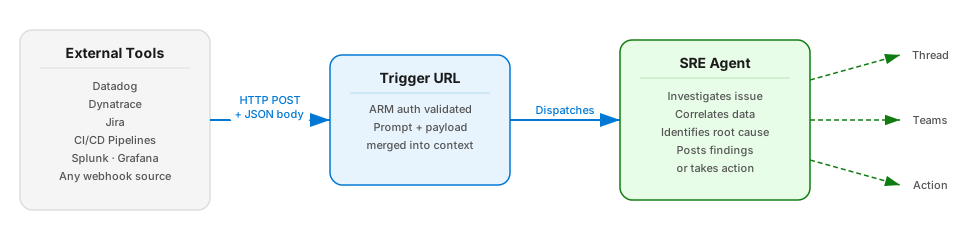
Each trigger is a named webhook endpoint on your agent with a unique URL. When an external system calls that URL via HTTP POST, the agent executes the trigger's configured prompt — enriched with any JSON data in the request body.
Key concepts:
| Concept | How it works |
|---|---|
| Trigger | A named endpoint with a prompt, an assigned agent (default or subagent), an autonomy level, and a model tier |
| Trigger URL | The unique webhook URL generated when you create a trigger — this is what external tools call |
| JSON context | Optional JSON body sent with the POST request — becomes part of the agent's prompt so it has full context |
| Execution history | Every invocation is logged with timestamp, thread link, and success/failure status |
| Enable/disable | Toggle triggers on or off without deleting — disabled triggers return 404 |
Invoking a trigger
Call the trigger URL with an HTTP POST request:
curl -X POST \
  https://your-agent.sre.azure.com/api/v1/httptriggers/trigger/<TRIGGER_ID> \
  -H "Authorization: Bearer <AGENT_TOKEN>" \
  -H "Content-Type: application/json" \
  -d '{
    "source": "datadog",
    "alert_title": "High error rate on checkout-api",
    "severity": "critical",
    "service": "checkout-api",
    "region": "eastus2",
    "metric": "error_rate",
    "value": "8.2%",
    "threshold": "5%"
  }'
| Part | What it is |
|---|---|
| URL | The trigger's unique webhook endpoint — find it in the trigger detail view under Trigger URL |
| Authorization | A bearer token for the SRE Agent data plane audience (https://azuresre.dev) — see Authentication below |
| Content-Type | Must be application/json if you're sending a JSON body |
| JSON body (optional) | Any JSON data you want the agent to see. This becomes part of the agent's prompt — so include whatever context helps the agent investigate (alert name, severity, affected service, etc.) |
The JSON body is optional. If you call the trigger without a body, the agent runs with just the trigger's configured prompt. With a body, the agent sees both the prompt and the data you sent.
Authentication for trigger invocation
The trigger endpoint requires a bearer token for the SRE Agent data plane audience (https://azuresre.dev, app ID 59f0a04a-b322-4310-adc9-39ac41e9631e) in the Authorization: Bearer <TOKEN> header — not a https://management.azure.com token. Authorization is then enforced as an ARM operation: the caller needs Microsoft.App/agents/threads/write permission on the agent resource.
The least-privilege built-in role that grants Microsoft.App/agents/threads/write is SRE Agent Standard User. Assign it on the agent resource itself — subscription-scoped built-in roles such as Owner or Contributor carry no Microsoft.App/agents/* data actions and do not work. SRE Agent Author does not grant threads/write and SRE Agent Administrator is not required.
az role assignment create \
  --assignee <object-id-of-caller-identity> \
  --role "SRE Agent Standard User" \
  --scope /subscriptions/<sub>/resourceGroups/<rg>/providers/Microsoft.App/agents/<agent>
Ways to obtain a token:
| Method | Best for | Details |
|---|---|---|
| Service principal | CI/CD pipelines, automated systems | Create an app registration, assign the role on the agent resource, use client credentials flow to get a token |
| Managed identity | Azure-hosted services (Azure Functions, VMs, Container Apps) | No secrets to manage — the Azure resource authenticates automatically |
| Azure CLI | Testing and development | Run az account get-access-token --resource 59f0a04a-b322-4310-adc9-39ac41e9631e --query accessToken -o tsv |
Connecting external tools that don't support Azure auth:
Tools like Datadog, Dynatrace, Jira, and Splunk send webhooks with their own auth formats — not Microsoft Entra tokens. To bridge the gap, use one of these intermediaries:
| Intermediary | How it works |
|---|---|
| Azure Function | Receives the webhook, acquires a token for the https://azuresre.dev audience using its managed identity, forwards the call to the trigger URL |
| Logic App | No-code workflow that receives webhooks from any source and calls the trigger URL with built-in Entra authentication — set the HTTP action's authentication audience to https://azuresre.dev |
| Azure API Management | Sits in front of the trigger URL, handles token validation and transformation via policies |
Response:
{
  "message": "HTTP trigger execution initiated",
  "executionTime": "2026-03-13T10:30:00Z",
  "threadId": "thread-abc123",
  "success": true
}
The trigger returns HTTP 202 (Accepted) immediately. The agent processes the request asynchronously.
What makes this different
| Scheduled tasks | HTTP triggers |
|---|---|
| Time-based (cron schedule) | Event-driven (on-demand) |
| Runs whether or not something happened | Runs only when called |
| No external input per execution | Payload data injected into each invocation |
| Best for recurring checks | Best for event-driven reactions |
Use both together — scheduled tasks for proactive monitoring, HTTP triggers for reactive event handling.
Before and after
| Before (manual triage) | After (HTTP triggers) |
|---|---|
| Datadog alert fires → engineer gets paged → opens 3 dashboards → starts investigating | Datadog webhook calls trigger → agent investigates and posts findings automatically |
| Pipeline breaks → engineer checks build logs, reviews PRs, decides next step | Pipeline failure handler calls trigger → agent analyzes failure and posts root cause |
| Dynatrace detects anomaly → engineer manually correlates across services | Dynatrace webhook calls trigger with anomaly context → agent correlates logs, metrics, and deployments |
| Jira ticket created → SRE spends 30 min gathering context before investigating | Jira automation calls trigger with ticket details → agent starts investigating immediately |
Use cases
CI/CD pipeline integration
When a deployment pipeline fails, invoke the agent to analyze the failure:
# In your pipeline's failure handler
curl -X POST "$AGENT_TRIGGER_URL" \
  -H "Authorization: Bearer $AGENT_TOKEN" \
  -H "Content-Type: application/json" \
  -d "{\"pipeline\": \"$PIPELINE_NAME\", \"run_id\": \"$RUN_ID\", \"error\": \"$ERROR_MESSAGE\"}"
Alert-driven investigation
Connect your alerting system to trigger automated investigation when critical alerts fire:
{
  "alert_name": "Error rate > 5%",
  "severity": "P1",
  "service": "checkout-api",
  "region": "eastus2",
  "start_time": "2026-03-13T10:15:00Z"
}
Deployment compliance checks
After a deployment completes, trigger a compliance review:
curl -X POST "$AGENT_TRIGGER_URL" \
  -H "Authorization: Bearer $AGENT_TOKEN" \
  -d '{"deployment_id": "deploy-456", "environment": "production", "changes": ["config update", "image bump"]}'
Get started
| Resource | What you'll learn |
|---|---|
| Create and test an HTTP trigger → | Step-by-step tutorial with a container app compliance check scenario |
API reference and troubleshooting
API endpoints
| Endpoint | Method | Description |
|---|---|---|
/api/v1/httptriggers | GET | List all triggers |
/api/v1/httptriggers/create | POST | Create a new trigger |
/api/v1/httptriggers/{id} | GET | Get trigger details |
/api/v1/httptriggers/{id} | PUT | Update trigger properties |
/api/v1/httptriggers/{id} | DELETE | Delete a trigger |
/api/v1/httptriggers/{id}/enable | POST | Enable a trigger |
/api/v1/httptriggers/{id}/disable | POST | Disable a trigger |
/api/v1/httptriggers/{id}/execute | POST | Run trigger manually |
/api/v1/httptriggers/{id}/executions | GET | Get execution history |
/api/v1/httptriggers/trigger/{id} | POST | External webhook endpoint |
Troubleshooting
Trigger returns 404
- Verify the trigger is enabled — disabled triggers return 404
- Check the trigger ID in the URL is correct
401 Unauthorized
- The token audience must match the SRE Agent app ID, not
https://management.azure.com - To get a token for testing:
az account get-access-token --resource 59f0a04a-b322-4310-adc9-39ac41e9631e --query accessToken -o tsv
403 Access Denied
- A 403 (rather than 401) means the token was accepted — the audience is already correct — and ARM authorization denied the call; work through the role, scope, and identity checks below
- The caller needs
Microsoft.App/agents/threads/writeon the agent resource — assign the SRE Agent Standard User role (see Authentication for trigger invocation) - Verify the assignment is on the agent resource, not on the calling resource, and that it targets the identity actually used by the caller (for a managed identity, the identity's object ID)
- After assigning, allow time for RBAC propagation and retry
Trigger executes but agent doesn't act
- Check the agent prompt — an empty prompt may not produce useful output
- Verify the chosen subagent has the tools needed for the task
- Check execution history for error details
Limits
| Resource | Limit |
|---|---|
| Triggers per agent | No hard limit |
| Max turns per execution | 250 turns |
| Authentication | Bearer token required for each trigger URL |
Model tiers
Each trigger can use a different AI model tier, letting you balance quality and cost per trigger. Select a tier when creating or editing a trigger.
| Tier | Best for | Trade-off |
|---|---|---|
| Reasoning | Complex, multi-step analysis — deep investigations, root cause analysis | Highest quality, higher cost and latency |
| Fast Reasoning | Most triggers — alert triage, compliance checks, pipeline failure analysis | Good reasoning with low latency |
| General Purpose (default) | Standard triggers — status checks, data retrieval | Balanced accuracy, cost, and speed |
| Fast | Simple forwarding, heartbeat checks, quick lookups | Lowest cost, fastest response, reduced accuracy |
Use Fast for simple forwarding triggers and reserve Reasoning for triggers that perform multi-step investigations. This can significantly reduce model costs for high-frequency webhook integrations.
The model tier override applies only to the trigger — it does not change the agent's default model.
Execution artifacts
When a trigger execution produces file outputs, those files appear as downloadable chips on the automation card — the same artifact system used by Scheduled Tasks. Click any chip to download.
Related capabilities
| Capability | What it adds |
|---|---|
| Scheduled Tasks → | Time-based automation — complements event-driven HTTP triggers |
| Workflow Automation → | Multi-step automated workflows that can be triggered by HTTP triggers |