Use Code Interpreter
Learn more about Code Interpreter and what problems it solves → Capability: Code Interpreter
Time: ~10 minutes What you'll do: Enable Code Interpreter and use it to analyze Azure data, generate visualizations, and create downloadable files — all from chat prompts.
Prerequisites:
- An SRE Agent (create one if you don't have one yet)
- Access to sre.azure.com
Step 1: Enable Code Interpreter
- Go to sre.azure.com and select your agent
- In the left navigation, click Settings
- Click Basics
- Find Early access to features and toggle it on
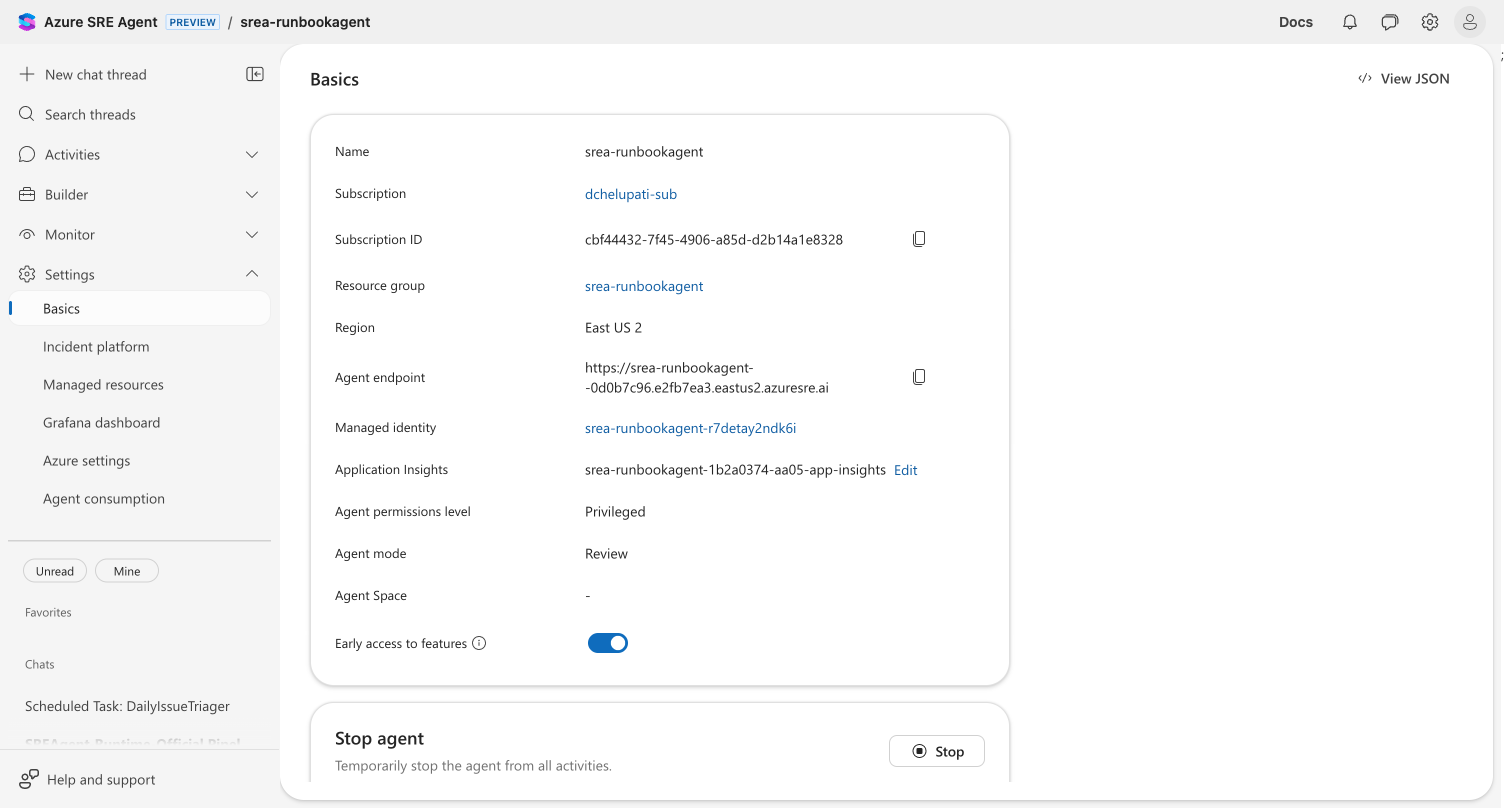
The Early access toggle should show as enabled (blue). Your agent now has access to Code Interpreter.
Step 2: Ask a question that needs computation
- Click New chat thread in the top left
- In the chat input, type a question that requires data analysis:
Analyze the Azure resource groups in my subscription and create a summary
table showing each resource group name and its region.
- Click Send and watch your agent work
Your agent will:
- Query Azure for resource group data
- Write Python code to process the results
- Execute the code in a secure sandbox
- Return a formatted table
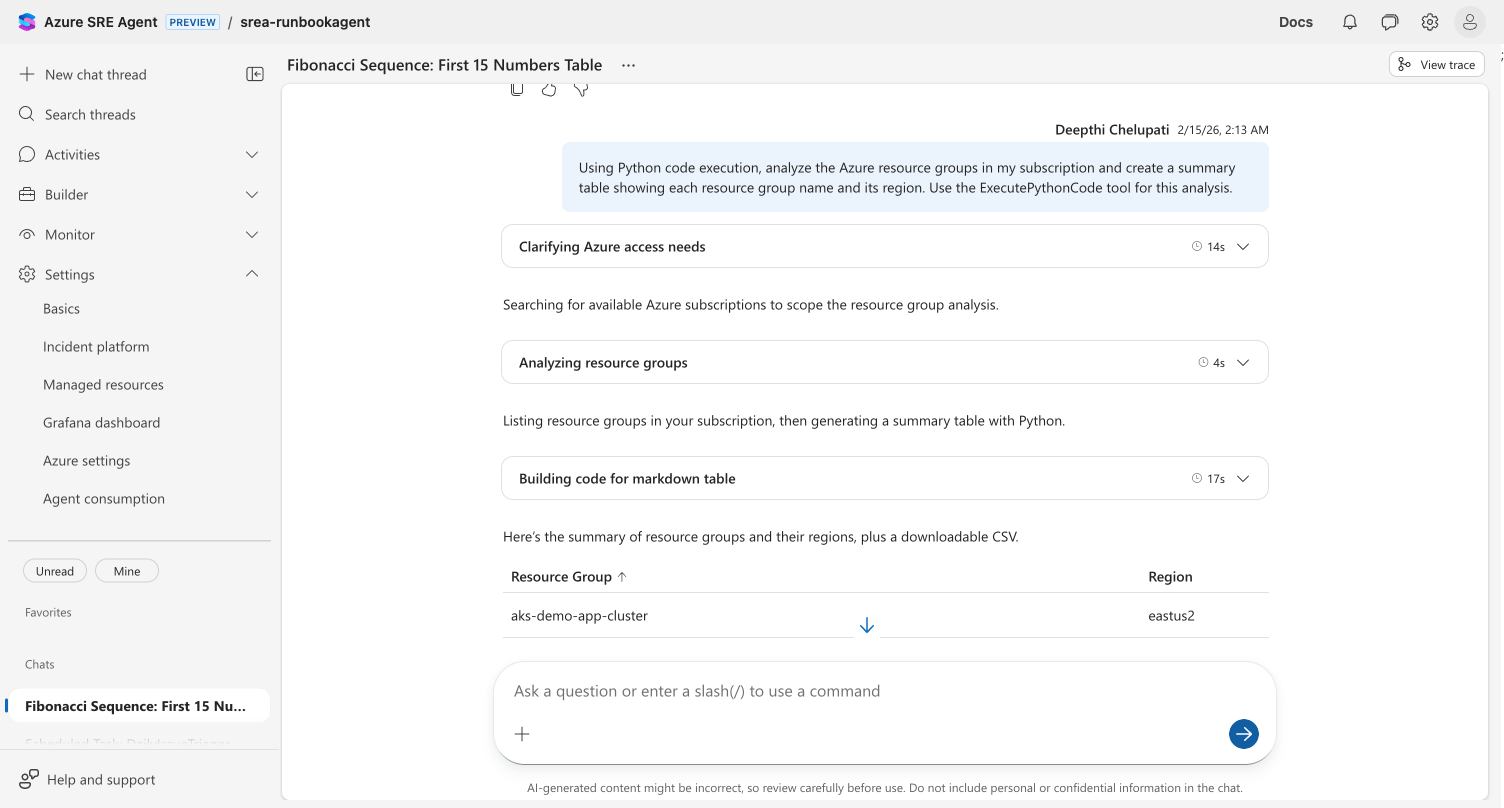
You should see your agent's reasoning steps (e.g., "Clarifying Azure access needs", "Analyzing resource groups", "Building code for markdown table") followed by a formatted table of your resource groups.
Step 3: Download a generated file
Scroll to the bottom of your agent's response. You should see a download link for a CSV file:
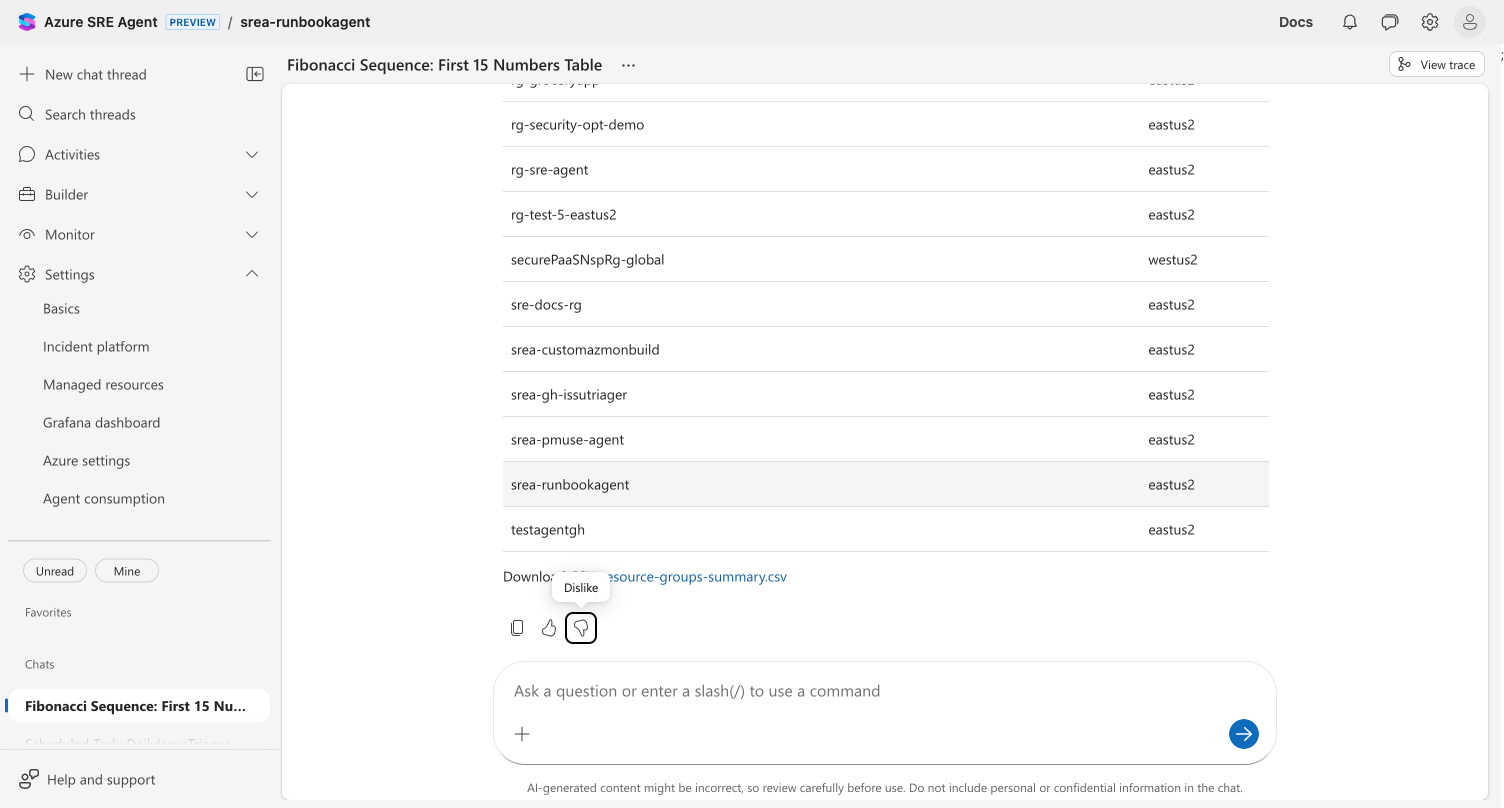
Click the link to download the CSV file and verify it contains the resource group data.
The CSV file should download and contain all the resource groups displayed in the table. This confirms Code Interpreter can generate files you can use outside the conversation.
Step 4: Generate a visualization
Now ask for a chart:
Create a bar chart showing how many resource groups I have in each Azure region.
Include a title and axis labels.
Your agent writes matplotlib code, executes it, and displays the chart inline in the conversation.
An image should appear inline in the chat showing a bar chart of resource groups by region. Code Interpreter can generate visualizations that appear directly in the conversation.
Step 5: Create a PDF report
Finally, ask for a formatted report:
Create a PDF report titled "Azure Resource Group Summary" that includes:
- A summary of total resource groups and regions used
- The table of all resource groups and regions
- The bar chart from the previous step
Save it as resource-group-report.pdf
Your agent combines the data, table, and chart into a formatted PDF and returns a download link.
You should see a download link for resource-group-report.pdf. Download it to verify it contains the summary, table, and chart. This demonstrates the full pipeline: Azure data → analysis → formatted report.
What you learned
| Skill | What you practiced |
|---|---|
| Enable Code Interpreter | Toggled Early access to features on in Settings → Basics |
| Data analysis | Asked questions that triggered Python code execution |
| File downloads | Downloaded generated CSV files from the conversation |
| Visualizations | Created charts displayed inline in chat |
| Report generation | Generated downloadable PDF documents |
| Session continuity | Built on previous results within the same thread |
Troubleshooting
Agent says "I can only assist with Microsoft Azure topics"
Code Interpreter works within the context of Azure SRE tasks. Frame your prompts around your Azure environment:
# Instead of: "Calculate the Fibonacci sequence"
# Try: "Analyze the deployment frequency across my Azure resource groups"
Code execution seems slow
Code execution typically takes 15–30 seconds depending on complexity. The agent needs time to write code, provision a sandbox session, execute, and return results. This is normal — wait for the full response before retrying.
Early access toggle doesn't appear
Verify you have the correct permissions on the agent. You need at least Contributor access to the agent resource to modify settings.
Code execution returns an error
Your agent handles most errors automatically by retrying with corrected code. If errors persist, try:
- Simplifying your request into smaller steps
- Being more specific about the desired output format
- Starting a new chat thread to reset the sandbox session
Next steps
- Python Tools → — Create reusable custom tools (different from Code Interpreter)
- Kusto Tools → — Build deterministic Kusto query tools
- Subagents → — Combine Code Interpreter with other tools in a specialized agent