Code Interpreter
- Analyze data, generate charts, and create PDF reports — all from a chat prompt
- Run Python and shell commands in a secure sandbox with 700+ preinstalled packages
- Upload files for processing and download results directly in the conversation
The problem
When an incident fires or a stakeholder asks for a report, the analysis work falls on you. You pull data from Kusto, export it to CSV, open a Jupyter notebook or Excel, write scripts to parse and aggregate, generate charts, format into a PDF, and share it on Teams. That loop takes 30 minutes on a good day — longer when you're context-switching between tools at 3 AM.
Your agent can already query Azure Monitor and Kusto. But querying data is only the first step. Turning raw query results into insights — aggregations, trend analysis, visualizations, formatted reports — requires computation. Without a code execution environment, your agent can describe what the data shows but can't actually process it.
How Code Interpreter works
When you ask your agent to analyze data or generate a report, it writes Python code, executes it in a secure sandbox, and returns the results directly in your conversation.
| Capability | What it enables |
|---|---|
| Python execution | Data analysis with pandas, numpy, scipy; visualizations with matplotlib, seaborn, plotly |
| Shell commands | File manipulation, text processing with grep/awk/sed |
| File operations | Read, write, search, and list files in the sandbox workspace |
| Report generation | Create PDF, Excel, CSV, HTML, DOCX, and PPTX files for download |
| Network access | Fetch data from APIs, download files, scrape web pages |
The environment comes with 700+ packages preinstalled — including pandas, matplotlib, plotly, reportlab, requests, and Playwright for browser automation.
What happens when you ask a question
- You ask a question that requires computation
- Your agent writes Python code to process the data
- Code executes in an isolated Azure Container Apps session (typically 15–30 seconds)
- Results return to the conversation — text output, inline images, or downloadable files
Each conversation thread gets its own session. Files persist across multiple code executions within the same thread, so your agent can build on previous results.
What makes this different
Code Interpreter runs computations inside your investigation workflow. You don't leave the conversation. You don't context-switch. Your agent reasons about results and continues investigating.
| Before | After | |
|---|---|---|
| Data analysis | Export to CSV, open Jupyter, write script, interpret results | Ask in chat, get analysis with explanation |
| Report generation | Write Python, format PDF, share manually | "Create a PDF report" — download link in chat |
| Quick calculations | Open calculator or write one-off script | Ask the question, get the answer with methodology |
| File processing | Download, local processing, upload results | Upload file, agent processes, download results |
The sandbox goes beyond code execution — it's part of your agent's reasoning loop. Your agent decides when code execution is the right approach, writes the code, runs it, interprets the results, and uses those results to continue the investigation.
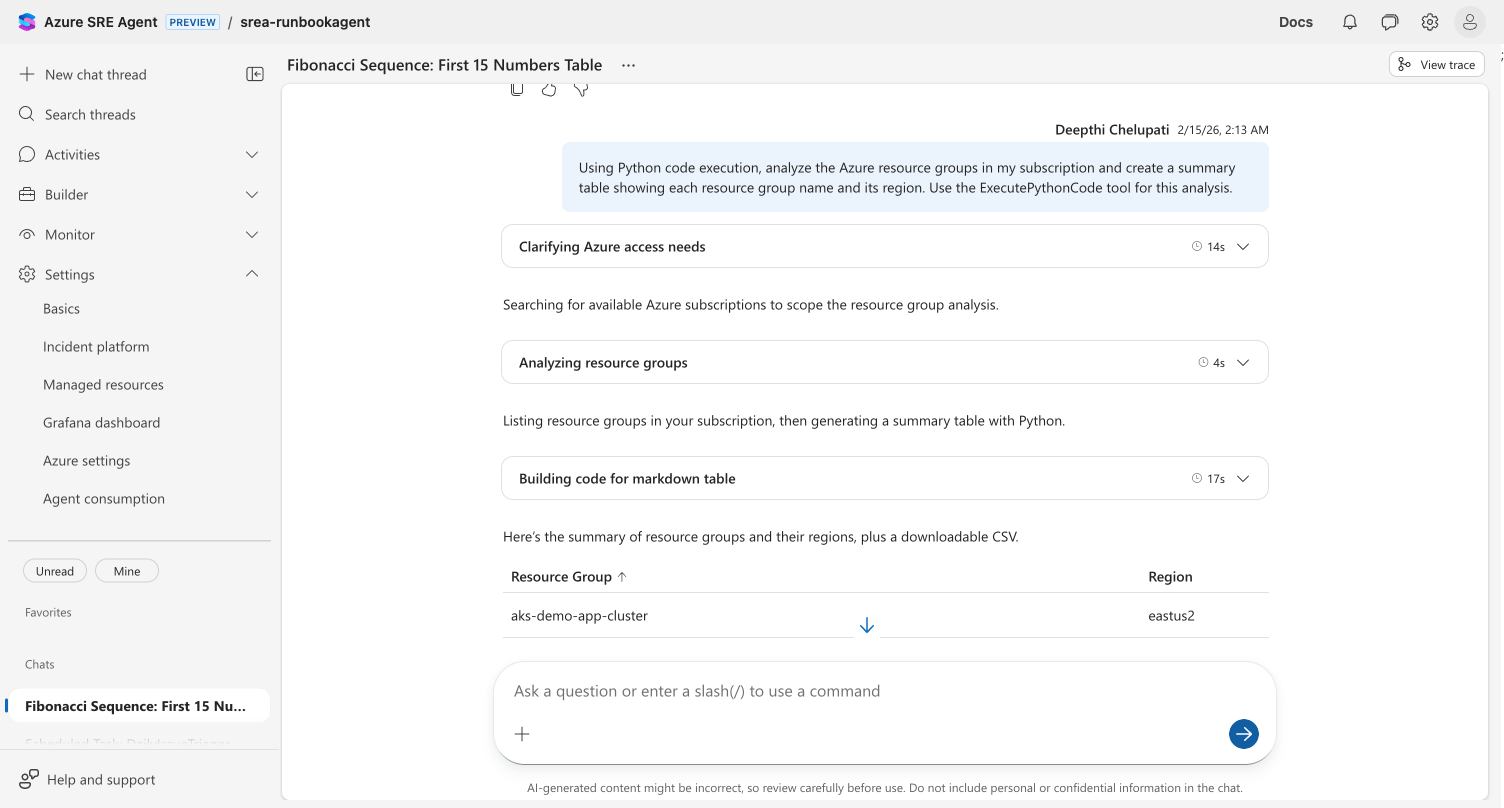
Example: Analyze Azure resource groups
Ask your agent:
Using Python code execution, analyze the Azure resource groups in my subscription
and create a summary table showing each resource group name and its region.
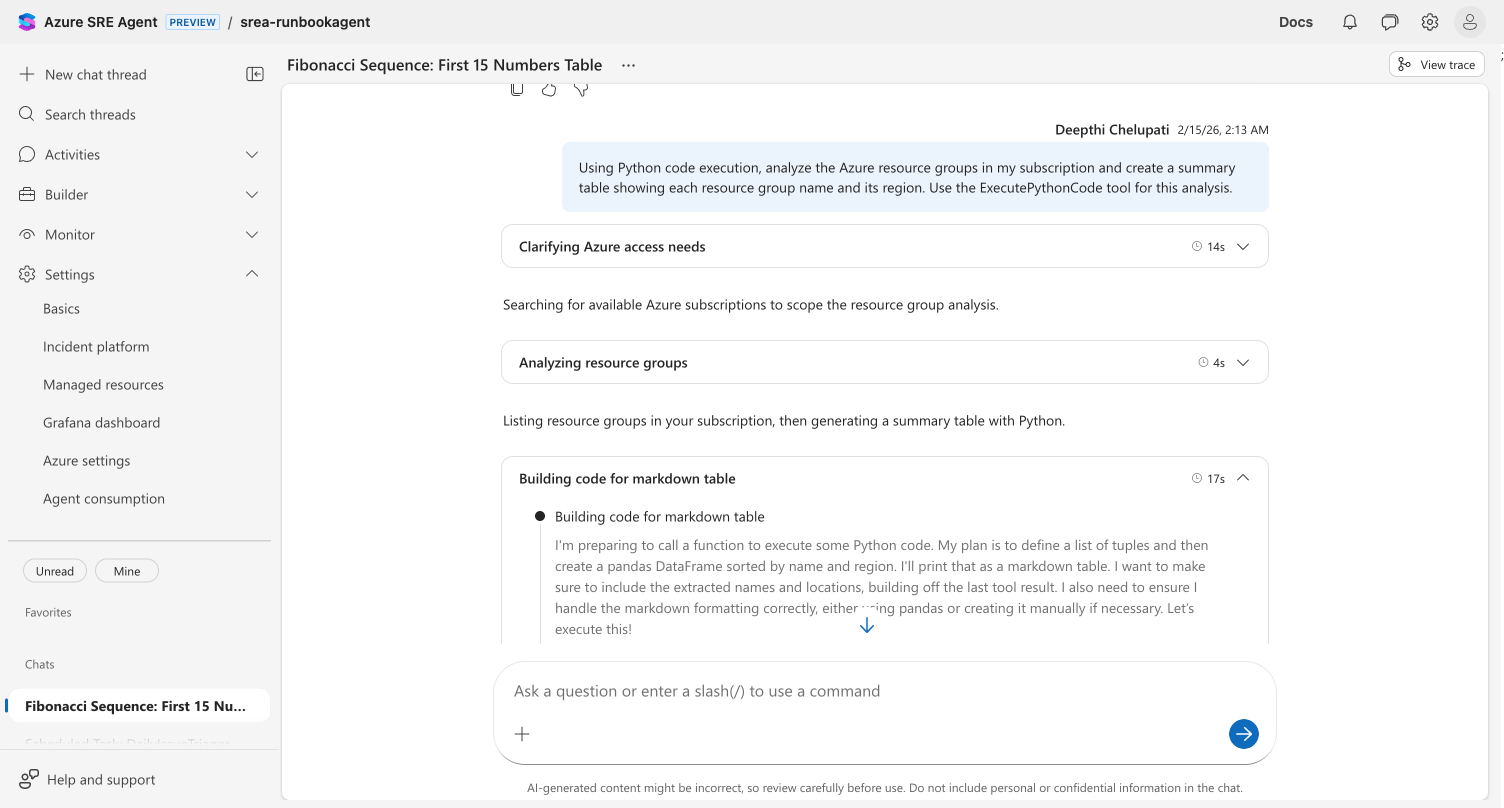
Your agent:
- Queries Azure for resource group data
- Writes Python to create a pandas DataFrame
- Formats the data as a sorted markdown table
- Generates a downloadable CSV file
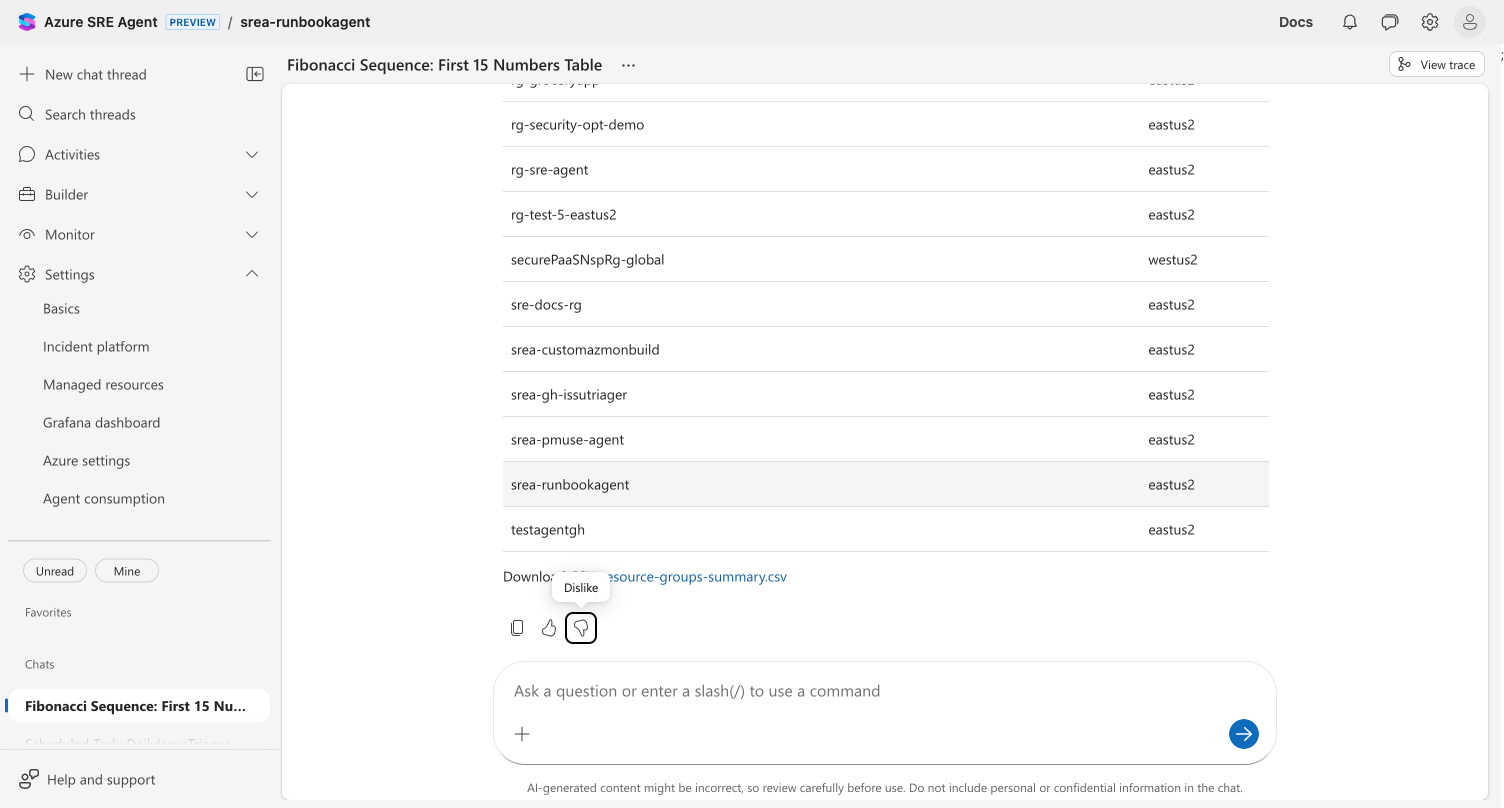
The result includes both the formatted table in chat and a downloadable CSV — all from a single prompt.
More examples
| What you ask | What your agent does |
|---|---|
| "Analyze the last 1000 errors from App Insights and chart the top 10 patterns" | Queries App Insights, aggregates errors with pandas, generates a matplotlib bar chart |
| "Create a PDF report of SLA compliance for the last 30 days by service" | Calculates uptime percentages, builds tables with reportlab, includes trend charts |
| "Compare deployment frequency across my resource groups this month" | Fetches deployment history, computes metrics, formats comparison table with CSV export |
| "Parse this uploaded CSV and show me which services had the most P1 incidents" | Reads uploaded file with pandas, groups and aggregates, returns structured analysis |
Available tools
Code Interpreter provides eight tools your agent uses automatically:
| Tool | What it does |
|---|---|
| Execute Python | Run Python code with 700+ preinstalled packages |
| Run shell command | Execute bash commands for file manipulation and text processing |
| Generate PDF report | Create formatted PDF documents with charts and tables |
| Read file | Read text files with pagination (up to 2,000 lines per read) |
| Search files | Grep-style text search across session files |
| List files | View all files in the sandbox workspace |
| Download file | Retrieve any file from the sandbox for viewing or saving |
| Upload file | Upload files to the sandbox for processing |
Sandbox security
Code runs in an isolated environment with multiple layers of protection:
| Protection | How it works |
|---|---|
| Isolation | Each execution runs in its own Azure Container Apps container |
| Session scope | Files are scoped to /mnt/data — no access to the host system |
| Path controls | Path traversal (../) and absolute paths are blocked |
| Timeouts | Python: up to 900 seconds. Shell: up to 240 seconds |
| Audit trail | All code execution is logged and auditable |
| Network | Outbound access is enabled for API calls and data fetching |
Limits
| Constraint | Limit |
|---|---|
| Python code length | 20,000 characters per execution |
| Python execution timeout | 5–900 seconds (default: 120 seconds) |
| Shell command timeout | 5–240 seconds (default: 120 seconds) |
| PDF generation timeout | 5–900 seconds (default: 180 seconds) |
| File read | Up to 2,000 lines per read |
| Search results | Up to 500 matches per search |
| Output truncation | 4,000 characters (stdout), 2,000 characters (stderr) |
| Background execution | Not supported |
Preinstalled packages
The sandbox includes 700+ Python packages. Here are some commonly used for SRE workflows:
| Category | Packages |
|---|---|
| Data analysis | pandas, numpy, scipy, statistics |
| Visualization | matplotlib, seaborn, plotly |
| Report generation | reportlab, openpyxl, python-docx, python-pptx |
| Web & API | requests, beautifulsoup4, playwright |
| Image processing | Pillow |
| File formats | pyyaml, openpyxl, lxml |
Enabling Code Interpreter
Code Interpreter is available as a preview feature. To enable it:
- Navigate to sre.azure.com and select your agent
- Go to Settings → Basics
- Toggle Early access to features on
Once enabled, your agent automatically uses Code Interpreter when a prompt requires computation, file processing, or report generation. No additional configuration is needed.
Tips for better results
Be specific about what you want
Vague: "Analyze the data"
Specific: "Analyze the last 7 days of deployment data and show me
          which services had the most failed deployments as a bar chart"
Mention output format
"Create a PDF report with..."
"Show me the results as a table"
"Generate an Excel file with..."
Upload files for complex analysis
For large datasets, upload the file rather than pasting data into the prompt. Your agent reads uploaded files efficiently:
I uploaded incident-data.csv. Parse it and show me which services
had the most P1 incidents last month.
Build iteratively
Code Interpreter maintains session state within a thread. Results from one execution are available to the next:
Prompt 1: "List all resource groups and their regions"
Prompt 2: "Now create a bar chart showing how many resource groups are in each region"
Prompt 3: "Export that chart and the data as a PDF report"
Code Interpreter vs Python Tools
| Code Interpreter | Python Tools | |
|---|---|---|
| Purpose | Ad-hoc analysis and report generation | Reusable custom functions |
| Code creation | Agent writes code on the fly | You create and save tools |
| Persistence | Code runs once per request | Tools persist and can be reused |
| Best for | One-off analysis, reports, data processing | Repeatable operations, custom business logic |
Use Code Interpreter for analysis and reports. Use Python Tools for operations your agent should perform repeatedly.
Related capabilities
| Capability | What it adds |
|---|---|
| Python Tools → | Create reusable custom tools for your agent |
| Kusto Tools → | Deterministic, repeatable Kusto queries |
| Azure Observability → | Built-in Azure monitoring and diagnostics |