Allowlist Outbound IPs for Key Vault
Add your agent's outbound IP addresses to a Key Vault firewall so certificate-based connectors can retrieve certificates.
Prerequisites
- An agent in Running state
- An Azure Key Vault with a firewall enabled (set to "Allow access from specific virtual networks and IP addresses")
- Key Vault Contributor or Network Contributor role on the Key Vault resource
Step 1: Find your agent's outbound IPs
- In the agent portal, go to Settings → Basics.
- Find the Outbound IP addresses row.
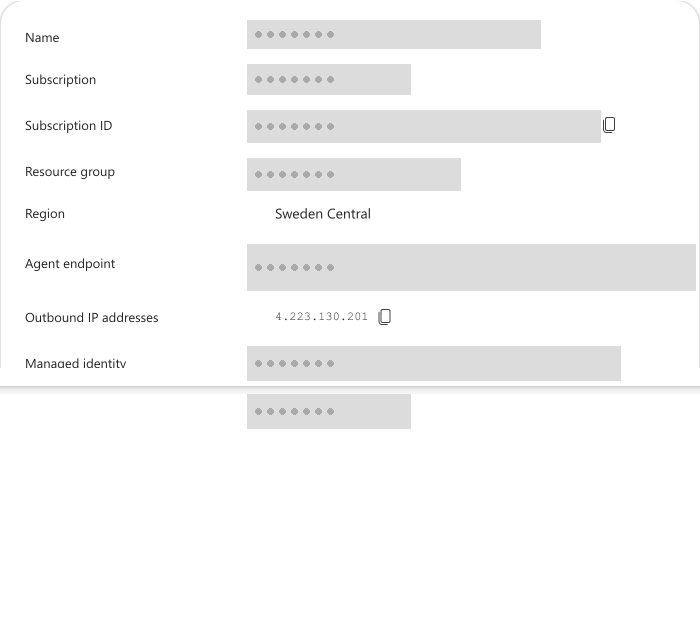
- Click the copy icon next to each IP address to copy it to your clipboard.
tip
The same IPs also appear as an info banner when you configure a certificate-based connector. Either location works.
Step 2: Add IPs to your Key Vault firewall
- Open the Azure portal.
- Navigate to your Key Vault resource.
- Select Networking from the left menu.
- Under Firewalls and virtual networks, confirm Allow access from specific virtual networks and IP addresses is selected.
- In the Firewall section, add each outbound IP address from Step 1.
- Select Save.
Step 3: Verify the connection
- Return to the agent portal.
- Configure or re-test your certificate-based connector.
- The connector should now retrieve certificates from the Key Vault without firewall errors.
Checkpoint
If the connector still fails after adding the IPs, verify:
- All IPs were added (not just the first one)
- The Key Vault firewall changes have been saved
- The agent's managed identity has the correct Key Vault role (Key Vault Secrets User or Key Vault Certificate User)
Next steps
- Network Requirements — full network configuration reference